
Password is one of the sign-in methods for your Microsoft account. If you forget your password, you can use alternative methods to sign in or reset your account password. Some users attempted to reset their Microsoft account password but got stuck in the password reset loop. If such a thing happens to you, the solutions provided in this article will help you.

According to the reports, at times, Microsoft says the password is incorrect even after entering the correct password. The same issue occurs with the Outlook account and continues even after resetting the password. Hence, users get stuck in the password reset loop.
Stuck in Password Reset Loop on Microsoft account
If you get stuck in a password reset loop on your Microsoft or Outlook account, use the following fixes:
- Clear cache and cookies
- Try in Private or Incognito Mode
- Switch to another network
- Do you use a third-party password manager?
- Try other ways to sign in
- Use the account recovery option
All these fixes are explained below in detail.
1] Clear cache and cookies
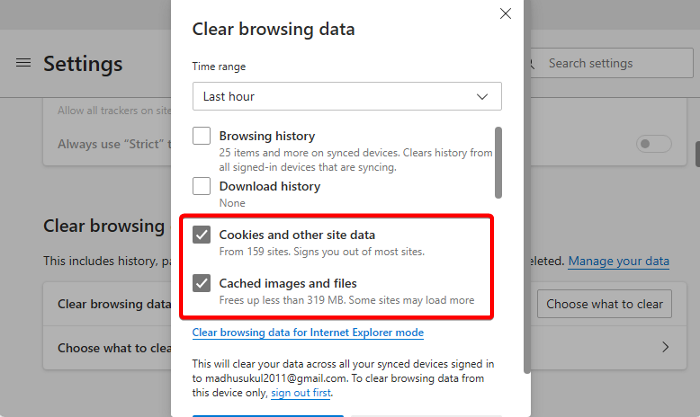
The corrupt cache and cookie data is one of the possible causes of this issue. Therefore, the first step is to clear your browser cache and cookies. Press the Ctrl + Shift + Delete keys to open the clear browsing data window. Now, select the cache and cookies checkboxes and click Clear.
2] Try in Private or Incognito Mode
Launch the incognito or private mode in your web browser and check if you can log in to your Microsoft account there. If this works, the issue might be due to a problematic extension installed on your web browser. To check this, disable all the extensions and log in to your account. In this way, you can find the problematic extension.
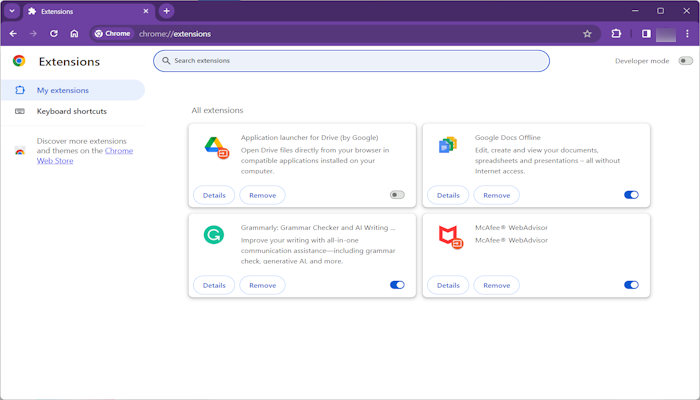
You can also try another web browser and see if the issue persists. If you can log in to your account in another web browser, you can reset the problematic web browser.
3] Switch to another network
Sometimes, such types of issues are associated with a particular network or IP address. Switch to another available network connection and try again. If another network is not available, you can connect your computer to your mobile data through the mobile hotspot.
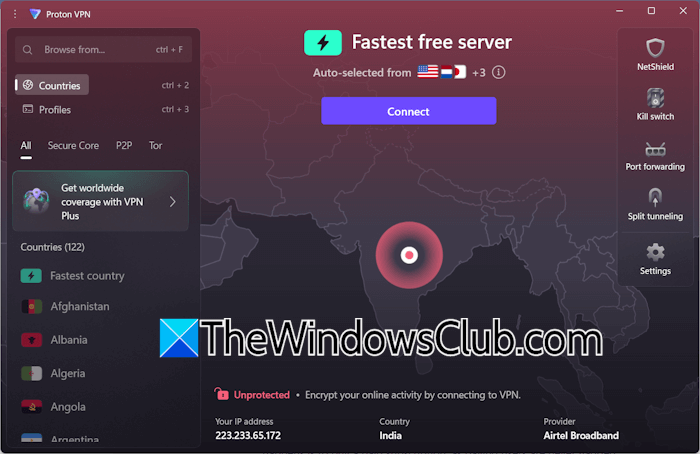
You can also use a free VPN to change your IP address.
4] Do you use a third-party password manager?
Do you use a third-party password manager? If yes, it might cause conflicts when signing into your account or resetting the password. To confirm this, disable or uninstall your password manager software.
5] Try other ways to sign in
Microsoft also allows users to use other sign-in options to log in to their accounts. If you have added other sign-in methods, you can use them instead of using your password.
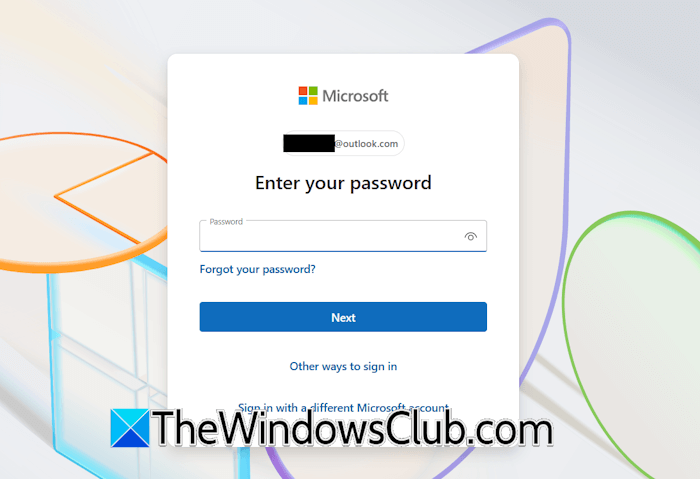
Follow these steps:
- Visit account.microsoft.com in your web browser.
- Enter your account username and click Next.
- You will see the “Other ways to sign in” link on the next screen. Click on it.
Now, select any available sign-in method to log in to your account.
If you cannot access the other sign-in methods, this means you have not added any recovery options or other sign-in methods to your account. In this case, you have to use the account recovery option.
Read: Microsoft Account keeps asking for password
6] Use the account recovery option
If the fixes mentioned above do not work, the last resort is to recover your account. Use your 25-digit account recovery code to recover your account. If you do not have the account recovery code, you can use these steps:
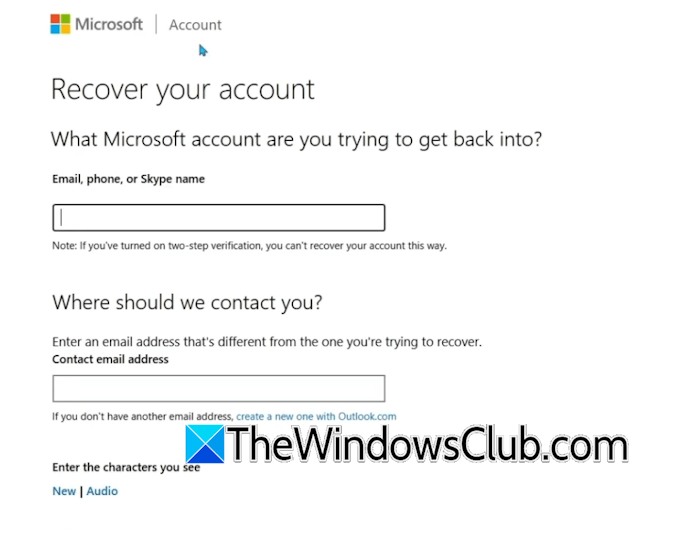
- Enter your username and click Next.
- Click Forgot your password.
- Click Show more verification methods and then click I don’t have any of these.
- After that, Microsoft will ask you to recenter your account recovery code. But you don’t have it. Therefore, click No.
- The account recovery form will open on your screen. Fill out that form to recover your Microsoft account.
Bonus Tip
Here is a bonus tip that can help you avoid permanent account loss in the future. After successfully signing into your account, add other sign-in methods. I also suggest that you create a passkey.
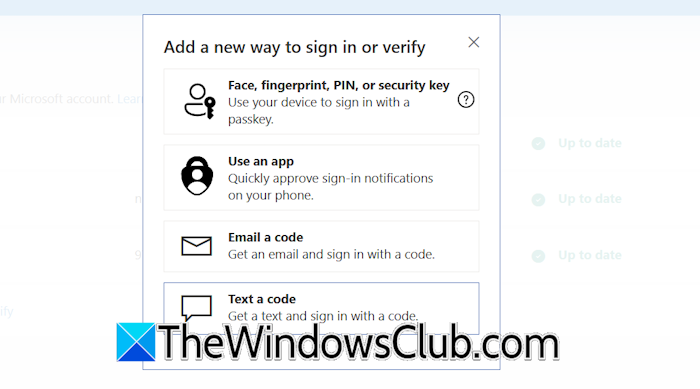
Follow these steps:
- In your Microsoft account dashboard, click Security on the left side.
- Now, click Manage how I sign in.
- Click Add a new way to sign in or verify.
- Click Show more options.
- Add multiple ways to sign in and verify.
To create a passkey, select the Face, fingerprint, PIN, or security key option.
That’s it. I hope this helps.
How do I find out my Microsoft account password?
If you forgot your Microsoft account password, you cannot find it. Instead, you can reset it and create a new password for your account. Additionally, you can also add different sign-in options to your account.
How do I see the password of my account?
You cannot see the password of your account. However, if you have saved your account password to your web browser or another password manager software, you can view it. If you forgot your account password, you can recover your account by resetting the password and creating a new one.
Read next: Accidentally deleted Microsoft Authenticator app.
