
Some users reported encountering the “Account creation has been blocked” error when creating a Microsoft account. As a result, the account creation process remains incomplete, and users cannot access Microsoft services. If you encounter this error while creating a Microsoft account, the solutions provided in this article will help.
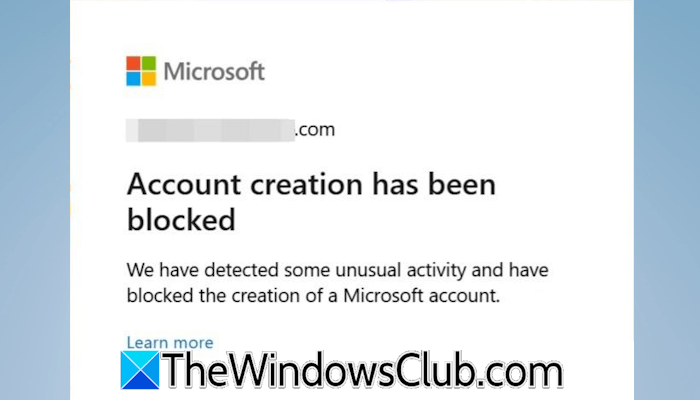
Account creation has been blocked error while creating a Microsoft Account
Use the following fixes if the “Account creation has been blocked” error is preventing you from creating a Microsoft account:
- Switch to another available network
- Clear cache and cookies
- Disable all extensions
- Use Google DNS
- Use a VPN
- Change your web browser
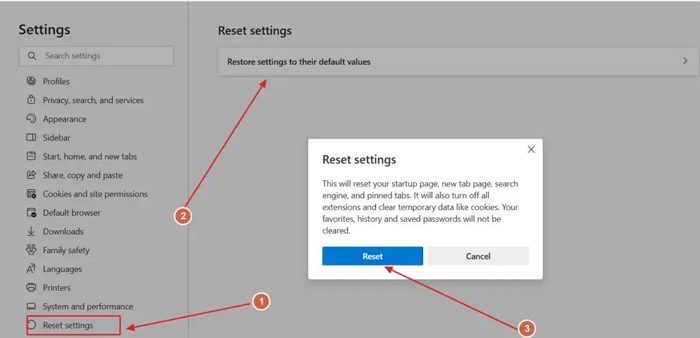
- Reset browser
- Reset your network
All these fixes are explained in detail below. But before you proceed, I suggest you try again later, as the issue might be due to a temporary glitch.
1] Switch to another available network
This issue is usually associated with a particular IP address. Therefore, changing your IP address may help resolve it. The easiest way to do this is to switch to a different network connection. If another network is unavailable, connect your computer to the internet using your mobile hotspot. Then, try creating the Microsoft account again. If the error no longer appears, complete the account creation process.
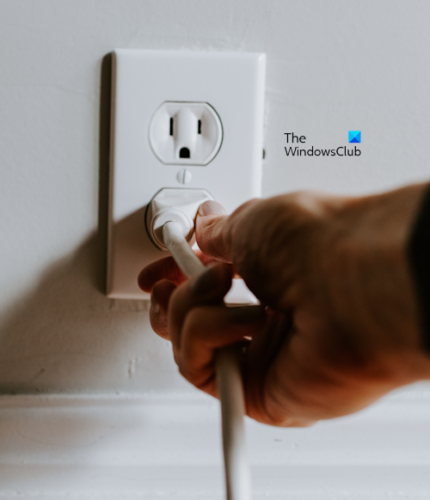
After creating your account, you can reconnect to your previous network. However, if you encounter sign-in issues with your Microsoft account after switching back, power cycle your Wi-Fi router. To do this, follow the steps below:
- Turn off your WiFi router.
- Unplug the adapter from the wall socket and wait for a few minutes.
- Plug the adapter back in and turn on the router.
2] Clear cache and cookies
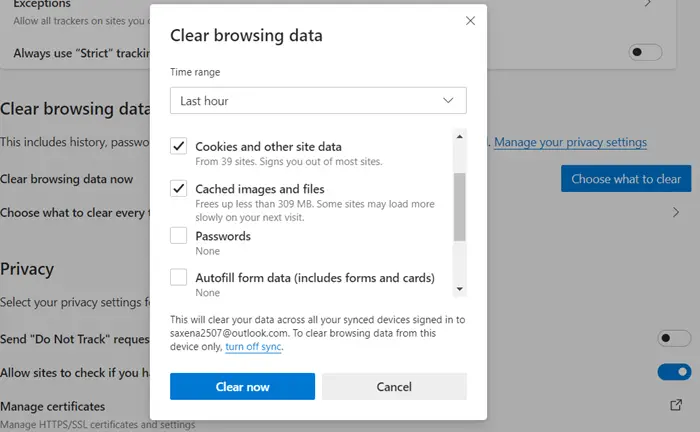
Corrupt cache and cookies can also cause such types of issues. To confirm this, clear Edge cache and cookies. Press the Ctrl + Shift + Delete keys to bring up the Clear Browsing Data window. Now, select the cache and cookies checkboxes, and then click Clear. If you do not want to delete cache and cookies for all the websites, you can delete them only for the Microsoft website.
This post will show you how to clear browser cache, cookies and history in Chrome and Firefox.
3] Disable all extensions
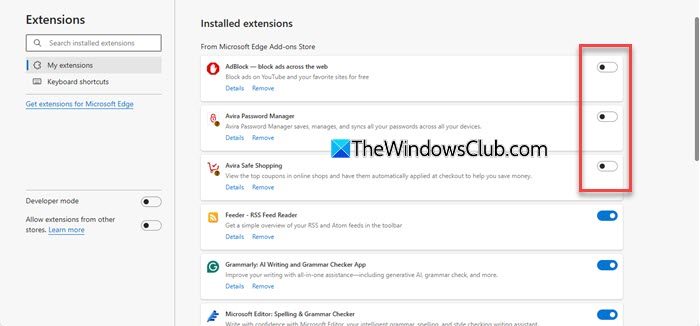
The installed extensions in a web browser can also trigger this error. To confirm whether this happens to you, disable all the Edge extensions in your browser. If you do not encounter the error, complete the account creation process and then enable the extensions.
This post will show you how to manage extensions and addons in Chrome and Firefox.
4] Use Google DNS
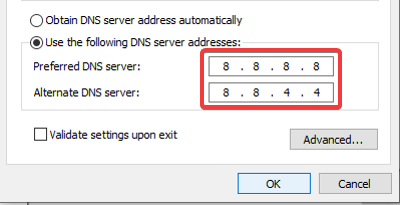
Sometimes, changing the DNS helps fix the network-related issues. I suggest you switch to Google DNS. After doing this, check if you can create the Microsoft account.
5] Use a VPN
As stated above, this issue is primarily associated with a particular IP address. Therefore, changing the IP address can help. To change your IP address, you can either connect to another internet connection or use a VPN. You can use any free reliable VPN, such as Proton VPN. Install the software and launch it. Set up with your email ID. Now, click Connect. Proton VPN automatically searches for free servers and connects you to any one of them.
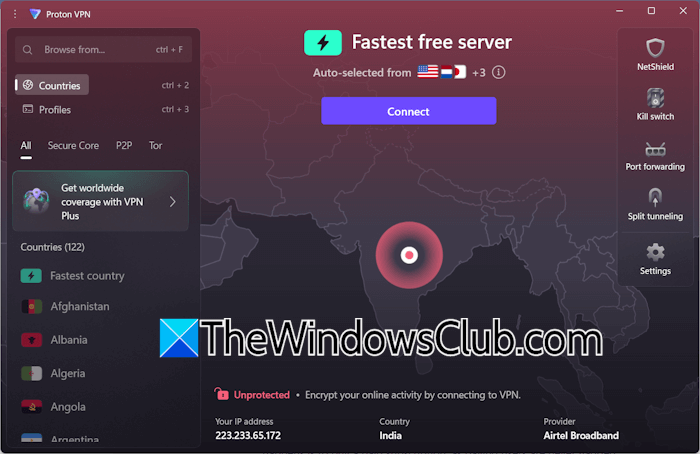
When you are connected to the VPN, reload the page and try creating the Microsoft account again. If you already use a VPN, you can try switching to another server or disconnecting it.
6] Change your web browser
The issue may also be related to your web browser. Switch to another web browser and see if you can create the account there.
7] Reset browser
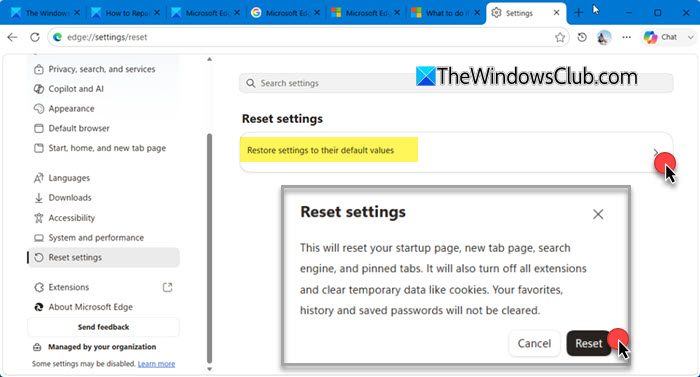
If the error does not occur on another browser, you can reset your browser to avoid login issues with your Microsoft account. This action resets all your browser settings and removes your bookmarks and extensions. Therefore, before proceeding, sign in to the browser with another Microsoft or Google account (whichever applies) to save all your bookmarks and extensions to the cloud.
6] Reset your network
If the issue persists, you can reset your network. Windows 11 allows you to reset the network through Settings. Open Settings and navigate to Network & Internet > Advanced Network Settings. Click Network reset and then click Reset now. When you do this, Windows will remove and reinstall your network adapters and set other networking components to their default values. This entire process takes 5 minutes. After that, your system will restart automatically. Therefore, save all your pending work before proceeding.
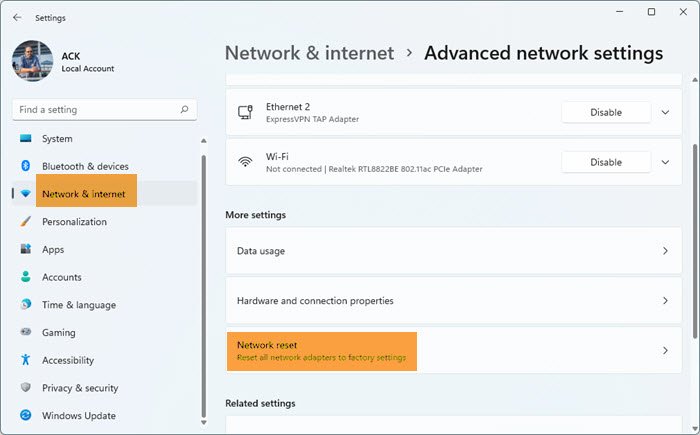
After the restart, you have to enter your WiFi password again. Now, you should be able to create a Microsoft account.
That’s it. I hope this helps.
Why has account creation been blocked?
If account creation has been blocked by Microsoft, it means suspicious activity has been detected on your network. The suspicious activities may include too many sign-in or account creation attempts from a particular IP address. In some cases, using a VPN or a proxy server can also trigger Microsoft’s security checks.
What to do if your account has been blocked?
When your Microsoft or Google account is blocked, an email is sent to another account linked to that account. Read that email to know why your account has been blocked. If you haven’t violated any policy, you can appeal to Microsoft or Google to unblock your account.
Read next: Can’t sign into Microsoft account after Password Reset.
