
Passkeys are the best and most convenient way to sign into a Microsoft account. By setting up Passkeys, you can make your account password-less. This makes your account more secure because hackers can’t steal a password. You should also set up more than one sign-in method so you can use another if one doesn’t work. This article explains the ways you can use to regain access to your account if your Microsoft account passkey is not working.
Microsoft Account Passkey is not working
Follow these suggestions to prevent getting locked out of your account if your Microsoft passkey is not working:
- Try in incognito or private mode
- Use other ways to sign in
- Use the Recovery Code
- Use Microsoft Sign-in Helper
- Remove Windows Hello and configure it again
- Recover your account using the Microsoft account recovery form
All these fixes are explained in detail below. Before proceeding, clean your fingerprint sensor (if your passkey is your fingerprint). The fingerprint sensor should be clean enough to recognize your fingerprints. If the sensor is dirty, it may fail to recognize your registered fingerprints. If the issue persists even after cleaning the fingerprint sensor, follow the solutions provided below.
1] Try in incognito or private mode
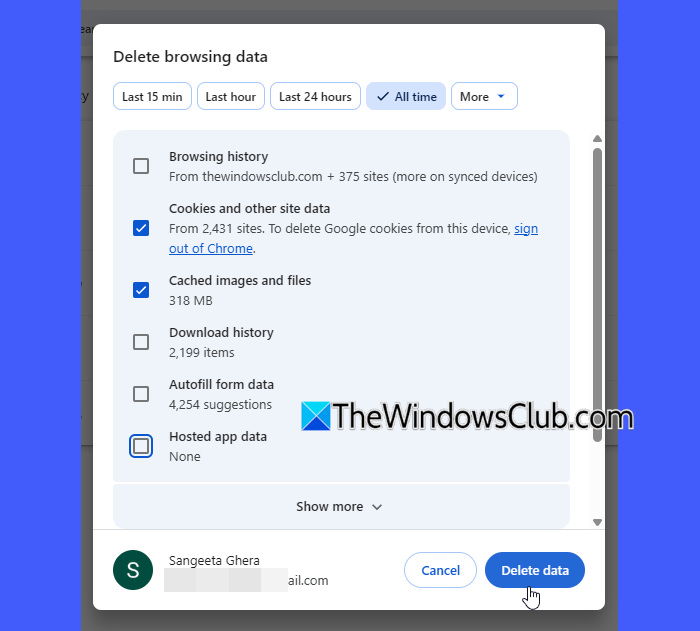
Sometimes, sign-in issues occur due to a corrupt cache and cookies. To confirm this, see if you can sign into your Microsoft account in a private or incognito browser window. If that works, clear your browser cache and cookies. You can also try signing into your account on another web browser.
2] Use other ways to sign in
If you have set up multiple ways to sign into your Microsoft account, you can use any of them to regain access to your account. Other ways to sign into a Microsoft account include:
- Sending a code to the registered alternate email address.
- Sending a code via a text message to your registered phone number.
- Approving the sign-in request on your phone through the Microsoft Authenticator app.
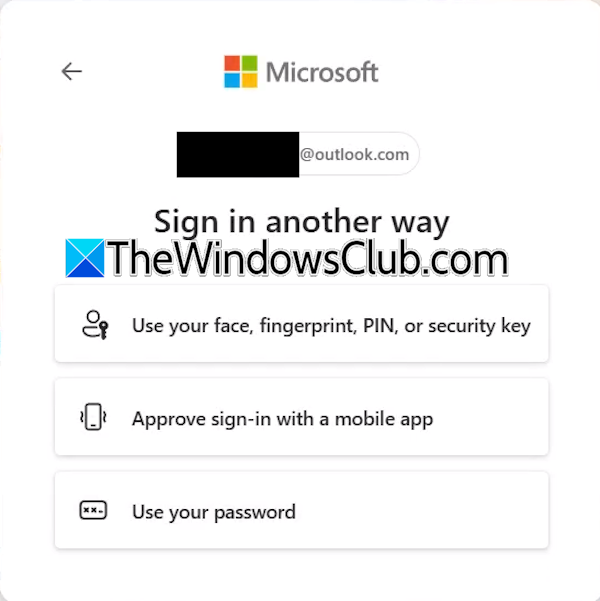
On the sign-in screen, click Other ways to sign in. After that, Microsoft will show you all the alternate methods you have added to sign in to your account. Select any one of those methods and proceed with the on-screen prompts.
3] Use the Recovery Code
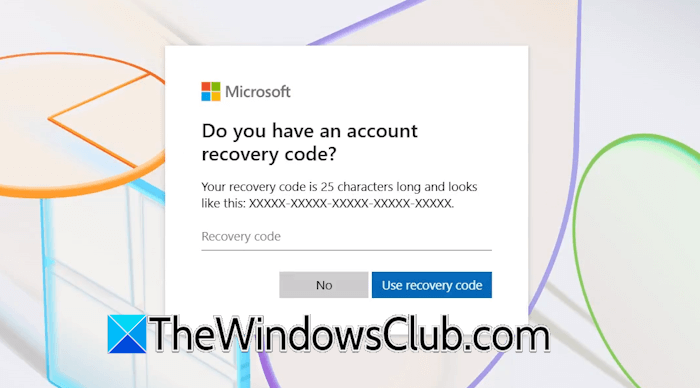
A recovery code is a 25-character code that helps you sign back in to your account if you lose access to your sign-in credentials. If you have ever generated a recovery code and have access to that code, you can use it to sign in to your account.
4] Use Microsoft Sign-in Helper
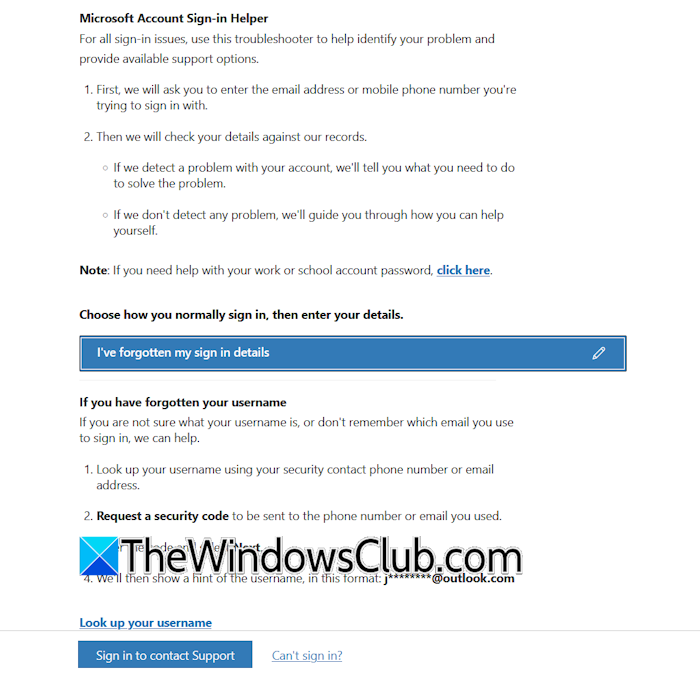
The Microsoft Sign-in Helper is an online troubleshooting tool designed to help you regain access to your Microsoft account if you lose access to your account login credentials. Visit the official Microsoft page to access the Microsoft account sign-in helper. After that, the tool will ask you some automated questions. Select the most appropriate answer. If you succeed, you will gain access to your account.
5] Remove Windows Hello and configure it again
If you are logged into your Windows computer and have set up only one sign-in method on your Windows device, add more sign-in options. After adding more sign-in options, check if you can sign in to your Microsoft account in your browser. However, if you have already added multiple sign-in options on your Windows device, remove and re-add any one Windows Hello sign-in method to your account.
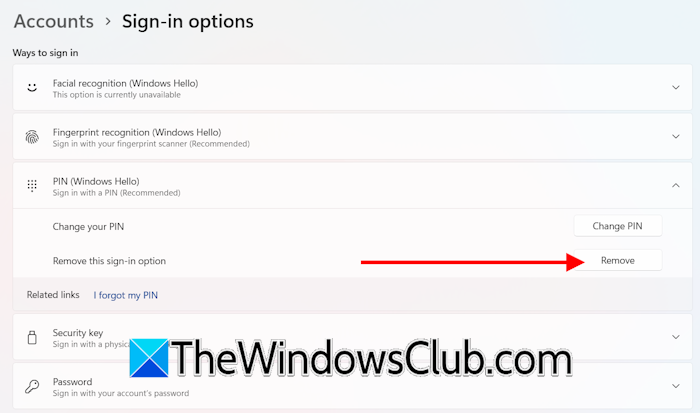
Follow these instructions to remove and re-add Windows Hello sign-in options:
- Open Windows 11 Settings.
- Navigate to Accounts > Sign-in options.
- Click any one of the Windows Hello sign-in options.
- Click Remove.
After removing the Windows Hello sign-in option, add it again to your account. When you are done, check if you can sign in to your account in a browser.
6] Recover your account using the Microsoft account recovery form
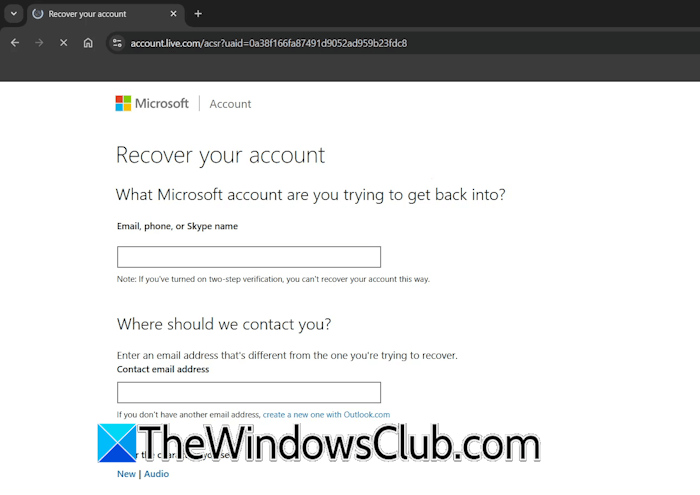
If nothing helps, the last resort is to recover your account by filling out the Microsoft Account Recovery Form. You can access this form through the Get Help app on your system or in a browser. If you are locked out of your system, you need another computer to access this form. On another computer, open a web browser and visit Microsoft’s official website to access this form. In the account recovery form, fill in all the details correctly to increase the chances of your account recovery. You can retry if your first step fails. Do note that the account recovery form will not help if two-step authentication is active on your Microsoft account.
That’s it. I hope this helps.
How to log in to a Microsoft account without a passkey?
To log in to your Microsoft account without a passkey, use other sign-in methods. If you have added the same account on another computer, log in to that computer and visit the Microsoft website in a browser. Now, sign into your Microsoft account and add other ways to sign in.
How to enable a passkey on Microsoft account?
To enable a passkey on your Microsoft account, add it to your account. Log in to your Microsoft account in a browser and then navigate to Security > Account Security > Manage how I sign in. Now, click Add another way to sign in to your account and select Face, fingerprint, PIN, or security.
