
Some users report that their Microsoft account is showing as a Child account. This creates a problem because Microsoft Child accounts have several restrictions and limitations, such as app and game limits, web filtering, and screen time limits. Additionally, many advanced features are also inaccessible in Child accounts. If you encounter this issue, this article will help.
Microsoft account is showing as a Child account
Use the following suggestions if your Microsoft account is showing as a Child account:
- Check the age limit for Child accounts in your country
- Check the account privacy settings of the Family Organizer
- Check the year of birth
- Remove the parental consent
- Remove your account from the family group
All these suggestions are explained in detail below.
1] Check the age limit of Child accounts in your country
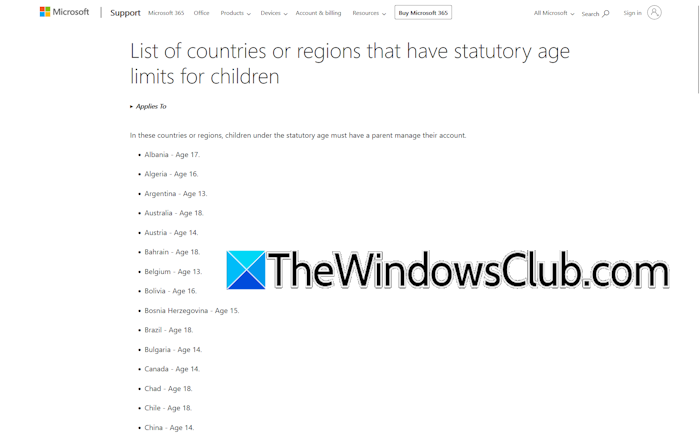
The age limit for Microsoft child accounts varies by country. In some countries, it is 17, and in others, it is 13, 14, 15, 16, etc. Visit the official Microsoft website and check the maximum age limit for Microsoft child accounts. Once you know the exact age limit for Microsoft child accounts in your country, you will know your next step, whether you need to troubleshoot further to fix the issue.
2] Check the account privacy settings of the Family Organizer
If your account is added to a Microsoft Family Safety Group, check your Family Organizer’s privacy settings. This will let you know whether your account is added as the child account to the Family Group.
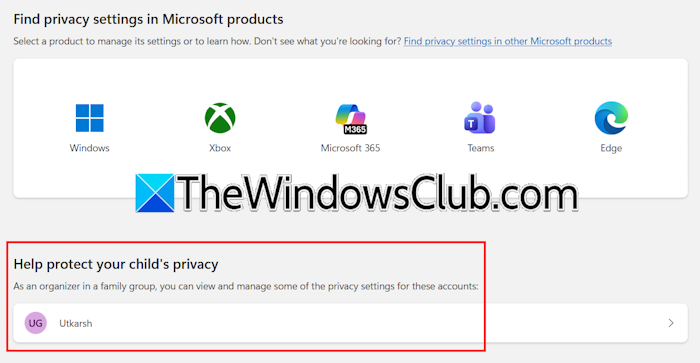
Follow these steps:
- Ask your Family Organizer to sign into their account.
- Select Privacy from the left side.
Now, scroll down to the bottom. You will see the “Help protect your child’s privacy” section. This section shows all the Child accounts added to the Microsoft Family Group and managed by the Family Organizer. If you see your account under this section, this means that your account is added as a child account to the Microsoft Family Group.
3] Check the year of birth
If you are older than the maximum age limit for Microsoft child accounts in your country, your birth year might be set incorrectly. You might have mistakenly changed your birth year. If you set your birth year to your Microsoft account in a way that makes your age below the minimum age required for an adult account in your country, your Microsoft account will automatically convert into a Child account.
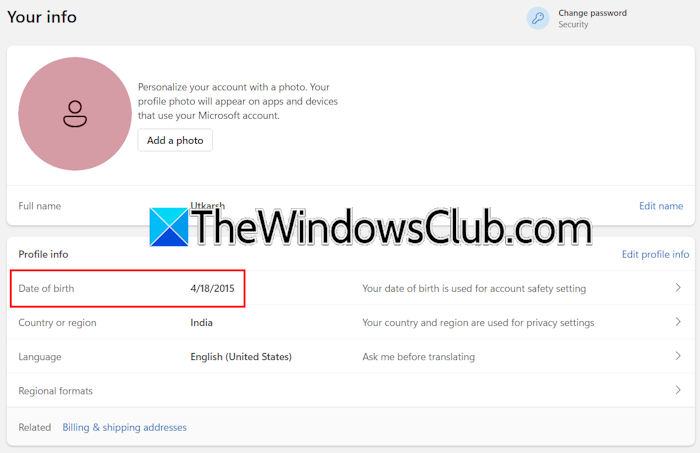
Follow these steps:
- Sign in to your Microsoft account in your web browser.
- Select Your info from the left side.
You will see the date of birth set on your account. If it is incorrect, see if you can change it. To do so, click the Edit profile info link. You may not be able to change the birth year because this feature is restricted for child account users. Therefore, change it through your Family Organizer’s account. If your child account is not added to Microsoft Family Safety, try this workaround. Create a new Microsoft account and log in to Microsoft Family Safety with that account. After that, add your child account to Microsoft Family Safety. Now, you are the Family Organizer with your new Microsoft account. You can now change your child’s birth year.
Follow these steps:
- In Microsoft Family Safety, click on the three dots next to your child account.
- Select Manage consent.
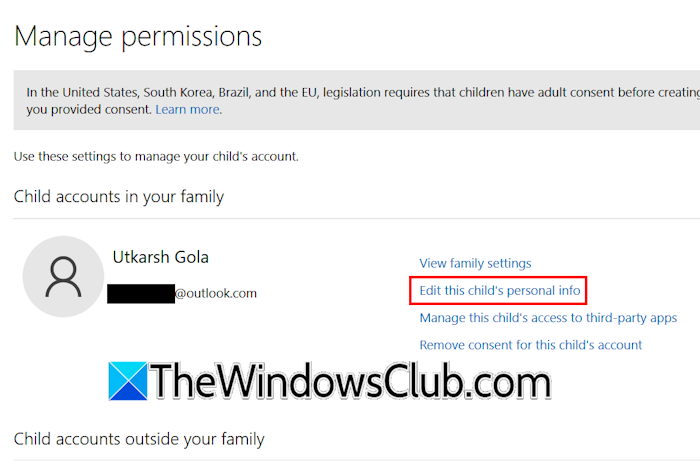
- The Manage Permissions page will open. Click Edit this child’s personal info.
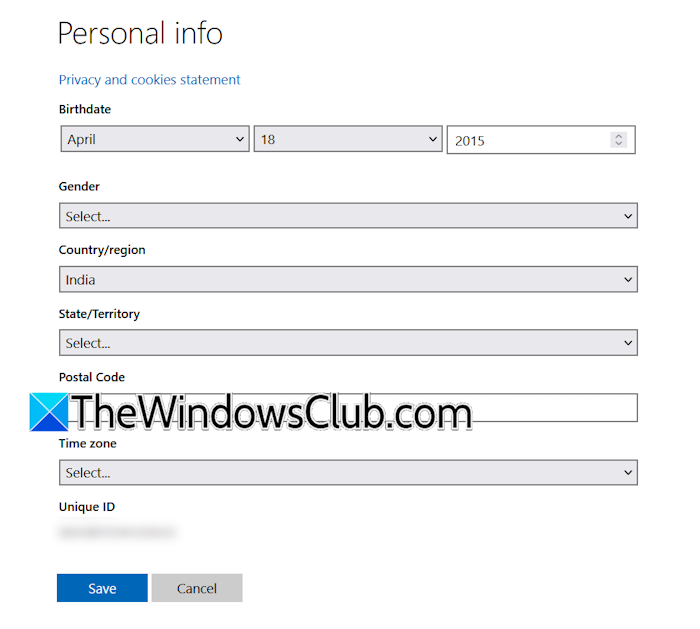
After that, you will land on your child account’s personal info page, where you can change the year of birth easily. After changing the year of birth, the problem will be fixed.
4] Remove the parental consent
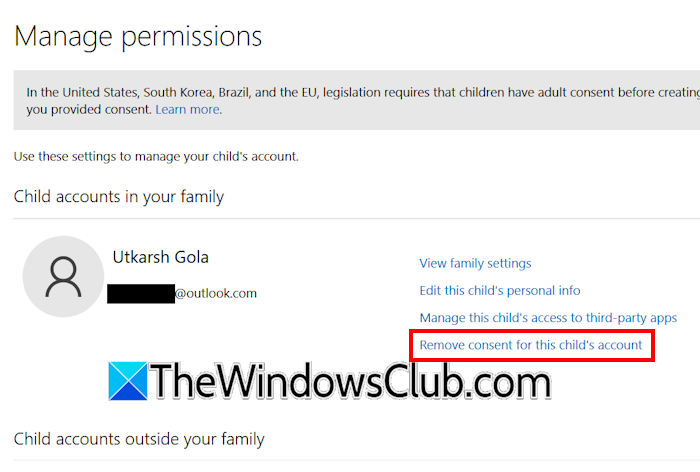
If your Child account is added to Microsoft Family Safety, it will have some parental restrictions. Remove the parental consent for your child account from Microsoft Family Safety. For this, you need to log in to the Family Organizer’s account. After signing in to Microsoft Family Safety with the family organizer’s account, open the Manage permissions page for your child account. Once you are there, click Remove consent for this child’s account.
5] Remove your account from the family group
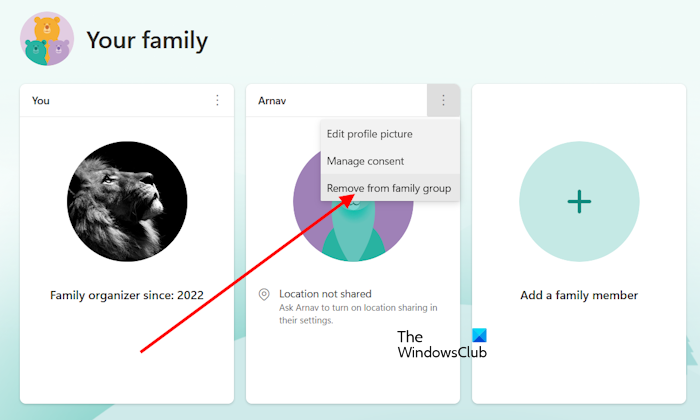
The last step is to remove your child account from Microsoft Family Safety. Before you do so, make sure that you have changed the year of birth in your Child account settings through the Organizer’s account. Now, sign into Microsoft Family Safety with your Family Organizer’s account and click on the three dots next to your child account. Select Remove from family group.
That’s it. I hope this helps.
Related: Child account not showing in Microsoft Family
Why is my Microsoft account saying I’m a child?
Your Microsoft account is saying that you are a child because of the incorrect year of birth set to your account. Check this and change it. Since your account is considered a child account, you need to add that account to your Family Group and then change the birth year through your Family Organizer’s account.
How do I change my Microsoft account out of Child mode?
To change your Microsoft account out of child mode, you just have to change the year of birth. Visit the official Microsoft website to find the maximum age limit for a child account in your country, then update your birth year accordingly.
Read next: Account creation has been blocked by Microsoft.
