
Microsoft Family Safety is a centralized place where parents can manage their kids’ Microsoft accounts, including screen time, online activity, and content access. You can also add Microsoft accounts of other members of your family. Some users cannot manage their family members’ accounts via Microsoft Family Safety because of the “Something went wrong” error. The same error also occurs when managing the existing family members’ accounts. If you encounter the Something went wrong error in Microsoft Family Safety, the solutions in this article will help.
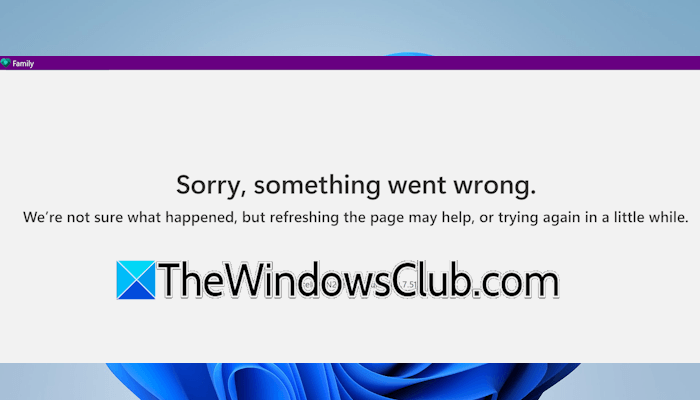
The complete error message is:
Sorry, something went wrong.
We’re not sure what happened, but refreshing the page will help, or try again in a little while.
Something went wrong in Microsoft Family
Use the following fixes if you encounter the Something went wrong error in Microsoft Family Safety while managing or adding family members’ accounts:
- Preliminary fixes
- Clear cache and cookies
- Connect to another network
- Remove and add the member
- Use the Microsoft Family Safety app on your phone
- Add the member through Windows 11 Settings
All these fixes are explained in detail below:
1] Preliminary fixes
Before moving to the advanced troubleshooting steps, try the following preliminary steps to see if they resolve the issue:
- Refresh the page or try after some time: If you read the error message, you are directed to reload the page. Press Ctrl + R to refresh the page. If this does not work, wait a while and try again later.
- Sign out of your Microsoft account and sign back in. Sometimes this simple trick resolves the issue.
- If you use a VPN, disable it temporarily.
2] Clear cache and cookies
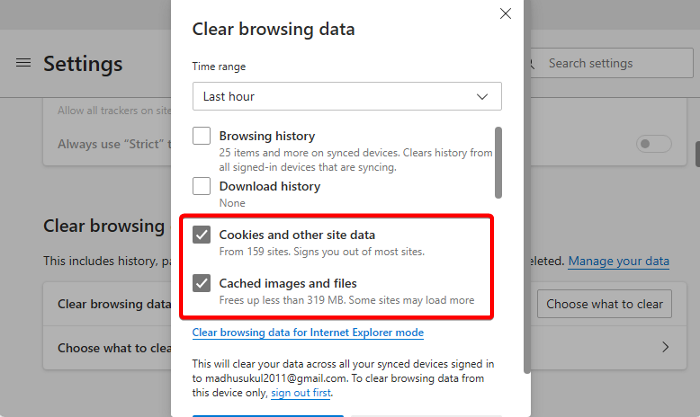
If the issue persists, the corrupt cache and cookie data might be responsible. Try clearing the cache and cookies and see if this helps. Press the Ctrl + Shift + Delete keys in your web browser to bring up the Clear Browsing Data window. Now, select the corresponding checkboxes for cache and cookies, and click Delete. If you do not want to clear the entire cache and cookie data, you can delete it only for the Microsoft website.
3] Connect to another network
Connect to another available network. You can also connect your system to your mobile data through a mobile hotspot. If the issue does not occur after switching to another network, power cycling your WiFi router can help. For this, follow these steps:
- Switch off your WiFi router.
- Unplug its adapter from the wall socket.
- Plug the adapter back into the socket and turn on the router.
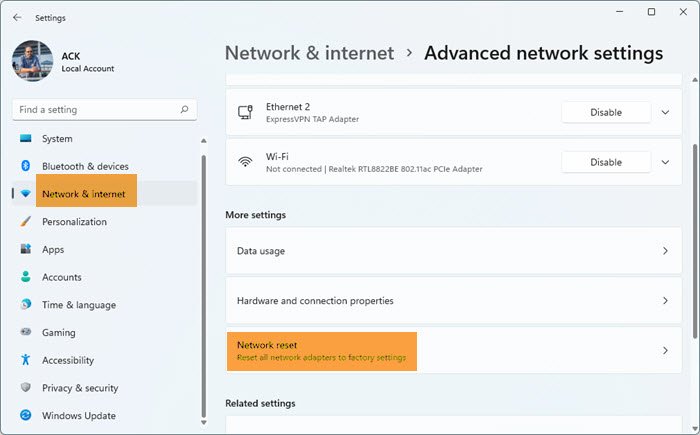
Now, check if you can add or manage the family members in your Microsoft Family account. If the same error pops up again, try to reset your network. A network reset fixes most of the network-related issues. Windows takes 5 minutes to perform this action, as it reinstalls your network adapters and resets the networking components to the default. After 5 minutes, your system will be rebooted automatically. Therefore, save all your pending work before proceeding.
4] Remove and add the member
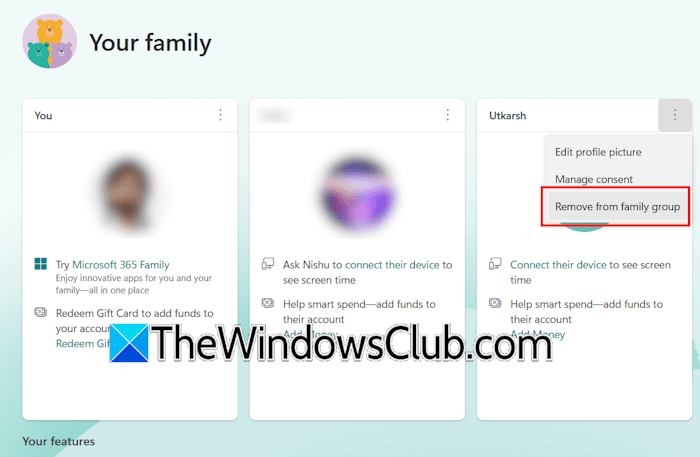
If the error occurs while managing a family member in Microsoft Family Safety, you can try removing and re-adding that member. To remove a member from Microsoft Family Safety, click the three dots and select Remove from family group. Follow the on-screen prompt to complete the action. If you again encounter the Something went wrong error in Microsoft Family Safety while removing that member, try an alternative. However, it will only work if the account is not the child account.
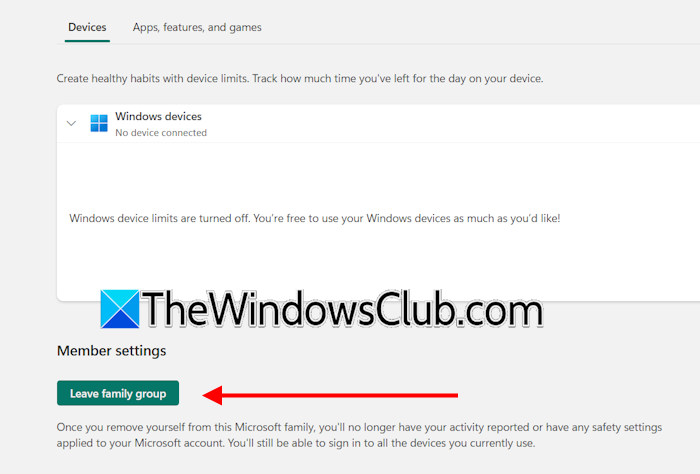
Open a new browser and visit the Microsoft Family Safety page. Now, sign into Microsoft Family with that person’s account. Click on that person’s account in Microsoft Family and scroll down. Now, click Leave family group. Follow the on-screen prompts to complete the action. Now, add that member to your family group again.
5] Use the Microsoft Family Safety app on your phone
You can also use the Microsoft Family Safety app on your phone to manage your family members. Install the app from the Google Play Store or App Store and log in with your Microsoft Family Organizer account. Now, try adding a new member or managing the account of an existing member.
6] Add the member through Windows 11 Settings
You can try adding the family member via Windows 11 Settings. Follow these steps:
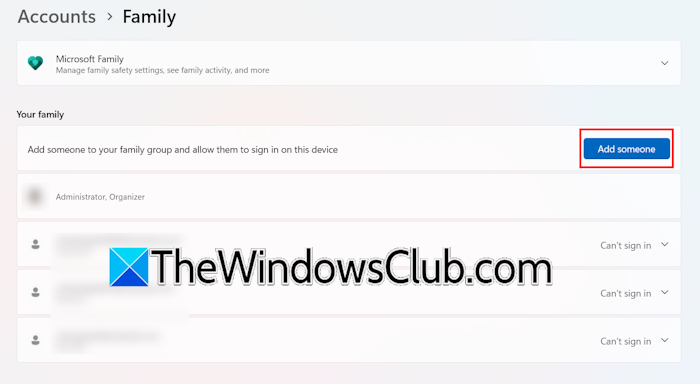
- Open Windows 11 Settings.
- Navigate to Accounts > Family.
- Click Add someone.
- Add the Microsoft account credentials for that person and follow the on-screen instructions.
After adding the account, it will automatically appear on your Microsoft Family dashboard in your browser.
That’s it. I hope this helps.
Why is Microsoft saying Something went wrong?
If you encounter the Something went wrong error while signing into your Microsoft account, there may be temporary issues with Microsoft servers. You can check the Microsoft service status on its official website. Other possible causes are an unstable internet connection or a corrupt browser cache. Sometimes, the error also occurs when you are connected to a VPN.
How to fix Oops, Something went wrong?
The “Oops, something went wrong” error while signing into your Microsoft account usually occurs due to network issues. Resetting your network can help fix this problem. If this does not work, try logging into another browser or clearing your browser’s cache and cookies.
Read next: This device is locked because of Family settings for screen time.
