
Microsoft Family Safety is a centralized place to add and manage all the Microsoft accounts in your family, including child accounts. Some users report that they don’t see their children’s accounts in their family group. This problem occurs due to several causes. If the Child account is not showing in Microsoft Family Safety, follow the step-by-step instructions provided in this detailed guide.

Child account is not showing in Microsoft Family
Use the following fixes if the Child account is not showing in Microsoft Family Safety:
- Sign in with the correct parent account
- Did anyone create another family group?
- Check your child’s email for a pending invitation request
- Check your child’s birth year
- Re-add the child account
- Add your child to Microsoft Family Safety via Windows 11 Settings
- Contact Microsoft Support
All these fixes are explained in detail below.
1] Sign in with the correct parent account
Make sure you are signed in with the correct parent account. You will see your children’s accounts in the family group only if you are signed in with the same parent account that you used to create the family group.
2] Did anyone create another family group?

One person can become a member of only one family group in Microsoft Family Safety. If a person is added to another family group, he has to leave that group before joining another family group. This can be the case with you. Check if someone in your family has created another family group. If so, check if your child is a member of that family group. Log in to Microsoft Family Safety using your child’s account credentials. After logging in, see who the organizer is. If someone else is the organizer, log in to Microsoft Family Safety using their account and remove your child’s account.
3] Check your child’s email for a pending invitation request

When you add your child to your family group, Microsoft Family Safety sends him an invitation link. He will be added to your family group only if he accepts the invitation by clicking on that link. Log in to Outlook using your child’s account credentials and search for such an email. If you find the invitation email, click on the Accept Invitation link to add your child to your Family Group.
Do note that the invitation link expires automatically after 14 days. If the email is older than 14 days, you’ll need to resend the invitation email.
4] Check your child’s birth year
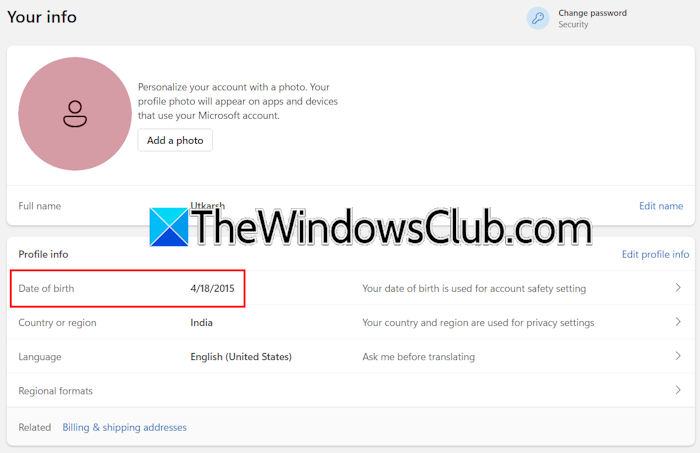
Birth year is an important factor to determine whether a Microsoft account is an adult account or a child account. The maximum age limit for a child account varies by country. You can get the complete information on Microsoft’s official website. If your child’s age exceeds the maximum age limit for a child account in your country, his account will no longer be treated as a child account. Once you know the maximum age limit for a child account in your country, the next step is to check the birth year set in his account. If the birth year is incorrect, change it.
5] Re-add the child account

You can add the child account to your family group again. Log in to Microsoft Family Safety using your account credentials and click Add a family member. A new window will appear where you can select the person as an organizer or a member. Select Member and click Next. Follow the on-screen instructions to complete the process. In the end, an invitation email will be sent to your child’s account. Log in to his Outlook account and click the invitation link to accept the invitation. After completing the entire process, your child will be added to your family group.
6] Add your child to Microsoft Family Safety via Windows 11 Settings
You can also add your children to Microsoft Family Safety via Windows 11 Settings. This will only work if you are signed in to your Windows 11 computer with the same account that is set as the organizer in Microsoft Family Safety.

Follow these instructions:
- Open Windows 11 Settings.
- Navigate to Accounts > Family.
- Click Add someone and proceed with the on-screen prompts.
7] Contact Microsoft Support

If none of these suggestions work, you can contact Microsoft Support for further assistance. Open your web browser and log in to your Microsoft account to get live chat support.
That’s it. I hope this helps.
Related: Microsoft account is showing as a Child account.
How do I add a child to Microsoft Family?
You can add your children to Microsoft Family Safety via Windows 11 Settings or by logging in to your Microsoft Family account in your web browser. To do this, you must be the organizer of your family group. Open Windows 11 Settings and navigate to Accounts > Family, and then click Add someone. Follow the on-screen prompts to complete the process.
How do I change a child’s age on Microsoft Family?
To change your children’s age in Microsoft Family, you should be the organizer of your family group. Click on the three dots on your child’s card and select Manage consent. After that, click Edit this child’s personal info. Now, you can change the birth year of your child.
Read next: This device is locked because of family settings for screen time.
