
Some users encounter the “There was an issue looking up your account” error while adding their Microsoft account to Microsoft Authenticator. If you have set up Microsoft Authenticator for your Microsoft account, you cannot access the account until you enter the code displayed in the Authenticator app. Reports indicate this error usually happens when users try to add their Microsoft account to the Authenticator app after reinstalling it on their phone. This article suggests some fixes you can try to fix this problem.
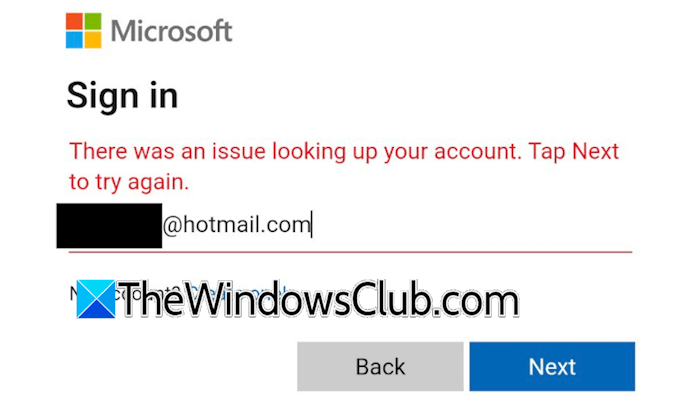
Microsoft Authenticator – There was an issue looking up your account
If you encounter the “There was an issue looking up your account” error while adding your Microsoft account to the Microsoft Authenticator app, use the following suggestions:
- Preliminary fixes
- Use the Cloud Recovery option
- Remove Authenticator from your account
- Use the Microsoft Account Recovery Form
- Contact Microsoft Support
All these fixes are explained in detail below.
1] Preliminary fixes
Before trying advanced troubleshooting fixes, try these preliminary steps.
- Switch to another available network: Sometimes, a network issue can cause this problem. To confirm this, switch to another available network. If another network isn’t available, disconnect from Wi-Fi and turn on mobile data. Now, see if you can add your Microsoft account to the Authenticator app.
- Disconnect from the VPN (if applicable): If you use a VPN on your phone, turn it off and try again.
- Power cycle your WiFi router: Turn off your WiFi router and remove its power adapter from the wall socket. Wait for a few minutes, reinsert its power adapter, and turn it on.
2] Use the Cloud Recovery option
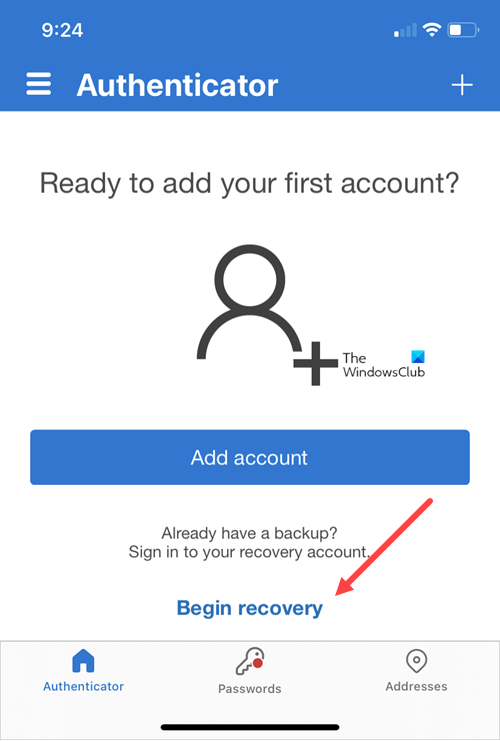
Microsoft Authenticator has an option to back up your account to the cloud. If you had turned this feature ON while adding your Microsoft account to the Authenticator app previously, you can use it to restore your account in the Authenticator app. You will see the Begin Recovery option at the Home screen of the Authenticator app on your phone. Tap on it and follow the on-screen prompts to restore your Microsoft account. Once your account is restored, it will be added automatically to the Authenticator app.
3] Remove Authenticator from your account
If the Restore option does not work or you have not turned on the Cloud backup option on your account, try to remove the Authenticator app from your account. For this, you need to use your PC or laptop and try the following methods:
- Try other ways to sign in: Microsoft allows you to add multiple ways to sign in to your account. If you have added these ways, visit the Microsoft account login page in a web browser on your PC and enter your username. After that, click the Other ways to sign in link. Now, Microsoft will show you all the sign-in methods you have added to your account. Use any one of these methods and see if you can sign in to your account.
- Use the device on which you have already signed in: If you are signed in to your Microsoft account on a device, use that device to delete the Authenticator app. On that device, visit the Home page of your Microsoft account. Now, click the Security tab. If you are not prompted to verify your identity, you can easily delete the Microsoft Authenticator app.
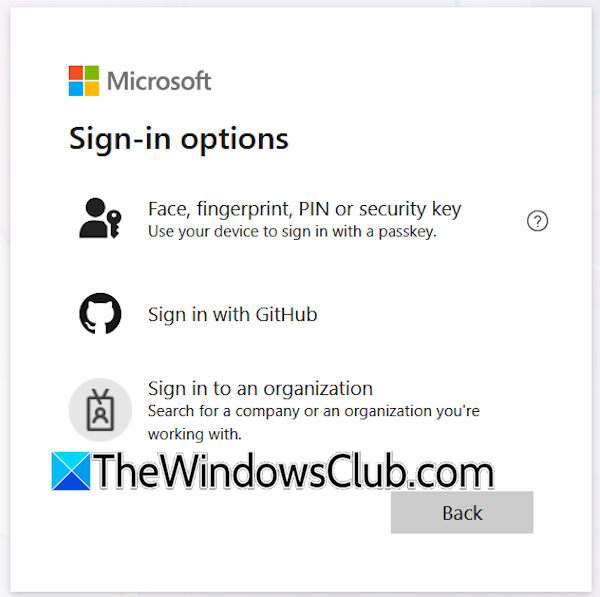
- Use the passkey: If you have created a passkey for your Microsoft account on your PC or laptop, you can use it to sign into your account. Use the device on which the passkey is saved. Now, visit the Microsoft account sign-in page in your browser. You will see the Sign-in options on the login page. Click on that. After that, you will see an option to use the passkey to sign in to your account.
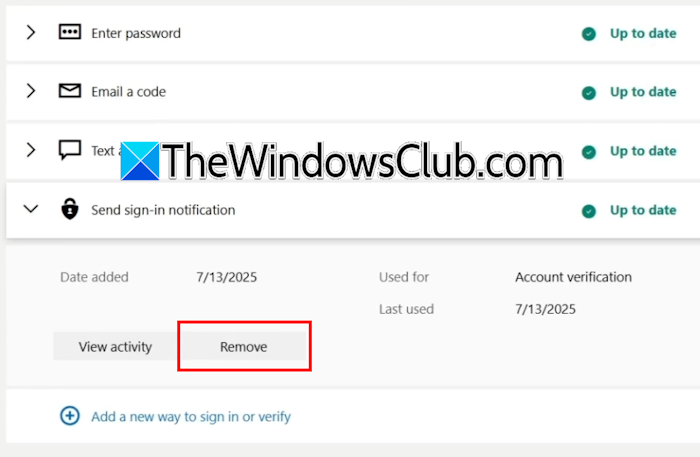
Once you are signed in to your account, navigate to Security > Manage how I sign in. Now, expand the Send sign-in notification tab and click Remove.
4] Use the Microsoft Account Recovery Form
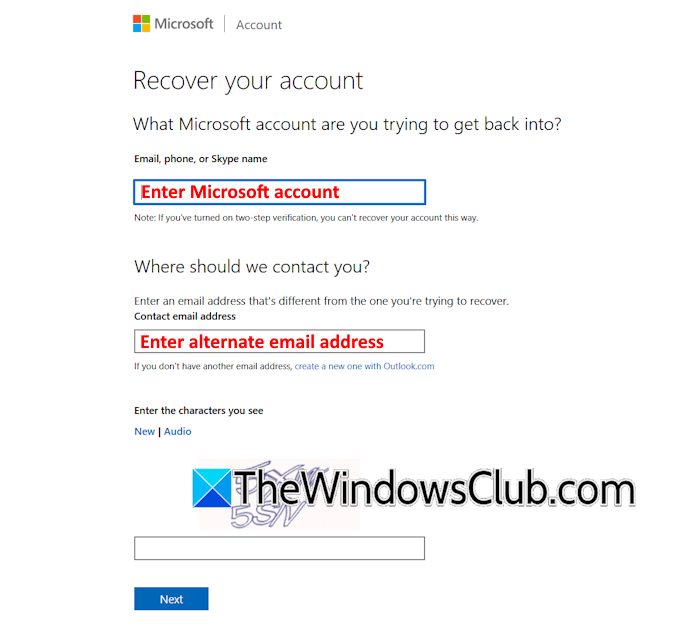
If you cannot add your Microsoft account to the Authenticator app and other sign-in options are not available or working, you can use the Microsoft Account Recovery Form to recover your account. To lower the chances of rejection, use the same device you used to sign in to your account the last time. Provide as many details as you can while filling out the account recovery form. This will increase the chances of approval. When Microsoft approves your request, it will send you a password reset link to the alternate email address you provide in the form.
5] Contact Microsoft Support
If the “There was an issue looking up your account” error keeps appearing despite trying all the above fixes and your account recovery form is rejected, you can contact Microsoft Support. Microsoft has provided several options to contact support. You can get live support chat, get Microsoft support on phone and email, etc.
That’s it. I hope this helps.
How to fix Microsoft Authenticator issues?
You may encounter different issues with Microsoft Authenticator. The fixes depend on the issue you encounter. For example, if the Microsoft Authenticator app is not displaying a code, review the app permissions in your phone settings.
How can I reset Microsoft Authenticator?
You can reset an app in your phone settings. See if your phone lets you reset the Authenticator app. If so, you can do it in Settings. However, before you proceed, we suggest removing the Authenticator sign-in from all your Microsoft accounts because resetting the app may remove all Microsoft accounts from it. If this happens, you will be locked out of your Microsoft account.
Read next: Microsoft Authenticator keeps sending sign-in requests.
