
Recovering an account becomes the most challenging task when you do not have any account recovery options. Therefore, it is necessary to add the account recovery options, as you may lose access to your account permanently. This article shows how to recover a Microsoft account without a recovery email and phone number.

Recover a Microsoft account without the recovery email and phone number
Microsoft suggests users add a recovery email and phone number to their accounts. When users forget their account password or cannot log in to their account for any reason, these recovery options help them regain access to their account. In this article, I will show you how to recover your Microsoft account without the recovery email and phone number.
Go through the following instructions:
- Open the Get Help app
- Reset your account password
Let’s start.
1] Open the Get Help app
The Get Help app allows you to recover your Microsoft account, even if you do not have any account recovery options. Click on Windows 11 Search and type Get Help. Select the Get Help app from the search results.
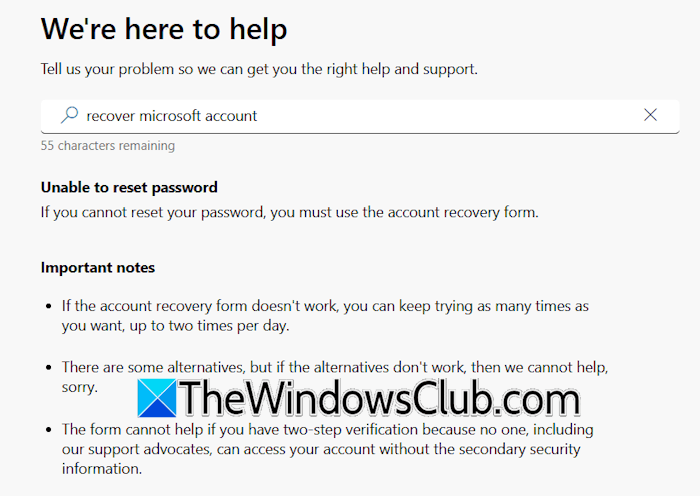
When the Get Help app opens, type “recover Microsoft account” and press Enter. The Get Help app will take you to the account recovery form. If the account recovery form does not work, you can try up to two times per day.
One thing to note here is that the account recovery form cannot help you if the two-step verification method is active on your account.
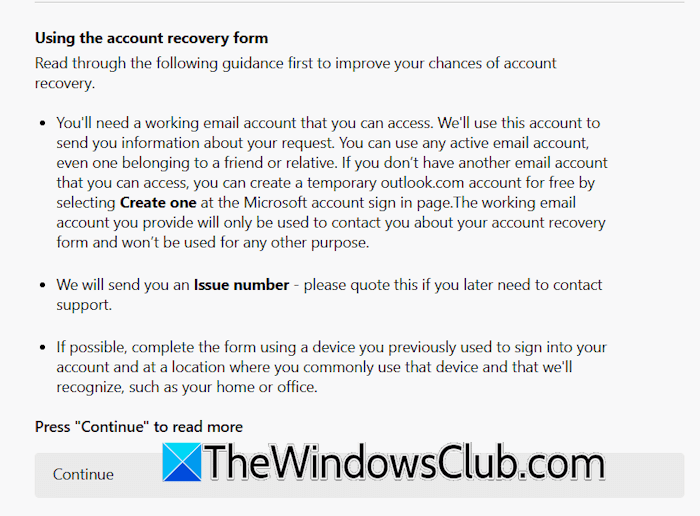
Scroll down in the Get Help app and click Continue. The app will show how to increase the chances of your account recovery. These are the details:
- You should have an active alternate email address. Microsoft will contact you at that email address. If you don’t have it, create a new one.
- It is suggested to use the same device you previously used to sign into your account.
- Use the same location for a higher success rate of account recovery.
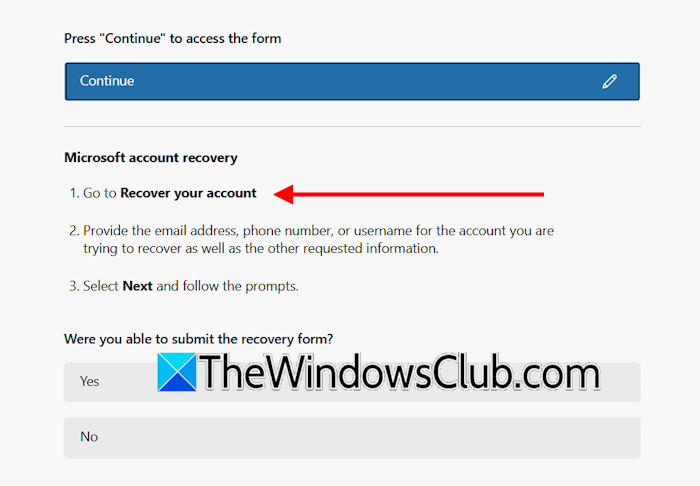
Click Continue and then click Continue again. Now, click the Recover your account link in the Get Help app. The app will open the account recovery form in your default web browser.
Related: Your account has been locked – Microsoft
2] Reset your account password
When the account recovery form opens in your web browser, the next step is to reset your password.
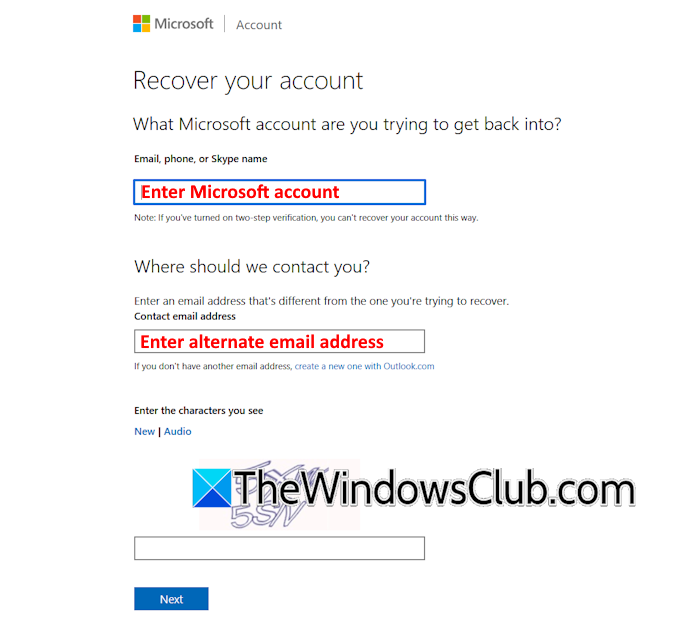
On the first page, enter the email address associated with the Microsoft account you want to recover. Additionally, provide an alternate email address where Microsoft will contact you. The alternate email address can be from Gmail or another email client. When you are done, enter the captcha code and click Next. You will receive a verification code on the alternate email you provided. Enter the code and click Verify.
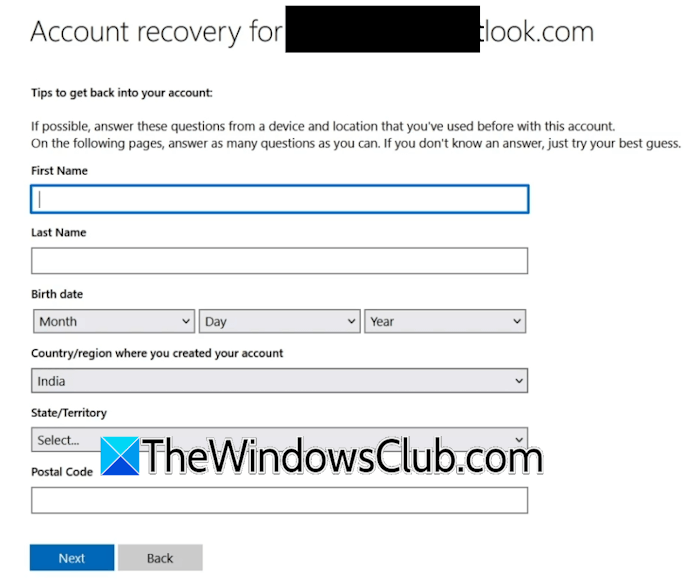
On the next screen, enter your personal details, which include your full name, date of birth, country, state, and pin code. All these details should match your personal details available in your Microsoft account that you want to recover. If you enter different information, your account will not be recovered. If you do not know any information, you can leave that particular field blank. Click Next.
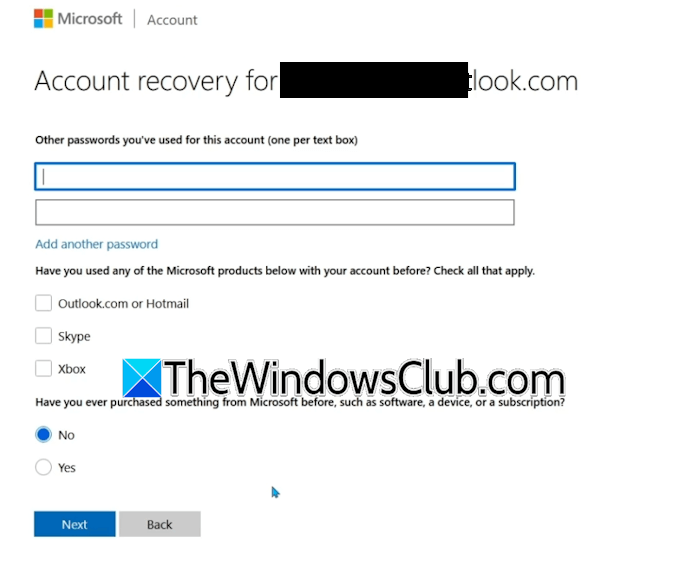
On the next page, enter any of the previously used passwords. Also, select the services that you have linked with your Microsoft account, such as Outlook, Hotmail, Skype, and Xbox. If you have ever purchased any Microsoft product with the same account, click Yes; otherwise, select No. Click Next when done.
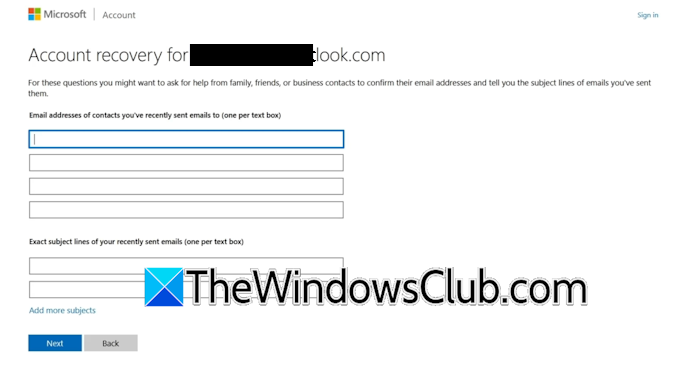
On the next page, enter the email address you have recently sent emails to. Also, provide the exact subject lines of your recently sent emails. After that, click Next.
On the next page, you will see the message “Your information has been submitted.” Microsoft will contact you at the alternate email you provided to confirm whether the information you have provided is sufficient to recover your account. It usually takes 24 hours. If the information is enough, you will receive the password reset link. Click on that link and set up a new password for your account.
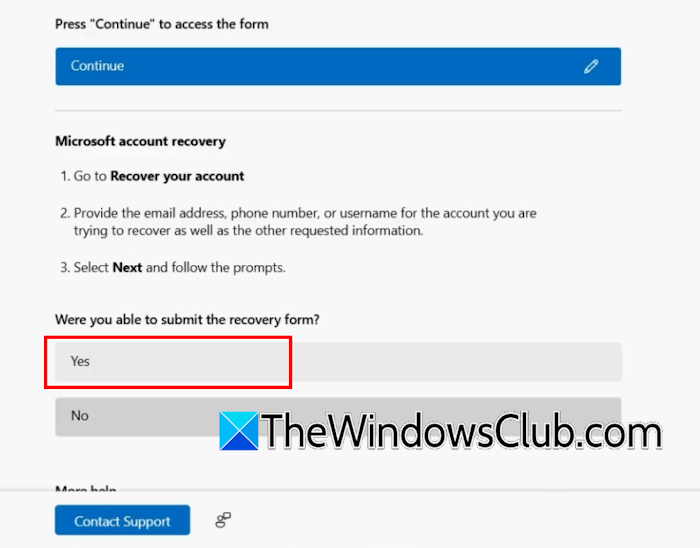
Click OK and go back to the Get Help app. Click Yes.
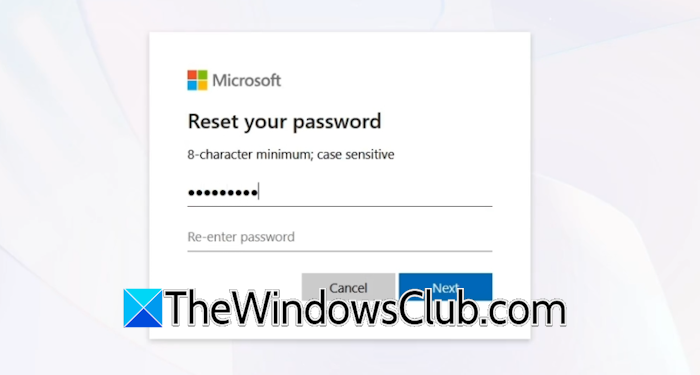
As you click on the password reset link, you will be able to set up a new password for your account.
That’s it. I hope this helps.
Read: Unblock and Recover a blocked or suspended Microsoft account.
How to recover a Microsoft account password without email?
To recover your Microsoft account password without email, you can use other account verification methods. If other sign-in methods are not added to your account, use the account recovery code. If nothing helps, you can fill up the account recovery form.
Read: How to reclaim your hacked Microsoft Account
What if I don’t remember my Microsoft account email?
If you do not remember your Microsoft account email, you can recover it by using any other email associated with your Microsoft account. If the email matches, Microsoft will send you the code, and you will be able to recover your username. However, Microsoft will not show the complete username. Instead, it will display the hint of your username.
Read next: Accidentally deleted Microsoft Authenticator app.
