
The Microsoft account recovery form lets you recover your Microsoft account if you lose access. After filling out the form, Microsoft validates the information you provided. If the information is correct, you get a password reset link. However, some users cannot recover their accounts because the Microsoft account recovery form is rejected. If you face the same issue, use the suggestions provided in this article.

Microsoft account recovery form rejected
If the Microsoft account recovery form is rejected and you cannot recover your account, use the following suggestions:
- Is two-factor authentication active on your account?
- Try again after some time
- Provide enough details to recover your account
- Use the same device and location
- Check if your account is logged in on another trusted device
- Use another browser
- Try other methods (if available)
- Contact Microsoft Support
Let’s start.
1] Is two-factor authentication active on your account?
Two-factor authentication is a security feature that adds layer of protection to help keep your account safe. However, it can sometimes become a headache, especially when you lose access to your account and try to recover it.
If you have enabled two-step authentication on your Microsoft account, you cannot recover your account using the account recovery form. This is an unfortunate situation for you.
2] Try again after some time
If your account recovery request is denied, you can try again later. You can try as many times as you want, up to two times per day. Microsoft has not set any limit on filling out the account recovery form.
3] Provide enough details to recover your account
You have to enter information related to your account while filling out the account recovery form. This information helps Microsoft determine whether you are the right person to recover the account. Therefore, I suggest you provide as much information as you can while filling out the account recovery form.
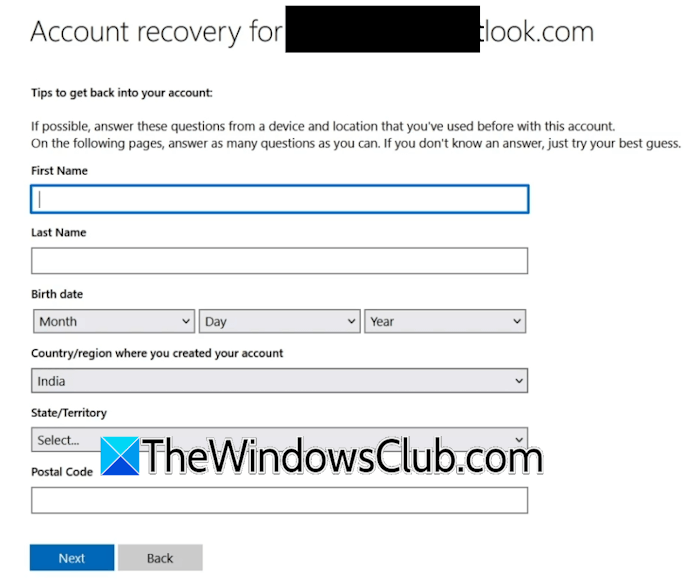
For example, if you did not provide the email addresses of contacts you have recently sent emails to, the last time you filled out the account recovery form. Try to recall the email addresses and provide them the next time you fill out the account recovery form.
4] Use the same device and location

If you are connected to the VPN, disconnect from it and try again. A VPN connection changes the IP address to make your network secure. Microsoft recommends using the same device and location when filling out the account recovery form. Using the same device and location increases the chances of your account recovery form being approved.
If you are not connected to the VPN, check your Windows device location settings. Follow the steps written below:
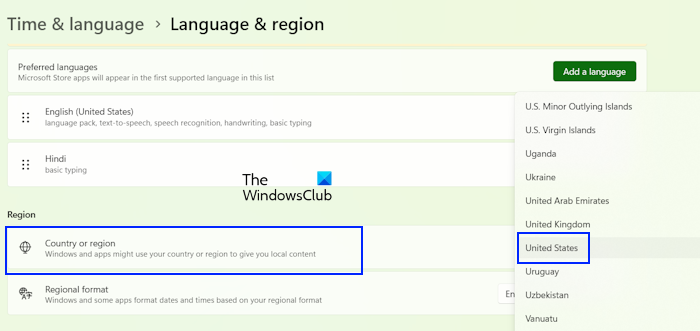
- Open Windows 11 Settings.
- Go to Time & Language > Language & Region.
- Your country should be selected under the Region section.
5] Check if your account is logged in on another trusted device
Usually, we use the same accounts on multiple devices. Check if your account is signed in on another trusted device. If so, you can change your account password on that device.
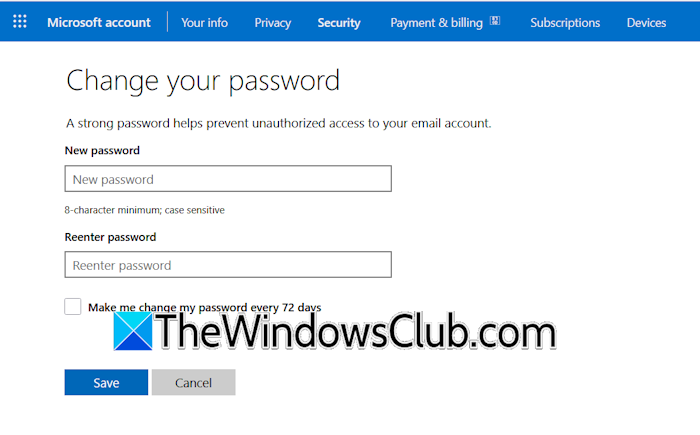
Follow these steps:
- Visit account.microsoft.com on the device you have already logged in with the same Microsoft account.
- Select the Security tab on the left side.
- Click the Change password link.
- Enter the new password and click Save.
You can also disable the two-step verification from your account on the trusted device. Click Security > Manage how I sign in. Scroll down and turn off the two-step verification on your account.
6] Use another web browser
The issue might be associated with your web browser. I suggest you switch to another web browser and fill out the recovery form. Microsoft recommends Edge for the best browsing experience while using Microsoft products and services.
7] Try other methods (if available)
Microsoft always allows users to add multiple sign-in methods to their Microsoft accounts. If you have added other sign-in methods to your account, you can use them to reset your account password. Microsoft also lets you recover your account using a 25-digit account recovery code. If you have created such a code, use it.
8] Contact Microsoft Support
If your account recovery form is still being rejected, you need to contact Microsoft Support. The support team will assist you better and help you recover your account.
That’s it. I hope this helps.
What to do if Microsoft account recovery doesn’t work?
If Microsoft account recovery does not work, you can try again. Microsoft allows you to fill out the account recovery form up to 2 times a day. There is no limit on the number of times you can use the account recovery form. You can also contact Microsoft support for further assistance.
How to pass the Microsoft recovery form?
There is no certain eligibility criterion to pass the Microsoft account recovery form. When you fill out the form, the information you enter is validated. If the information is correct, a password reset link is sent to the alternate email address you provided when you filled out the form.
Read next: Stuck in password reset loop on Microsoft account.
