
Some users report that Microsoft Authenticator keeps sending them sign-in requests. This may mean someone is trying to sign in to your Microsoft account, but the attempts are failing because you’ve added an extra layer of security. If you see this, your account may be at risk. Therefore, follow all the suggestions provided in this article to secure your account.
Microsoft Authenticator is an official Microsoft app that adds an extra layer of security to the email accounts you add to it. This type of sign-in option is called two-factor authentication. Microsoft Authenticator generates temporary verification codes that are used to sign into a Microsoft account.
Microsoft Authenticator keeps sending Sign-in requests
If Microsoft Authenticator keeps sending you sign-in requests, use the following suggestions to secure your account and fix this issue:
- View your login activity
- Sign out of everywhere
- Disable passwordless sign-in
- Set up a passkey and other sign-in options
- Change your recovery email address
- Change your password
- Remove unused or untrusted devices
- Remove authenticator from your account
All these suggestions are explained below.
1] View your login activity
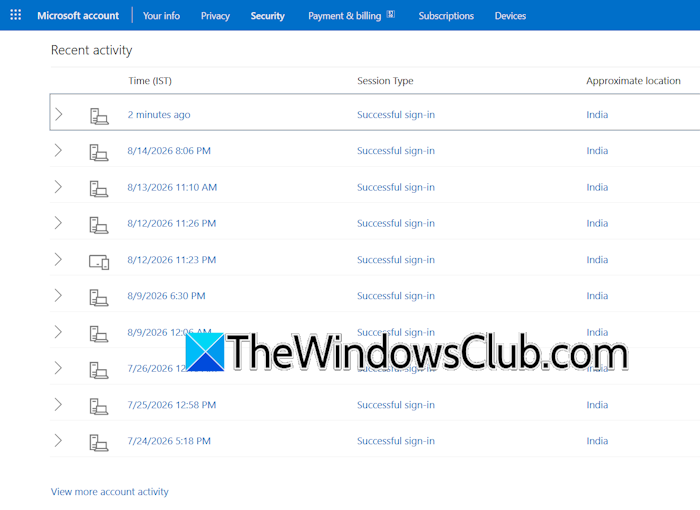
First, view your login activity to see where the unauthorized access attempt to your account came from. Follow these steps:
- Open your web browser.
- Log in to your Microsoft account.
- Click Security on the left and then click the Account Security tab on the right side.
- Now, click Manage how I sign in.
- Select any sign-in method, then click View activity.
These steps will help you see whether there has been any suspicious activity on your account.
2] Sign out of everywhere
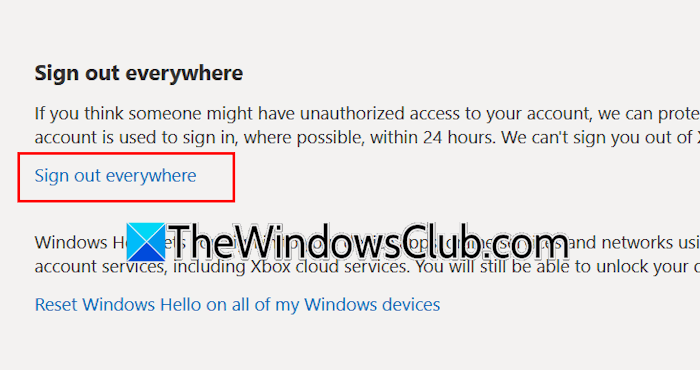
This method signs you out of your Microsoft account on all devices. Before you do, make sure you know your login credentials and can sign back in. If you do not have access to your login credentials, set them before signing out of all devices.
Follow these steps:
- Log in to your Microsoft account in your web browser.
- Click Security on the left.
- Under the Account Security tab, click Manage how I sign in.
- Scroll down and click Sign out everywhere.
3] Disable passwordless sign-in
When you enable the passwordless sign-in method on your Microsoft account, you have to add other sign-in methods to keep yourself safe from getting locked out of your account. Microsoft Authenticator sign-in method is one of the passwordless sign-in methods. It makes your account more secure. However, sometimes, you may encounter issues with Microsoft Authenticator. If you have set up passwordless sign-in, disable it. To do this, you must set up a password for your account.
4] Set up a passkey and other sign-in options
After setting up a password and disabling the passwordless sign-in method, you can add other sign-in options to your account. This increases your chances of recovering your account. To set up a passkey to your Microsoft account, follow these steps:
- Go to the Manage how I sign in page in your Microsoft account.
- Click Add another way to sign into your account.
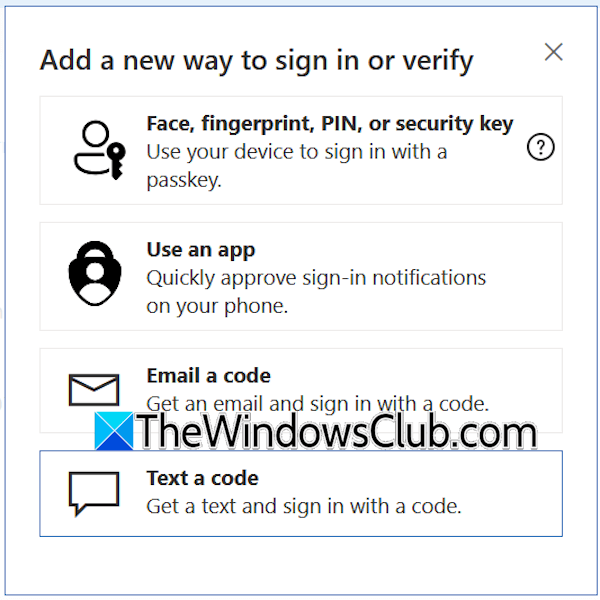
- A small pop-up window will appear showing you other ways to sign into the Microsoft account. Select Face, fingerprint, PIN, or security.
- Follow the on-screen instructions to set up a passkey on your account.
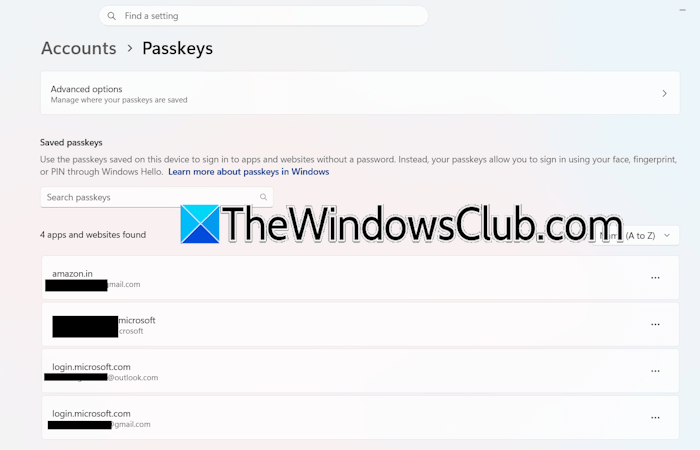
The passkey is saved locally on your Windows machine. As a result, the chances of your account being hacked are almost zero. To view all the saved passkeys for your accounts, open Windows 11 Settings and go to Accounts > Passkeys. Similarly, you can add more ways to sign into your Microsoft account, such as a phone number to receive a code via text message and an alternate email address to receive a code.
5] Change your recovery email address
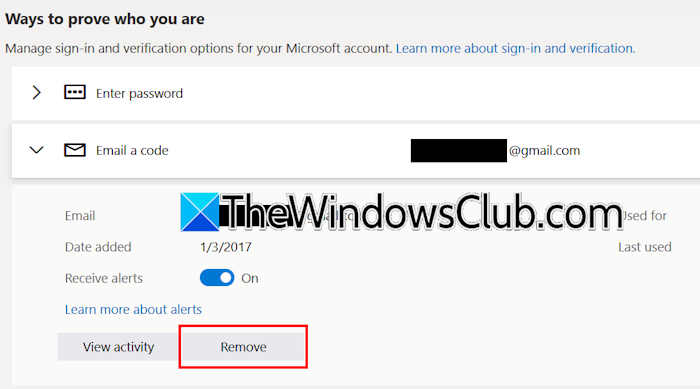
Since Microsoft Authenticator keeps sending you sign-in requests, someone may be trying to access your account. It is also possible they know your alternate or recovery email address. On the Manage how I sign in page in your Microsoft account, add other sign-in methods to your account. After that, click Email a code to view the current recovery email address. Click Remove and confirm (if prompted) to delete that email address from your account. After deleting the recovery email address, click Add other way to sign in to your account. Select Email a code and add another email address. Verify that email address by clicking on the confirmation link or entering the code received on that email address.
6] Change your password
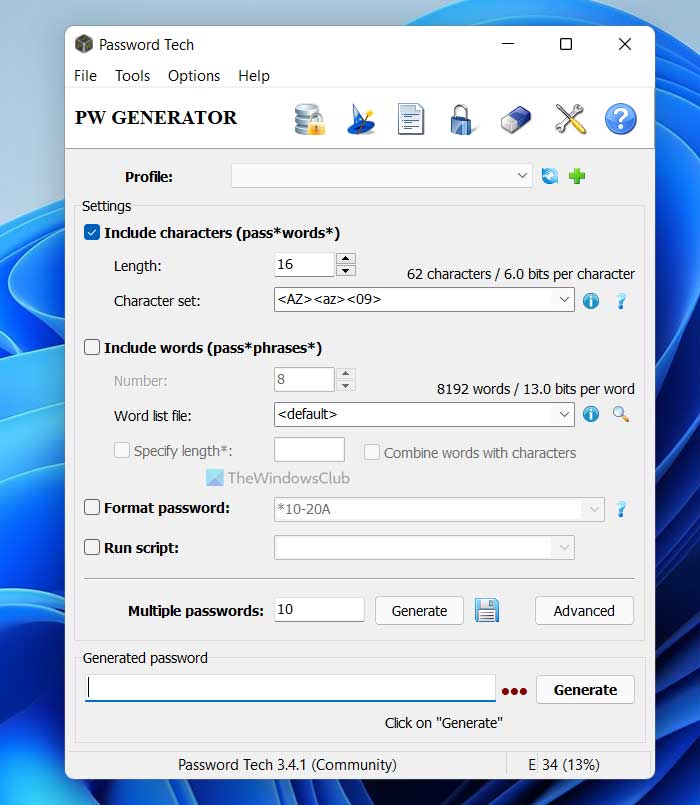
Change your account password to make it secure. Create a strong password for your account to lower the chances of losing your account. You can also use free password generators. Generate a strong password and keep it in a safe place.
7] Remove unused or untrusted devices
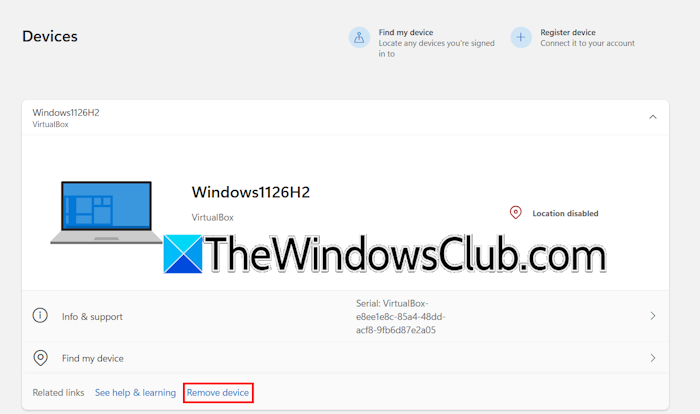
All the Windows computers on which you are signed in to your Microsoft account are added to your account. All these devices are considered trusted devices until you remove them. Therefore, you should remove the devices from your Microsoft account that you do not use. Log in to your Microsoft account and click Devices on the left. All the trusted devices will be shown. Select the device that you do not use, or that you think is an untrusted device. Click Remove device.
8] Remove authenticator from account
If you have added multiple ways to sign into your Microsoft account, you can remove the Authenticator sign-in method. This will permanently fix this issue. To remove it from your account, go through the following instructions:
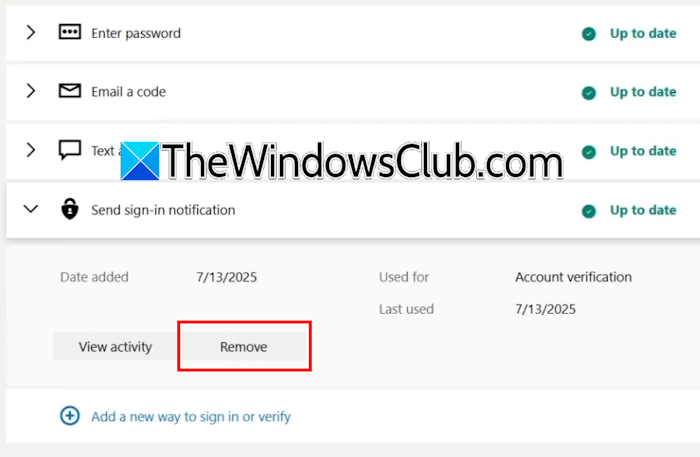
- In your Microsoft account, navigate to Security > Account Security > Manage how I sign in.
- Expand the Send sign-in notification tab.
- Click Remove.
After removing the authenticator app from your account, you will no longer receive the sign-in requests. You’ll need to use other ways to sign in, such as a password, PIN, or email code or text. If you want to use the Microsoft Authenticator app again, you can add it as a sign-in option to your account.
That’s it. I hope this helps.
What should I do if Microsoft Authenticator is sending me too many requests?
If Microsoft Authenticator is sending you too many sign-in requests, someone may be trying to access your account but can’t because of two-factor authentication. Log in to your Microsoft account immediately and view the recent activity. Change your account password and add more sign-in options. If you see any untrusted device in your account, remove it immediately.
How do I disable Microsoft sign-in request notifications?
If you have added the Microsoft Authenticator app to your account, you will receive sign-in requests every time you attempt to sign into your account. Microsoft Authenticator also sends sign-in requests if someone tries to access your account without permission. To disable these notifications, you must remove the Microsoft Authenticator app from your account. Before doing so, add other ways to sign in to avoid getting locked out of your account.
Read next: Accidentally deleted Microsoft Authenticator app; Now, I can’t sign in.
