
While using Microsoft Authenticator, if you encounter an error message saying The account you’re trying to add is not valid at this time, here is what you can do to fix this issue. Whether this problem arises while trying to create the Microsoft Authenticator account or add a new credential, you can go through these solutions for both cases.
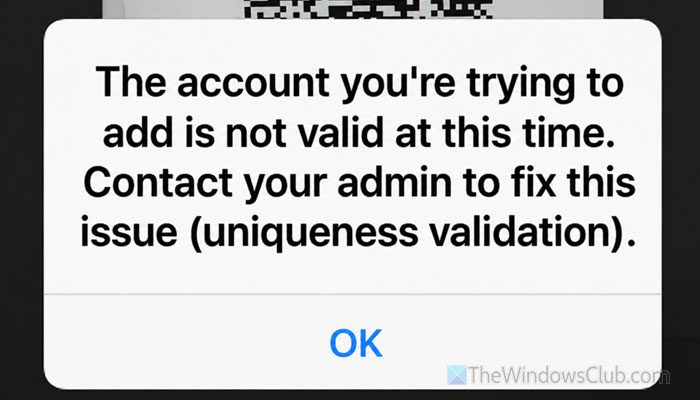
The entire error message says something like this:
The account you’re trying to add is not valid at this time. Contact your admin to fix this issue (uniqueness validation).
Why does Microsoft Authenticator show The account you’re trying to add is not valid at this time?
If Microsoft Authenticator shows The account you’re trying to add is not valid at this time, these could be the reasons:
- You recently changed phones, and your new account isn’t verified on the new device.
- You are in a loop where you are not logged into your account, but it is asking for a code to log in. This is one of the most common scenarios people have faced for a long time.
- Your Microsoft account is not active. This is quite common for School and Work account users.
The account you’re trying to add is not valid at this time Microsoft Authenticator error
To fix The account you’re trying to add is not valid at this time error in Microsoft Authenticator, follow these solutions:
- Check your account credentials
- Check the status of your account
- Set the correct date and time
- Set up the account from the start
- Update Microsoft Authenticator
- Use only one code generator
- Use original ROM
- Other solutions
To learn more about these solutions, continue reading.
1] Check your account credentials
Before trying any other solution, check whether you entered the correct credentials. This error may occur if you enter an incorrect username or password.
2] Check the status of your account
This is essential for School and Work account users. If your account is linked to an organization and an administrator manages all your accounts, checking your account status should be your top priority.
Sometimes, your system administrator may disable your account. If so, you must have an active account in order to get onto Microsoft Authenticator and all the other services.
To get started, try signing into your Outlook.com account or check OneDrive. If you cannot open those accounts, contact your administrator.
You can go through this article to learn how you can add a School or Work account to Microsoft Authenticator.
3] Set the correct date and time
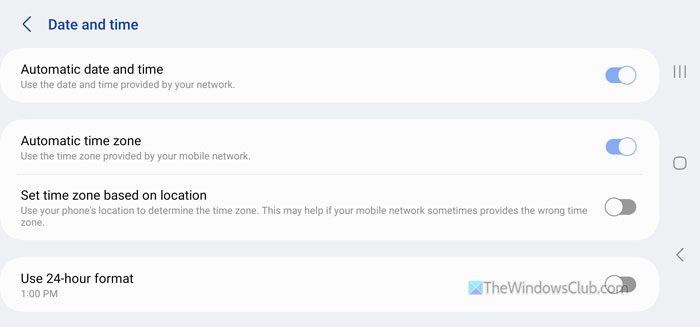
Microsoft Authenticator requires you to have the correct date and time set on your mobile. If you have changed the time zone or date, set them correctly.
For that, open Settings and go to General Management. Then, find Date and time and toggle the Automatic date and time button to turn it ON.
Also, enable the Automatic time zone option and disable the Set time zone based on location option.
Note: These options may be in different locations and may be named differently. However, you can find similar options irrespective of the mobile manufacturer.
Read: How to Set Time Zone automatically in Windows 11
4] Set up the account from the start
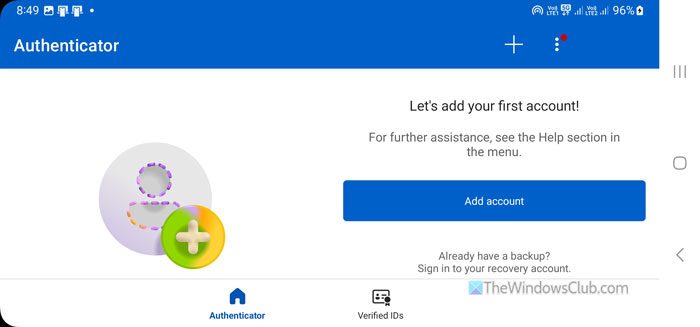
If you get errors midway, it’s best to start over. Start by generating a new QR code. You can go through this guide to set up Microsoft Authenticator on mobile.
5] Update Microsoft Authenticator
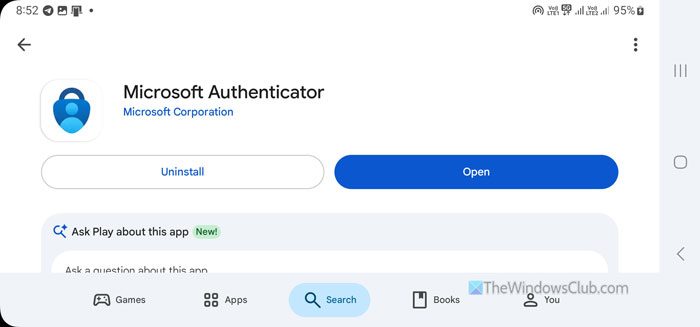
If you installed Microsoft Authenticator and haven’t updated the app in a long time, we suggest updating it once. For that, open the Google Play Store, tap on your profile picture, and select the Manage apps & device option. Next, tap on the Updates available option, find Microsoft Authenticator, and update it accordingly.
6] Use only one code generator
Whether you use Google, Microsoft, Facebook, or any other account, you can set up one account with only one code generator or authenticator app. Having said that, if you use Microsoft Authenticator to get Google account codes, you cannot use another authenticator app to do the same.
In other words, you must remove your account from the other authenticator app first. Then you can add the account to Microsoft Authenticator.
Read: WinAuth is a Microsoft or Google Authenticator alternative for Windows
7] Use original ROM
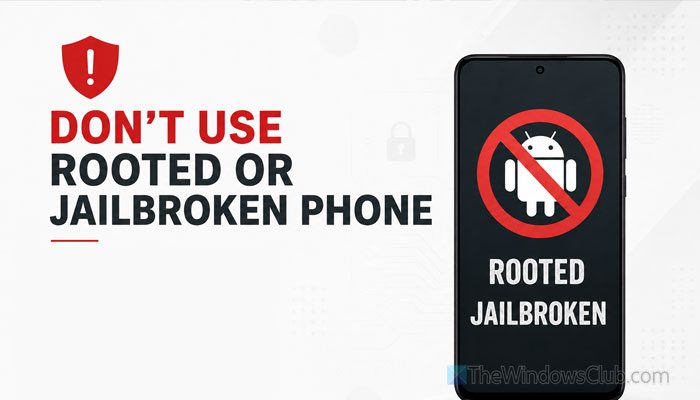
If you use a custom ROM or you have a rooted or jailbroken phone, you cannot use Microsoft Authenticator. Even if it doesn’t prevent you from using the app at first, it will block you from adding any account. It does that for security reasons.
That is why it is highly recommended to ditch the rooted or jailbroken phone and use the original ROM only.
8] Other solutions
- Remove cache and data: To remove cache and data, tap and hold the app icon and tap on the info. Then, select the Force stop option. Next, go to the Storage section and use the Clear cache and Clear data options.
- Check internet connection: If there are some issues with your internet connection, you might see the aforementioned error. Try the following: Turn airplane mode on and off, disable your VPN, turn off Private DNS, etc.
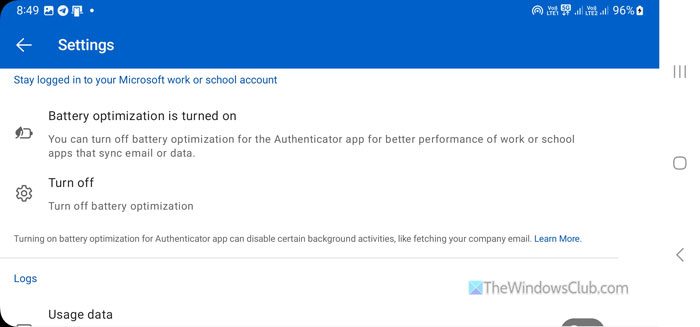
- Disable battery optimization: To do that, open the Settings of Microsoft Authenticator and tap on the Turn off option.
Read: Fix Microsoft Authenticator app is not displaying code
Why can’t I add my account to Microsoft Authenticator?
If you can’t add your account to Microsoft Authenticator, it means the QR code has expired, and you must generate a new one. Also, if your account is inactive, you may run into this issue.
How to fix an invalid 2FA code?
To fix the invalid 2FA code problem, you must generate a new code. Every two-step verification code expires, so you must use it before it does. If you don’t, you must generate a new one.
Read: Accidentally deleted Microsoft Authenticator app; Now, I can’t sign in.
