
Windows uses SMS authentication to verify users’ identities when they sign in. However, complaints have been rising because users can’t complete the verification process. They either do not receive the authentication message or, in some cases, it stops working. In this article, we will see what you can do if Windows Authentication SMS is not received or is not working.

Why is the Windows Authentication SMS not working?
SMS authentication may not work for several reasons; however, an incorrect or outdated registered phone number is one of the first things to check. Authentication settings, blocked messages, mobile network issues, and SMS service problems can also affect verification. Organization policies can also affect users accessing work or school accounts. Nevertheless, this is not something to worry about, as it can often be resolved by checking the available authentication methods.
Windows Authentication SMS not received or working
If the Windows Authentication SMS is not working, or you do not receive the message, execute the solutions mentioned below.
- Check the registered phone number
- Ensure that SMS Authentication is available
- Check blocked numbers and Spam filtering
- Wait and request a new verification code
- Use another available sign-in method
- Use the account recovery process
Let’s get started with the troubleshooting guide.
1] Check the registered phone number
First and foremost, a mistyped number or an old SIM card can be the silent root cause for this issue. Before diving into more complex troubleshooting, we’ll confirm the phone number on the account is correct and can receive SMS messages.
For that, navigate to account.microsoft.com/security on a trusted device where the account is already signed in, and open the account’s security information. Verify that the phone number is a physical mobile number that includes the correct country code. If it’s wrong or no longer in use, update the available security information and save the changes.
Keep in mind that Microsoft is phasing out SMS verification for personal Microsoft accounts, so you may not be able to add a new phone number as a verification method. If the number is correct and SMS is still available, wait for a few minutes and then try to authenticate again.
If you still do not receive the authentication code, proceed to the next solution.
2] Ensure that SMS Authentication is available
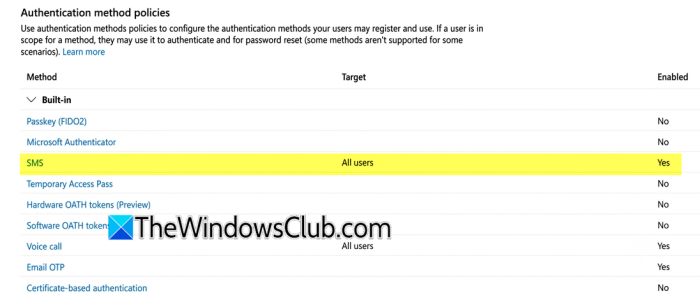
Unavailable or disabled SMS authentication can also cause this issue. You can also switch to another verification method. So, it’s helpful to check the available authentication options to confirm whether SMS is still available. You can follow the steps mentioned below to do the same.
- Open the account’s Security or Authentication settings, and look for Two-factor authentication, Verification methods, or a similar option.
- Check whether SMS or Text message is listed as an available authentication method.
- If you are using a work or school account, ask the organization’s administrator whether SMS authentication is enabled.
- If SMS is not available, select another configured verification method.
Microsoft is phasing out SMS for personal Microsoft accounts and recommends using options such as Microsoft Authenticator and passkeys instead. Work and school accounts are controlled through Microsoft Entra policies, so the available methods can depend on the organization.
If SMS is enabled but the verification message is still missing, see the next solution.
3] Check blocked numbers and Spam filtering
Sometimes the verification message reaches the phone but is automatically filtered into a spam or junk folder. Alternatively, network issues can also prevent SMS messages from arriving. In these cases, checking these areas helps determine whether the issue is limited to authentication codes or affects SMS delivery in general.
To do the same, open the Messages app, check the Spam, Blocked or Junk folder for the authentication message, and make sure that Aeroplane mode is turned off. Furthermore, check that the phone has a stable mobile network signal and then reboot the device.
Once it opens, ask a friend or family member to send a regular SMS, and check whether the SMS is received. If regular SMS messages also fail to arrive, contact the mobile carrier and ask whether there is an issue with SMS delivery.
If regular SMS messages arrive but the verification code does not, proceed to the next solution.
4] Wait and request a new verification code
Sometimes, requesting several verification codes in a short period can make it hard to tell which code is valid. Also, an older code may no longer work once you request a new one.
To do the same, stop requesting new codes for a short while and wait before trying again. Once you request another verification code, use the newest code that arrives instead of an older message. If multiple messages arrive together, enter the code from the latest message. Do not keep pressing the Send code button repeatedly if the message does not arrive. If the new code still does not arrive, proceed to the next solution and check whether another verification method is available.
5] Use another available sign-in method
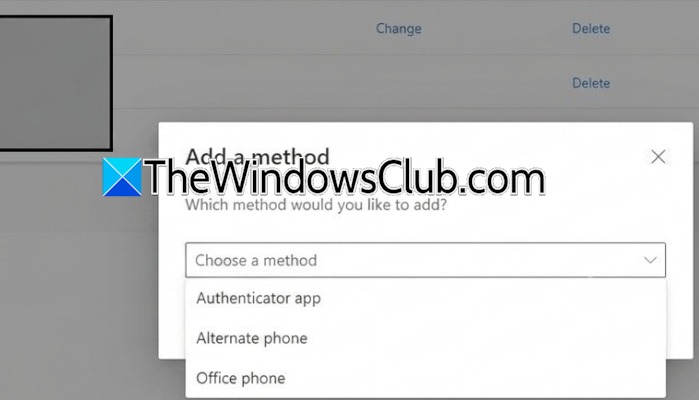
If SMS verification is temporarily unavailable, another authentication method can help you to access the account without waiting for the text message. This can help users regain access and update the authentication settings from inside the account. Follow the steps mentioned below to do the same.
- On the Windows sign-in verification screen, look for the small clickable link that says Use a different verification method, I don’t have a code, or Try another way.
- From the options that appear, select an authentication method that is already configured for the account, such as:
- Microsoft Authenticator
- An alternate email address
- A passkey
- A security key
- Follow the on-screen prompts for the chosen alternative and complete the sign-in process.
Available options can vary depending on the account and the authentication methods already configured. If SMS is no longer available, using one of these alternatives is the easiest way to regain access.
If there are no other options available and the screen forces you to stay on the SMS option, proceed to Microsoft’s account recovery process.
Read: That verification method isn’t working right now [Fix]
6] Use the account recovery process
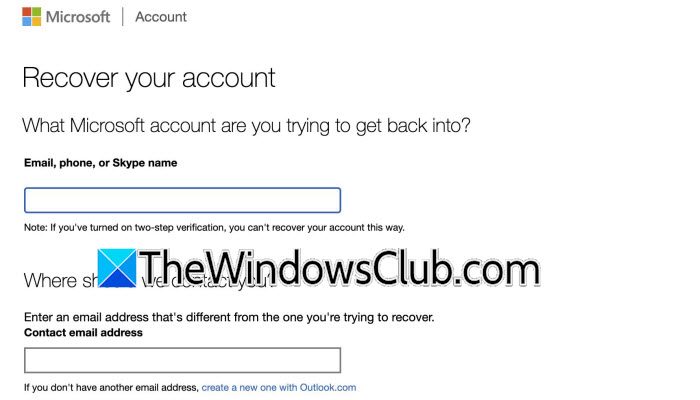
Last but not least, utilize the account recovery process as a last resort. Microsoft provides recovery and sign-in assistance for users who cannot access their usual verification methods. However, the available recovery options depend on the account and the security methods already configured.
To do the same, open Microsoft’s account recovery or Sign-in Helper page on any device and enter the email address associated with the account. Follow the questions and instructions shown on the screen and provide the requested information to verify ownership of the account.
For school or work accounts, contact the organization’s global IT administrator directly and ask them to check the account’s authentication methods or perform an MFA reset if allowed by the organization’s policies.
Keep in mind that the recovery form has limitations. If two-step verification is enabled and you cannot access any of the alternative verification methods, Microsoft may not be able to restore access through the standard recovery form.
That’s it!
Read: Fix Microsoft Authenticator app is not displaying code
Is Microsoft removing SMS verification?
Yes, but the change depends on the type of Microsoft account you are using. Microsoft is phasing out SMS as a method of authentication and account recovery for personal Microsoft accounts and is encouraging users to switch to more secure options such as verified email, Microsoft Authenticator, and passkeys. Microsoft has also stopped allowing users to add a phone number as a new verification method for personal accounts.
Also Read: Microsoft not sending verification code SMS text.
