
You may need to use a verification code when managing your Microsoft account to make changes such as updating your password or redeeming rewards. Security and verification codes help keep your account safe and secure. However, some users have reported encountering the ‘That verification method isn’t working right now‘ error during the process.
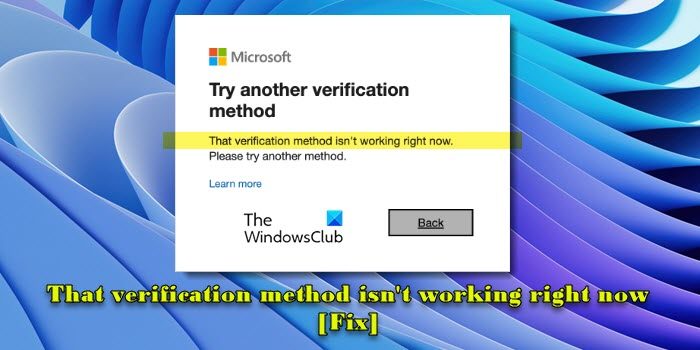
This message indicates an account block when you try to sign in. The complete error message reads:
Try another verification method
That verification method isn’t working right now. Please try another method.
If you’re seeing the same error message, this post will help.
What causes ‘Try another verification method’ message?
Here are some of the reasons behind the block:
- In the event of an unusual activity that deviates significantly from your typical patterns.
- Excessive or repetitive requests for alternative emails or phone numbers.
- Engaging in activities that violate the terms of service of Microsoft account.
- Heavy compromised traffic coming from your geographical location.
That verification method isn’t working right now [Fix]
If the ‘Try another verification method, That verification method isn’t working right now, Please try another method‘ message appears due to traffic issues, it should automatically be resolved after a certain period of time. In other cases, use these fixes:
- Use a different phone number
- Use another verification method
- Switch the network
- Clear browser cache and cookies
- Use a different browser
- Use the sign-in helper
- Contact Microsoft Support
Let us see this in detail.
1] Use a different phone number
Make sure you’re using the correct phone number and that there isn’t already an account linked to the number you are trying to use. Microsoft may prohibit the linking of a phone number to more than one account.
Also, ensure your region matches the code of your phone number. A high volume of requests can also cause temporary issues. So wait for 15-30 minutes and then attempt the verification. If it is a block, it will usually last 24 hours. Wait for another 24-48 hours and try again with a different phone number.
Another possible reason for the block could be using a Google Voice phone number. In its terms of use, Microsoft mentions that it doesn’t support using a Google Voice phone number or any other online number. Link a phone number from a regular mobile operator or telephone company.
2] Use another verification method
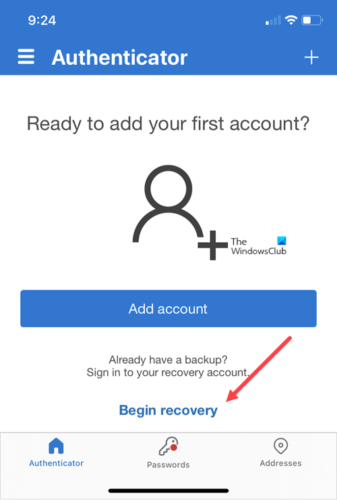
If you have added multiple verification methods (e.g., secondary email addresses or phone numbers), try using a different one.
If you use the Microsoft Authenticator app, ensure it is set up correctly and try using it. The app enables two-step verification for account sign-ins. With its passwordless feature, you no longer need to enter a verification code. Instead, when you open the app on your smartphone, you’ll see a prompt with details of the sign-in attempt. Tap Approve to confirm the sign-in request.
3] Switch the network
Switch the network or restart your router and PC and see if that helps.
4] Clear browser cache and cookies
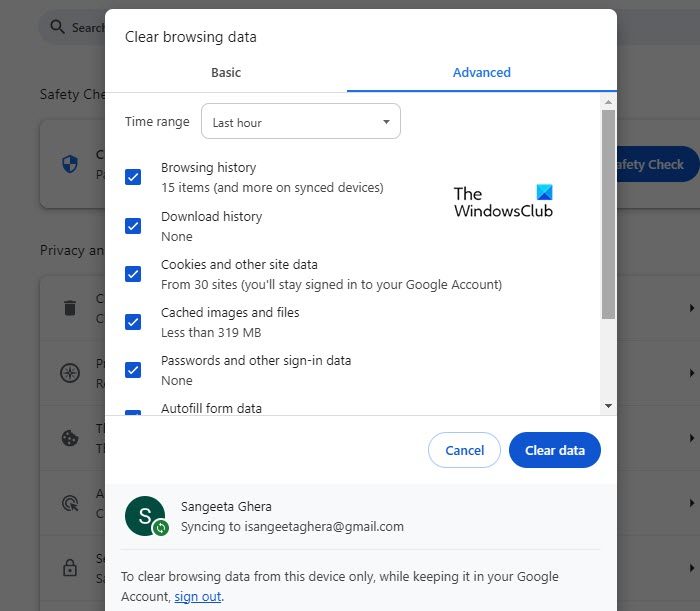
Clear your browser’s cache, cookies, and site data as they can sometimes interfere with the verification process. This will help ensure your browser isn’t causing issues.
Switching to a different browser can also bypass account verification issues. Use a different browser and see if it fixes the issue.
Read: Windows Authentication SMS not received or working
5] Use a different browser
Use a different browser or try in Incognito Mode and see if that works.
6] Use the sign-in helper
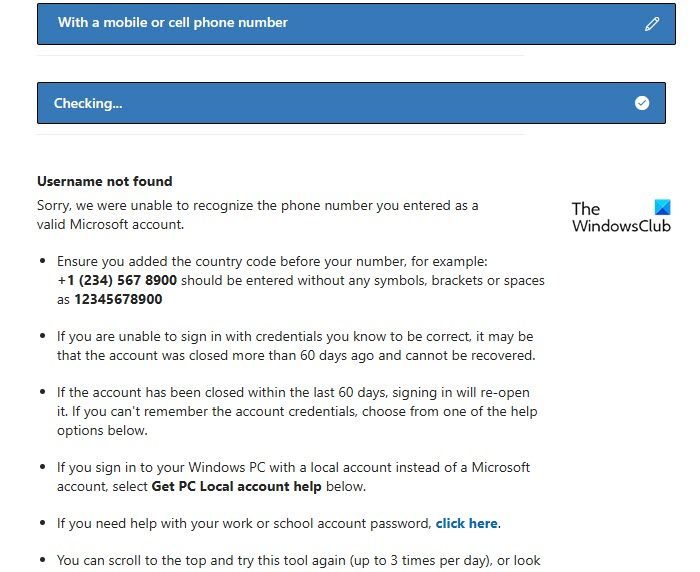
Microsoft suggests using the Get Help Account Sign-in Helper to troubleshoot account-related sign-in issues. The troubleshooter asks you to enter the email address or phone number you’re trying to sign in with. After verifying your details in its records, it helps identify your problem and provides available support options.
Click here to access the sign-in helper. The link will open the Contact Microsoft Support page in another browser tab. Scroll down a bit; you’ll see ‘Microsoft Account Sign-in Helper’ in bold.
Scroll down a bit more and you’ll see three options for Choose how you normally sign in, then enter your details.
- With an email address
- With a mobile or cell phone number
- I’ve forgotten my sign-in details
Choose the appropriate option and enter your details. The troubleshooter then suggests a couple of solutions. Follow the suggestions and see if they work.
You can also edit your answer by clicking the edit (pencil) icon next to your selected option.
TIP: Also see if this Microsoft page helps you.
7] Contact Microsoft Support
If nothing seems to help, contact Microsoft Support (by clicking here) for additional assistance.
Read: Microsoft not sending verification code SMS text.
Why won’t Google send me a verification code?
If Google isn’t sending you a verification code, you may have a network connectivity issue or a temporary glitch with Google’s services, which can delay or prevent verification codes from being sent. Your device settings, such as app permissions or Do Not Disturb mode might also prevent the delivery of verification messages. Before retrying, ensure you’ve entered the correct contact information associated with your Google account.
Why do I keep getting verification codes I didn’t request?
If you haven’t requested any verification codes but still getting them, someone may have accidentally entered your phone number or email address while trying to sign in to their account. Hackers or scammers may also try to gain unauthorized access to your account, so change your password to something strong and unique, or enable two-factor authentication to add an extra layer of security.
Read Next: Account verification system is having trouble.
