
If your work environment facilitates Bring Your Own Device (BYOD), there is always some critical risk involved. To mitigate this risk, an IT organization deploys Intune. Misconfigured policies or admin errors can lead to the complete factory reset of a personal smartphone or tablet, resulting in devastating data loss. In this post, we will see how to protect Personal Devices from Remote Wipe in Intune.
Protect Personal Devices from Remote Wipe in Intune
Remote wipe is a security feature in Intune that allows administrators to reset a device to its original settings, erasing all data. This usually happens when a device is lost, stolen, or when an employee leaves the company. However, there are risks when a personal device is enrolled in full mobile device management (MDM). In this situation, Intune treats the device as if it were company-owned. This allows the IT department to issue a wipe command that deletes both corporate data and personal items, such as photos, contacts, and apps. Older enrollment methods often make it unclear when a device is personal and when it is corporate-owned, raising concerns about personal privacy.
Utilize User Enrollment for Apple Devices
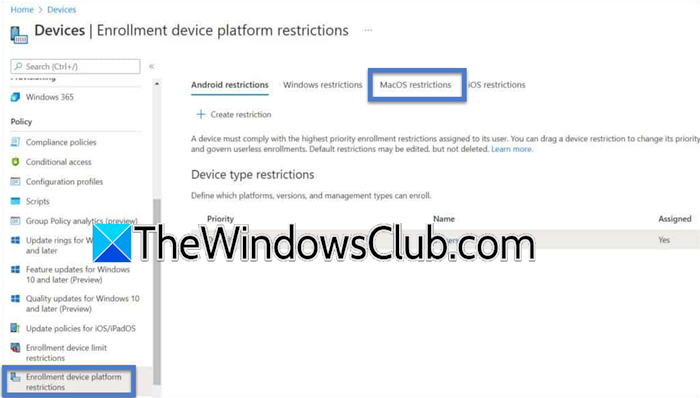
Apple’s User Enrollment creates a cryptographic separation between corporate data and personal data on iOS/iPadOS devices. If Intune issues a wipe command under this configuration, it only removes the managed corporate partition (work apps, VPN profiles, and managed data) while leaving personal photos, iMessage threads, and personal apps untouched.
To protect your personal Devices from Remote Wipe in Intune, follow the steps below.
- In the Intune admin center, go to Devices > Enroll devices > Enrollment device platform restrictions.
- Select MacOS restrictions (or iOS).
- Choose your restriction policy.
- Set Platform settings to allow User Enrollment for personally owned devices.
- Ensure users install the Company Portal app and select This device is owned by me followed by I only need work or school apps during enrollment, to trigger User Enrollment instead of full MDM.
This way, you can prevent users from accidentally wiping your environment.
Implement Mobile Application Management (MAM) Without Enrollment
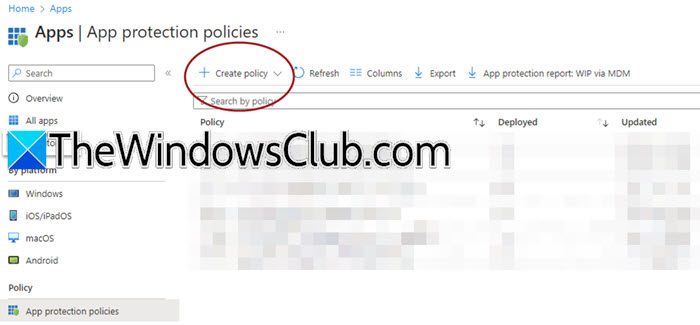
To prevent a remote wipe of your device, avoid enrolling it entirely. Instead, use Mobile Application Management (MAM) policies, also known as App Protection Policies (APP). These allow the IT department to manage data within specific Microsoft apps, like Outlook and Teams, without controlling the entire device. If a user leaves the company, IT can do a selective wipe to remove only the corporate data from the managed apps, while leaving everything else on the phone unaffected.
You need to follow the steps mentioned below to do the same.
- In Intune, go to Apps > App protection policies.
- Create a new policy for Android or iOS/iPadOS.
- Configure settings to define how users access corporate data (e.g., requiring a PIN for Outlook).
- Set the Conditional Access policy in Azure AD to require Approved client apps but not require Device compliance.
This allows users to access email via MAM without ever enrolling the device in Intune.
Configure Wipe Protection via Compliance Policies
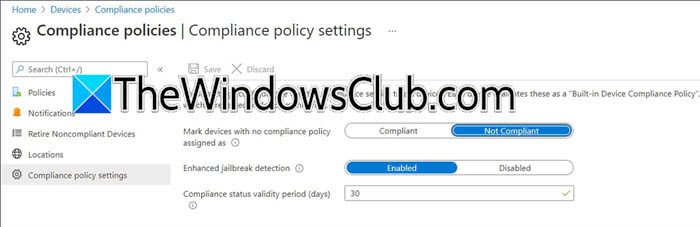
Many accidental wipes occur because a device falls out of compliance (e.g., a user is late updating their OS) and the administrator has configured a Retire/Wipe action as the automatic remediation step. By changing the default action to Retire (which removes management but not personal data) or Send notification, you remove the risk of automated factory resets. We recommend you follow the steps mentioned below to do the same.
- Navigate to Devices > Compliance policies.
- Select the compliance policy assigned to your personal devices.
- Scroll to Actions for noncompliance.
- Ensure the Default action is set to Mark device noncompliant or Send email to user.
- If you must add a Retire action, set a long grace period (e.g., 14 days) and ensure the Wipe action is never selected for personal device policies.
After making these changes, any devices enrolled in this policy would have this new retention policy.
Enable Device Filtering for Selective Actions
Instead of applying wipe actions to all devices, you can use device filters to target only corporate-owned devices (e.g., devices with Corporate Identifiers or DEP/ABM). This creates a safety net that prevents an administrator from accidentally selecting a personal device in a bulk operation and issuing a factory reset command.
In Intune, go to Tenant administration > Filters. Now, create a new filter named Corporate Devices Only with a rule: (device.deviceOwnership -eq “Corporate”). When creating any automated compliance action or when performing bulk actions in the admin console, apply this filter. By default, ensure bulk actions and automation scripts exclude the Personal ownership category to ensure personal devices are never caught in a destructive sweep.
That’s it!
Read: How to remote wipe Windows laptop
Can Intune wipe my personal device?
Yes, but only if the device is enrolled in full Mobile Device Management (MDM) as a corporate-owned device. If you enroll correctly as a personally owned device using User Enrollment (iOS) or work profile (Android), Intune can only remove corporate data, not perform a full factory reset.
Read: Enterprise Data Protection in Windows computers
Can a person’s phone be remotely wiped?
A remote wipe (factory reset) is possible only if the device is managed with full administrative privileges, typically for company-owned devices or BYOD devices enrolled under a legacy device administrator (Android) or a full MDM (iOS). With Modern Management (MAM without enrollment or User Enrollment), remote wipe is limited to corporate apps and data only.
Also Read: Enable or Disable Tamper Protection using Intune, REGEDIT, UI.
