
A laptop is where we store all important information, both personal and company-related, and sensitive documents. If, god forbid, a laptop goes missing or is stolen at any time, we cannot afford to have sensitive information leak. During such mishaps, if you think that a lock ID or the device passcode can safeguard your valuable data, you may be wrong, as anyone can remove your hard drive and use it on another system to access your data.
In cases like these, you may want to track the device remotely and remove any important data on it. While such accidents can happen at any time, it is necessary to plan ahead and take the necessary precautions to keep data protected from prying eyes before such mishaps occur.
To avoid losing your data, you need to enable the feature ahead of time so you can remotely wipe your hard disk, which will make your system pretty much unusable to anyone out there. You can track your devices, lock them and remotely wipe the data from the device using Find my device feature from Windows. But unfortunately, this integrated feature is not available for all Windows versions and works only with Windows 11/10 Pro. However, there are many other third-party software that you can install and configure ahead of time in order to upgrade the security of your private data.
How to remote wipe Windows laptop
If your device is lost, you can sign into the software’s website to track your device and wipe your personal data on Windows PC remotely. In this article, we round up some of the best software to remotely wipe your data on a Windows device in case you ever lose it.
1] Turn On Find My device feature in Windows 11/10
Find my device feature is the only available feature currently in Windows 11/10 that allows you to locate the lost or stolen device, lock it and also erase the data remotely. The feature uses your laptop’s GPS coordinates to locate your device. Follow the below steps to turn on Find my device feature.
On your Windows laptop, Sign in to your device with a Microsoft account.
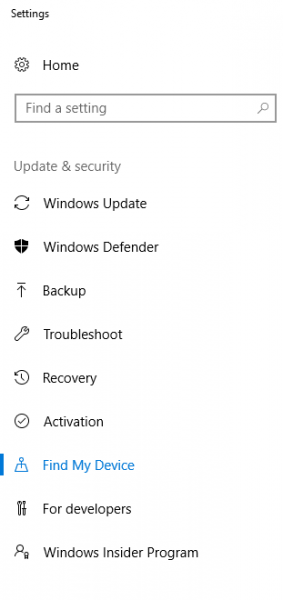
In Windows 10, go to Start Menu and click on Settings. Navigate to Update & Security and click Find my device option.
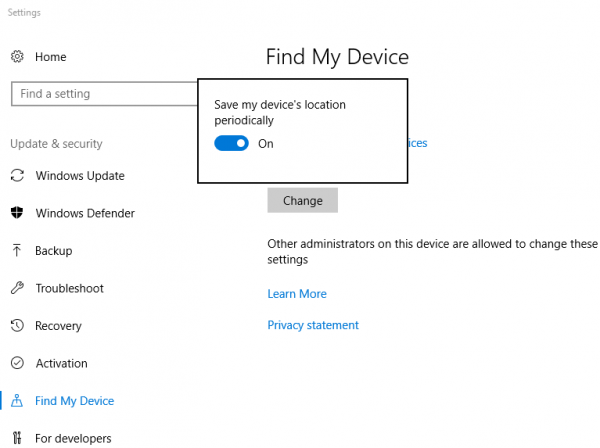
Now change button to turn on the Find my device feature and toggle the switch On to save device’s location periodically.
If you have lost your device, follow the below steps to find your device.
Go to Microsoft’s official site here and sign-in with the same Microsoft account which you used to sign-in to the lost or stolen laptop.
Select your device from the list and click Find my device. You will now see a map with your device location. Select the Bitlocker option from the list of the device.

Turn on the BitLocker to encrypt your entire disk with AES-128 encryption. Your data is now secured, and it will be viewed with only a recovery key.
In Windows 11, you will see these settings here – Open Settings > Privacy & security > Find my device. Remember that you need to be signed in with your Microsoft account.
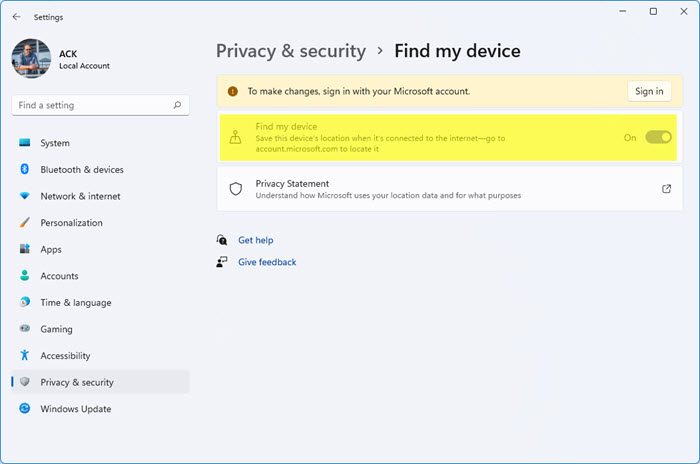
TIP: Using the Group Policy and Registry values of your Windows 11/10 computer, you can disable this feature permanently so that no user can toggle the Find my Device option in the Settings.
2] Use Microsoft Intune to erase data remotely
Microsoft Intune is a cloud-based service for managing mobile and PC devices and securing access to data resources. When your device is lost or stolen, it allows you to selectively remove the data from the Intune-managed apps. You can either wipe your laptop selectively or fully by creating a wipe request and then retire your laptop from the Intune managed apps. It is worth noting that after the wipe request is made, the data will be erased completely when your stolen laptop is turned on, and it will not be recoverable. To use Windows Intune to find and remotely wipe your device, you first need to add the device to Intune.
Enroll your Windows device in Intune here at microsoft.com.
Next, sign in to the Azure portal here. Choose All Services and filter Intune.
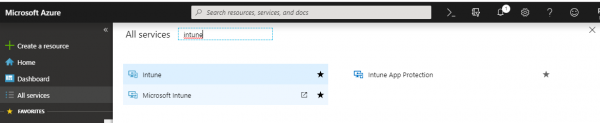
Choose Microsoft Intune and select Devices.
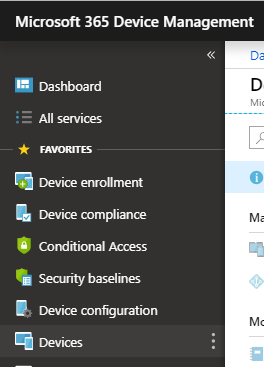
Now select the name of your device which you want to wipe remotely.
Click Wipe and hit the Yes button to confirm the wipe request.
Your device will be wiped out within 15 minutes as soon as the stolen or missing device is turned on
3] Use Prey software
Prey is a freemium third-party anti-theft Laptop Recovery software and management platform used for anti-theft, data protection and device tracking. It can be used to remotely erase a laptop when the device is stolen or found missing.
To use Prey, you need to configure your device with it beforehand. Once you install and configure your device, you can track it if it’s stolen and remotely remove all data, including documents, cookies, emails, and other local files.
Once you download and install the Prey app, you need to set up your Prey account. On the dashboard, choose the plan that best suits your work. The plan includes both free and paid. The basic plan is free and provides essential protection for tracking up to 3 devices; other paid plans include the personal plan, home plan, and enterprise custom plan.
Sign up with your new user account. The prey app is active and continuously tracks your location.
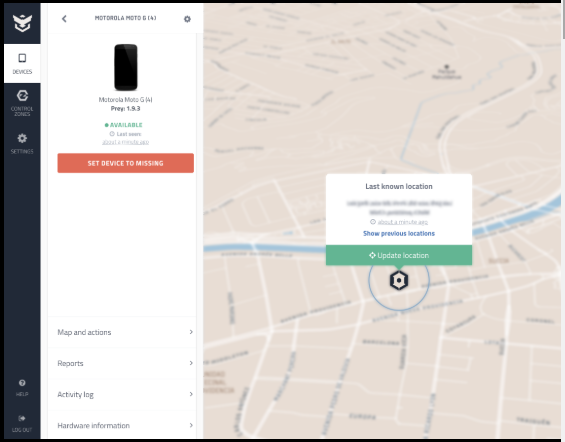
If your device is missing or stolen, log in to Prey’s online panel to track the device. You can choose to either remotely lock or wipe your laptop’s data.
Scalefusion is another similar software you can consider.
Hope this helps!
Pro Tips:
- Always enable BitLocker encryption to protect data even if the drive is removed.
- Set up Find My Device or Intune immediately on new laptops.
- Maintain cloud backups on OneDrive, SharePoint, etc. to recover data that has been wiped.
- For businesses, use Intune or Scalefusion for centralized control and compliance.
Does Windows 11 have remote wipe?
Windows 11 and Windows 10 have a Find my device feature that helps you track the location of your laptop if it is stolen. The Find my device only works if the location is enabled on your laptop. By default, the location is turned on. Using the Find my device feature, you can lock your device remotely and leave a message for the thief, but you cannot remotely wipe your data.
What is the limitation of Remote Wipe?
Remote Wipe is a great feature that protects your data stored on a hard drive. But it has some limitations: the stolen device must be online to receive the owner’s command; the thief can reboot the device to interrupt the remote wipe process, etc.
