
If you are trying to open the Microsoft Company Portal app on your Windows 11 PC and it simply refuses to launch, you are not alone. The Company Portal app sometimes fails to open due to conflicts with system updates, a corrupted app cache, or issues with the underlying services it depends on, such as the Intune Management Extension (IME). In this post, we will see what to do if the Microsoft Company Portal does not open in Windows 11.
The Company Portal app relies on several key components to function properly. At times, a corrupted local cache after a system update or crash, or disruptions from recent Windows 11 feature updates (like 24H2 or 25H2), can prevent the app from opening. The app also depends on the Intune Management Extension (IME) service for login and device policy syncing; if this service is stuck or unable to retrieve an Azure AD token, the app may freeze or fail to launch. Additionally, pending app updates or failed installations from the Microsoft Store can leave the app incomplete, preventing it from opening.
Fix Microsoft Company Portal not opening in Windows 11
If the Microsoft Company Portal does not open in Windows 11, follow the solutions below.
- Repair or Reset the Company Portal App
- Uninstall and Reinstall the Company Portal App
- Restart the Intune Management Extension Service
- Clear the Microsoft Store Cache.
1] Repair or Reset the Company Portal App
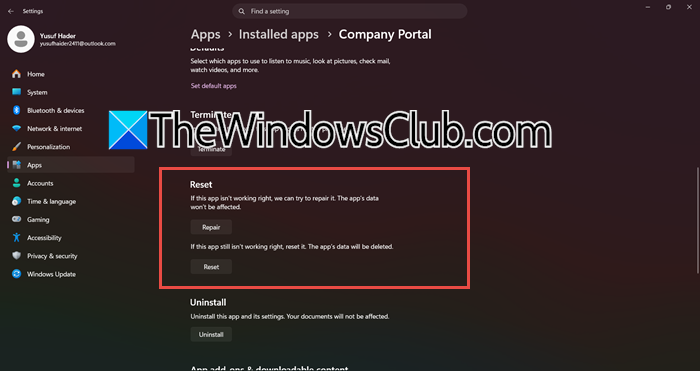
The built-in Repair tool attempts to fix the app without deleting your data, while the Reset tool clears everything and gives you a completely fresh start. If the app launches but crashes, start with Repair. If it doesn’t open at all, go straight for Reset. You need to follow the steps mentioned below:
- Open Settings by Win + I.
- Go to Apps > Installed apps (or Apps & Features).
- Then, look for Company Portal.
- Click on the three dots and select Advanced Options.
- Now, click on Repair.
If the issue persists, return to the same Advanced options page and click the Reset button. Confirm the warning dialog that tells you the app’s data will be deleted. You will need to sign back into the Company Portal after this step.
2] Uninstall and Reinstall the Company Portal App
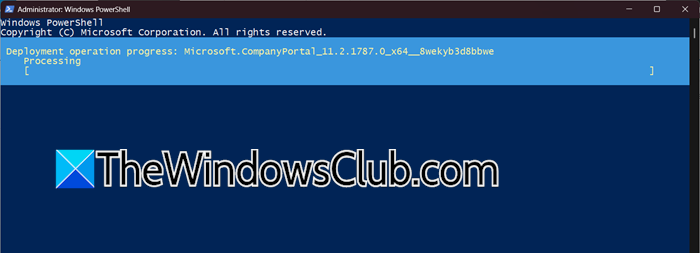
If resetting the app doesn’t work, a full reinstallation is the next best step. This solves problems where the core installation files have become corrupted or where a pending update has left the app in a broken state. It also ensures you are running the latest version, which may contain fixes for Windows 11 compatibility issues.
First, you may need to remove the app completely. You can do this from the same Advanced options page by clicking Uninstall, or by using a PowerShell command. To use PowerShell, press Windows + X and select Terminal (Admin).
Run the following command to remove the Company Portal.
Get-AppxPackage -AllUsers *Microsoft.CompanyPortal* | Remove-AppxPackage
Once it’s gone, open the Microsoft Store app from your Start menu. If the Store itself won’t open, skip to the next solution first.
Search for Company Portal in the Store. Make sure you select the one published by Microsoft Corporation. Click Install.
After the installation is complete, launch the Company Portal and sign in with your work or school account. This fresh version should now launch without issues.
3] Restart the Intune Management Extension Service
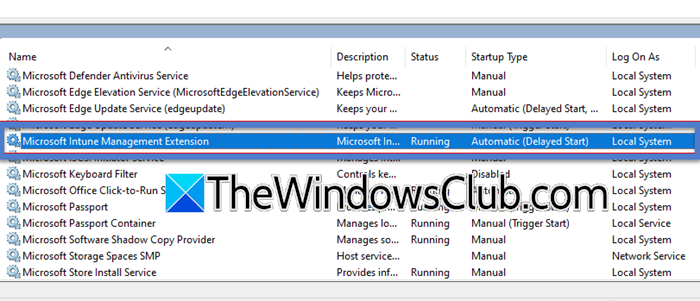
The Company Portal is not a standalone app; it heavily relies on a background service called the Intune Management Extension (IME). This service is responsible for all critical backend communication, including device authentication, policy syncing, and app installation initiation. If this service is not running or is stuck in a loop, the Company Portal may freeze on the Downloading screen or fail to open at all. Restarting it clears its state and forces a fresh connection to Intune.
First, open Services.msc, search for Microsoft Intune Management Extension, right-click on it, and select Restart.
Alternatively, you can restart it from an elevated PowerShell or Command Prompt. Run the following command.
Get-Service IntuneManagementExtension | Restart-Service
Wait about 5 minutes for all secondary processes to fully initialize. Then, try launching the Company Portal again. A successful service restart often resolves the issue where the app appears stuck and unresponsive.
4] Clear the Microsoft Store Cache
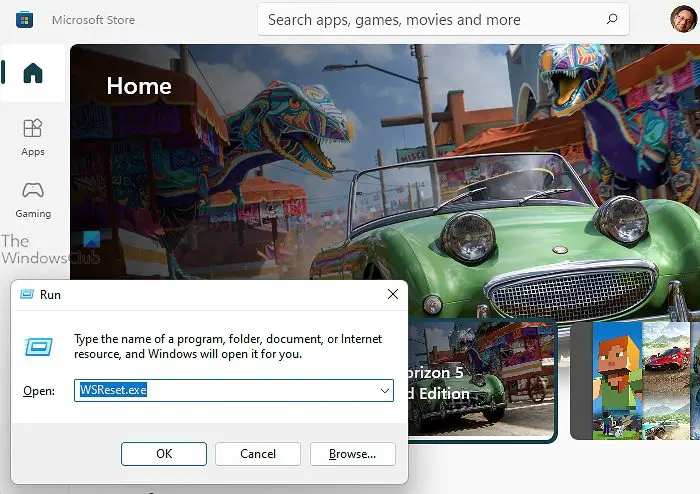
A corrupted Microsoft Store cache can prevent the download, update, or even the launch of any app installed through it, including the Company Portal. The Store uses a local cache to manage licenses and installations, and if this cache becomes corrupted, it can prevent the Company Portal from running. Using the built-in WSReset.exe tool is a clean, supported way to wipe that cache without changing your system settings. Open Run, type WSReset.exe and click OK.
Hopethis helps.
Read: Microsoft Intune not syncing? Force Intune to sync in Windows 11
Why won’t Company Portal open after AutoPilot enrollment?
After an AutoPilot deployment, the Intune Management Extension may still be processing mandatory apps and policies in the background, preventing the Company Portal from launching immediately. A pending reboot or a temporary sync delay can also cause the app to hang. Allow the device to remain idle for 10-15 minutes, then manually restart it. Once the background sync completes and the IME service finalizes enrollment tasks, the Company Portal will open without issues.
Read: Unable to register device in Microsoft 365 Admin Center
Why are apps not showing as available in Company Portal?
The app catalog may be incomplete because the device hasn’t finished syncing with Intune, or your sign-in token has expired. First, open Company Portal, go to Settings, and tap Sync to force a policy refresh. If apps still don’t appear, verify with your IT admin that the applications are assigned as Available to your specific user or device group and that your device is compliant with all policies. A quick reinstall of the Company Portal app can also refresh the catalog and resolve lingering display issues.
