
You have just finished setting up a brand new laptop for a remote employee. You navigate to the Microsoft 365 Admin Center, expecting to see the device listed under Devices, so you can manage it and apply policies. However, the device list remains empty, and when you try to add it manually, the portal returns a generic error: “Unable to register device.” In this post, we will discuss what to do if you are unable to register a device in the Microsoft 365 Admin Center.
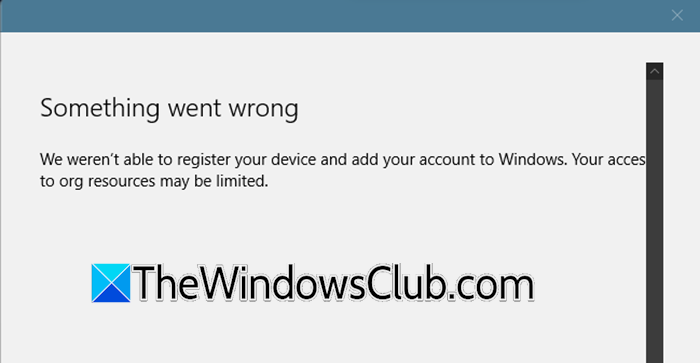
For a device to appear in the Microsoft 365 Admin Center, it must complete a registration process that establishes a trust relationship between the local machine and your Azure Active Directory tenant. This process requires the user to have the appropriate license, the device to be running a supported Windows version, and the network connectivity to reach the Azure AD endpoints. If the device was interrupted during the out-of-box experience, or if a previous owner had joined it to a different tenant, the registration state becomes corrupted. Additionally, if you are in a hybrid environment, the device might be waiting for a synchronization cycle or unable to find your on-premises domain controller.
Fix Unable to register device in Microsoft 365 Admin Center
If you are unable to register the device in the Microsoft 365 Admin Center, follow the solutions below.
- Force a manual Azure AD join via Windows Settings
- Verify user licensing and service plans
- Check for DNS resolution in hybrid environments
- Clear the device’s registration state using dsregcmd
Let us talk about them in detail.
1] Force a manual Azure AD join via Windows Settings
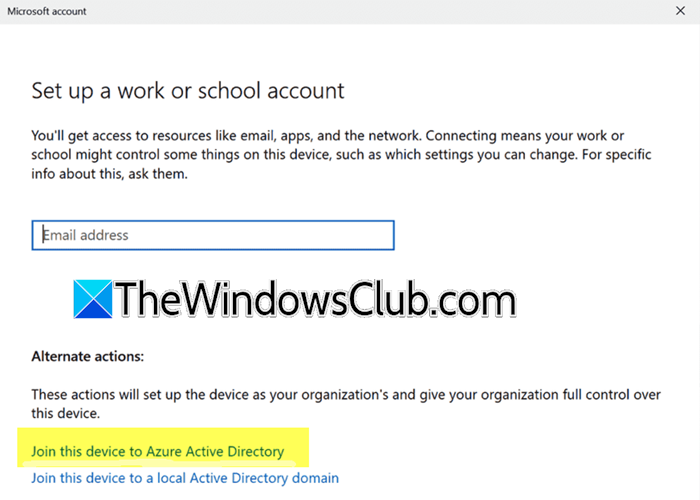
Disconnecting and re-joining the device forces the operating system to discard any cached or corrupted tokens and establish a fresh trust relationship with Azure AD. This resolves most issues caused by interrupted initial setups.
To do the same, you need to do the same for yourself.
- On the affected device, open the Settings app and navigate to Accounts > Access work or school.
- Click on the connected account (if any) and select Disconnect. Confirm the action and restart the laptop.
- After the restart, go back to Settings > Accounts > Access work or school and click Connect.
- Select Join this device to Azure Active Directory and sign in with the user’s Microsoft 365 credentials.
The device should now appear in the admin center within a few minutes.
2] Verify user licensing and service plans
Azure AD device registration is a premium feature. If the user does not have a license that includes Azure AD P1 or P2 (such as Microsoft 365 Business Premium), the tenant rejects the registration request even if the local steps are completed successfully.
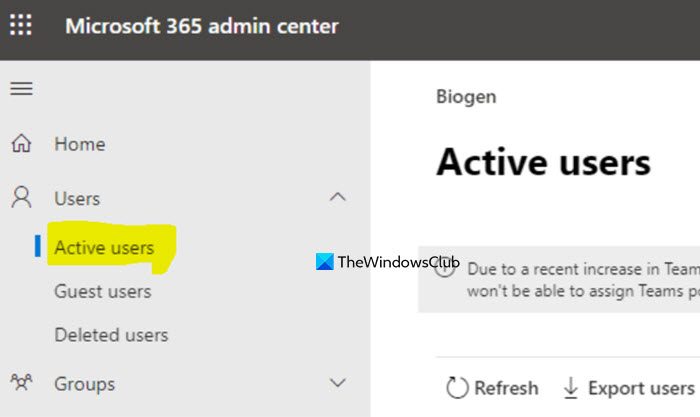
- Go to the Microsoft 365 Admin Center and navigate to Users > Active Users.
- Select the user who is trying to register the device and open the Licenses and apps tab.
- Ensure a license like Microsoft 365 Business Premium or Enterprise E3 is assigned.
- Click on the license to expand it and confirm that the Azure Active Directory service plan is toggled On. If it was disabled, save the change and ask the user to sign out and sign back in on the device.
Finally, check if your issue persists.
3] Check for DNS resolution in hybrid environments
In a hybrid deployment, the client device needs to locate an on-premises domain controller to authenticate the join request. If the device is off the corporate network and the VPN does not push the correct DNS settings, it will fail silently.
On the client machine, open Command Prompt and type ipconfig /all. Look at the DNS Servers entry.
The DNS server IP must be an internal address that can resolve your on-premises Active Directory domain (e.g., company.local).
If the device is using a public DNS (like 8.8.8.8), configure the VPN connection to use the internal DNS servers or connect the device directly to the office network temporarily.
Run dsregcmd /status in the command prompt to check if the device is stuck in a pending state.
4] Clear the device’s registration state using dsregcmd

The built-in dsregcmd tool can reset the device’s registration status without requiring a full reinstall. This clears the local certificates and identifiers that might conflict with the tenant. Follow the steps below to clear the device’s registration state using dsregcmd.
- Open Command Prompt as an Administrator on the affected device.
- Type dsregcmd /leave and press Enter. This signs the device out of Azure AD and removes the registration.
- Wait 30 seconds, then type dsregcmd /join and press Enter.
- Restart the computer and check the Access work or school settings to verify the device rejoined successfully.
Hopefully, with these solutions, your issue will be resolved.
Read: Microsoft Authenticator We’re sorry we ran into a problem
How to enable device in Office 365 admin center?
To enable a disabled device, you need to go to the Microsoft Entra admin center (formerly Azure AD) with an administrator account. From there, navigate to the Devices section, find the disabled device in the list, select it, and click the Enable option to reactivate it. If you don’t have admin rights, you’ll need to contact your organization’s IT administrator to do this for you.
Read: How to restore Active Directory from a Windows Server Backup
Why can’t I register a device on Intune?
Device enrollment in Intune usually fails because the user has reached the maximum number of allowed devices, the device type is blocked by enrollment restrictions, or the user is not authorized to join devices to Azure AD. Other common reasons include missing Intune licenses, the device already being managed by another MDM provider, or the device running an unsupported Windows edition like Windows 11 Home. You can check the specific error by running the dsregcmd /status command or checking Event Viewer logs on the device.
Also Read: Install Active Directory and add users.
