
If the Account verification system is having trouble error keeps troubling you, then this post may help. This error usually occurs when users try to sign in using their work or school account. One of the following error message could appear:
Sorry, our account verification system is having trouble. This could be temporary, but if you see it again, you might want to contact your admin.
OR
Sorry we’re having trouble verifying your confirmation code right now, Please try again later
Fortunately, you can follow some simple steps to fix it.
Why is Microsoft verification not working?
The security app sometimes blocks your device from receiving the verification code. It can also happen because of account security issues. Some other reasons why Microsoft verification may not work are:
- Incorrect Login Credentials
- Server Error
- Unstable Internet Connection
- Two-factor Authentication Error
Account verification system is having trouble verifying your confirmation code
To fix the Account verification system error, firstly, check if you’re entering the correct login credentials. Nevertheless, if that doesn’t work, follow these suggestions:
- Follow this Checklist
- Check your Internet Connection
- Turn-off Two-Factor Authentication
- Contact your Admin.
1] Follow this Checklist
If you are the server or company administrator and have enabled Multi-Factor Authentication, then follow these suggestions:
- If you selected the call option to sign in to your Microsoft account, respond by pressing the pound key when you receive the call.
- If verifying using the text or OTP option, double-check the verification code before proceeding further.
- If you’ve set up other security verification options, click Other verification options on the sign-in page.
Read: This device is locked by an Administrator
2] Check your Internet Connection
Errors like this can also happen if you have an unstable Internet connection. Perform a speed test to check if anything is wrong with your Internet connection. If your internet speed is lower than the plan you chose, restart your router and modem. If restarting your router and modem doesn’t work, contact your service provider.
3] Turn off Two-Step Verification
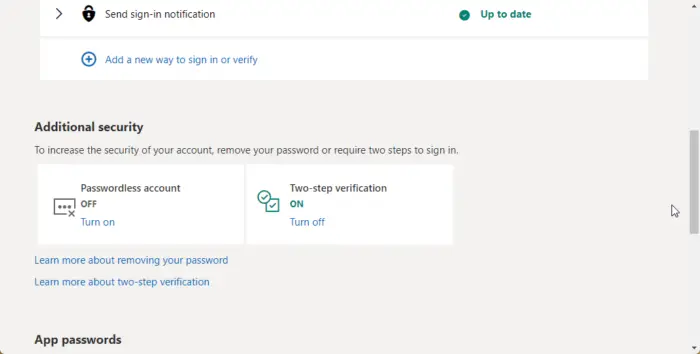
Two-step verification is a security process requiring users to verify themselves with different authentication factors. The account verification system can sometimes face issues if this feature is turned on. Turn off this feature and see if the error gets fixed. Here’s how:
- Log into your Microsoft Account.
- Navigate to Security > Advanced Security Options.
- Scroll down and click on Turn off below the Two-step verification.
You can only turn off this feature on the personal account. If your work or school account uses two-step verification, the organization has added this security feature. If that’s the case, you won’t be able to disable it without administrator access.
Read: Microsoft Sign in Error 1001, Something went wrong
4] Contact your Admin
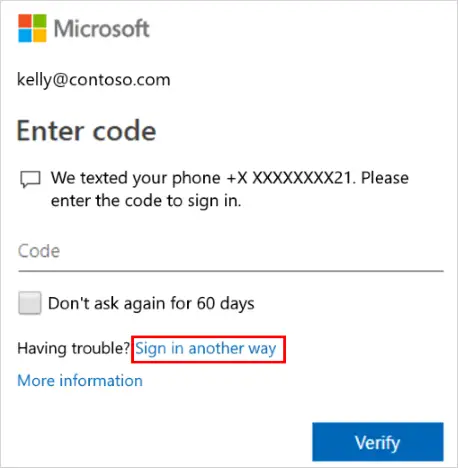
If none of the suggestions help, try an alternative method to sign in to your account. Microsoft allows users to add alternative sign-in methods to their accounts. Click on the Sign in another way option on the enter code page.
However, if you don’t see this option, you may not have another verification method for your account. In that case, contact your administrator.
We hope this post helps you.
Why do I keep having to verify my account?
Device verification is an essential process to keep your account and data safe. The process ensures only you and the persons you’ve authorized can access your account. Typically, the verification process takes 3 to 5 business days. However, you can contact Microsoft support for assistance if this timeline is exceeded.
Why is my Microsoft account not sending a code to my phone?
If you are not receiving the verification code while trying to log in to your Microsoft account, check the internet connection of your PC and smartphone. Next, check whether your service provider is blocking messages or automatically sending them to your spam folder.
