
While setting up Microsoft Authenticator on an Android device, if you see an error message saying “Sorry, only part of the setup completed successfully,” here is how you can fix it. It implies that part of the setup is pending, and a few things need to be in place to complete it. This problem mainly occurs while setting up a School or Work account in Microsoft Authenticator.
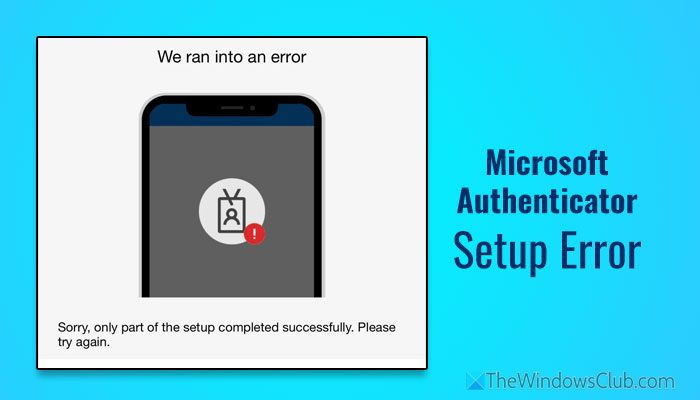
Why is Microsoft Authenticator showing Sorry, only part of the setup completed successfully error?
If Microsoft Authenticator is showing Sorry, only part of the setup completed successfully, one of these could be the reason:
- Google Play Services is disabled on your mobile.
- You have an outdated version of the Google Play Store.
- You haven’t set any password or PIN for your mobile.
- You haven’t enabled PIN or biometrics for your Microsoft Authenticator profile.
- Your phone is running on a custom ROM.
Fix Sorry, only part of the setup up completed successfully error in Microsoft Authenticator on Android
To fix the Sorry, only part of the set up completed successfully error in Microsoft Authenticator on Android follow these instructions:
- Update Google Play Services
- Setup PIN or biometric for phone
- Setup PIN or biometric for Microsoft Authenticator
- Ensure you do not have custom ROM
- Update phone and Microsoft Authenticator
- Ensure a valid internet connection
- Enable notifications
To learn more about these solutions, continue reading.
1] Update Google Play Services
Google Play Services is one of the most important things your Android phone must have in order to get a smooth sign-in, security updates, etc. If this service is not updated or working, you might face various problems like this one.
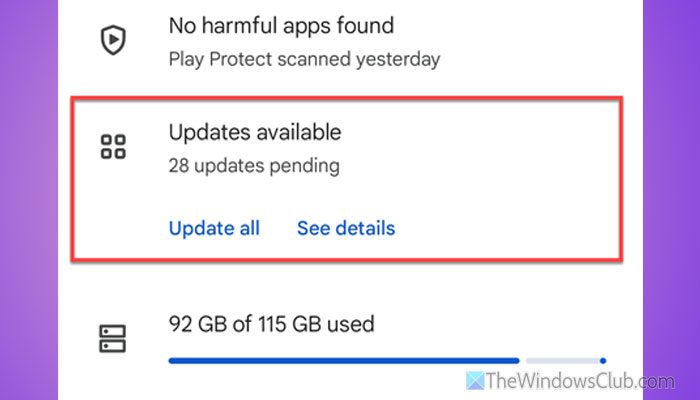
That is why it is suggested to update Google Play Services first. For that, you can open the Google Play Store and tap on your profile picture. Then, select the Manage apps & devices option.
Tap on the Updates available option to find all the updates. If Google Play Services is available here, update it immediately.
Apart from that, if you see an update is available for the Google Play Store itself, it is recommended to update it as well.
Read: How to run Google Play Store Android apps on Windows 11
2] Setup PIN or biometric for phone
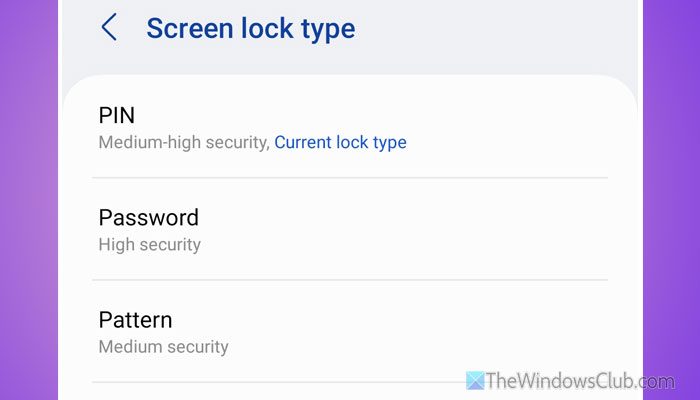
Microsoft Authenticator is a security application that provides a security code for account logins. It uses your phone’s password/PIN/biometric to lock the app. However, if you haven’t set any password or PIN for your phone, it is suggested to do that and then go through the setup process.
Read: How to Create and Set Up Picture Password or PIN in Windows 11/10
3] Setup PIN or biometric for Microsoft Authenticator
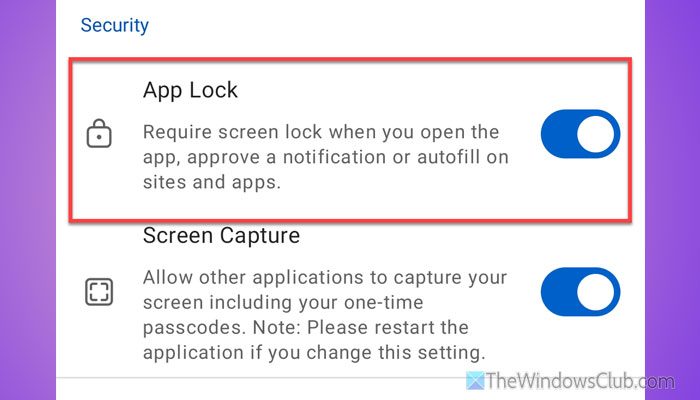
You must use a PIN or a biometric lock for Microsoft Authenticator. However, if you are not using any such thing, you might encounter the above-mentioned error. That is why, follow these steps to set up App Lock for Microsoft Authenticator:
- Open Microsoft Authenticator on your mobile.
- Tap on the three-dotted icon and select Settings.
- Toggle the App Lock button to turn it ON.
Read: How to Import or Export passwords from Microsoft Authenticator
4] Ensure you do not have custom ROM
Microsoft Authenticator might not always work on custom ROMs. It requires a few things, and GApps is one of them. If your custom ROM doesn’t have it or has a modified version, there is a chance of getting this error. We suggest that you install Microsoft Authenticator on a phone running an official ROM.
Read: How to build LineageOS on Windows using Windows Subsystem for Linux
5] Update phone and Microsoft Authenticator
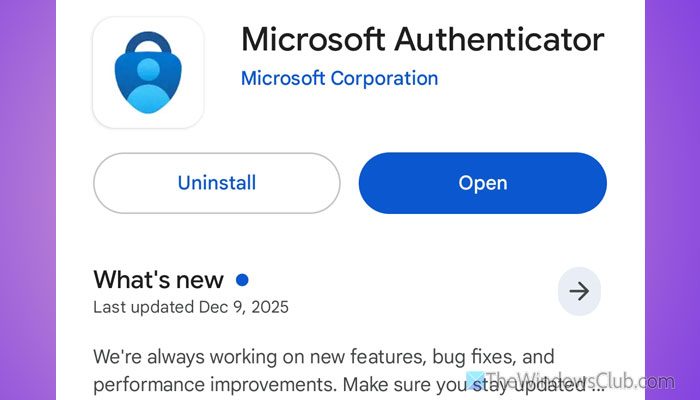
It is one of the basic solutions that you can follow. If your phone doesn’t have the latest security patch, Microsoft Authenticator might not work. On the other hand, if you haven’t updated Microsoft Authenticator for a long time, you can come across the aforementioned error.
Read: Accidentally deleted Microsoft Authenticator app; Now, I can’t sign in
6] Ensure a valid internet connection
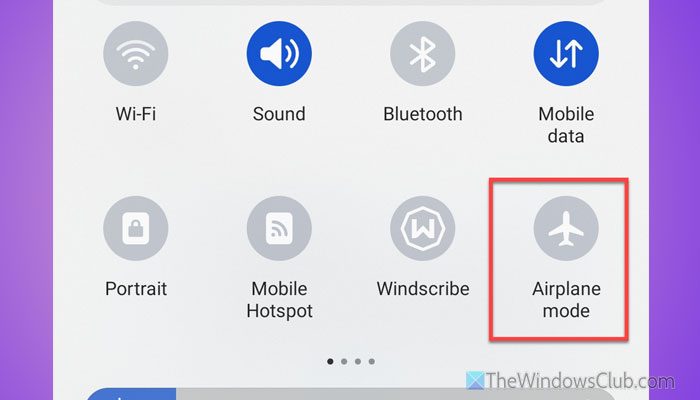
If your internet connection is not stable, Microsoft Authenticator will fail to fetch the account credentials, and as a result, you will find the error. That is why it is suggested to go through these steps to ensure a valid internet connection:
- If all the other websites are opening smoothly or not.
- Switch to a different internet connection.
- Turn ON Airplane mode and turn it OFF.
- Turn off VPN.
Read: Fix Network & Internet connection problems in Windows 11/10
7] Enable notifications
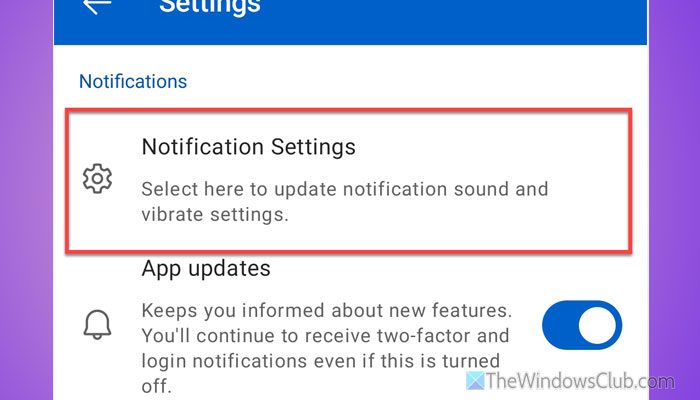
To enable notifications for Microsoft Authenticator, follow these steps:
- Open the Settings of Microsoft Authenticator.
- Tap on the Notification Settings.
- Toggle the Allow notifications button to turn it ON.
Read: How to use and add Work/School accounts to Microsoft Authenticator app
Why is my Microsoft Authenticator app failing?
If your phone doesn’t have a valid internet connection or the time zone is incorrect, Microsoft Authenticator may fail on your phone. On the other hand, if Google Play Services and Microsoft Authenticator are not up to date, you might find the same problem.
How do I reset my Authenticator app?
To reset the Microsoft Authenticator app, tap and hold the app icon and select the info option. Go to Storage, tap on the Clear data option.
Read: How to use Microsoft Authenticator app on PC and Phone
