
Microsoft Authenticator is a mobile application developed by Microsoft that helps you secure your email accounts. In addition to a Microsoft account, you can also add other email accounts to the app, such as a Google account. After setting up Microsoft Authenticator for your Microsoft account, you have to approve the sign-in request in the Authenticator app every time you sign in. If you want to remove Authenticator from your Microsoft account, follow the right steps; otherwise, you may be permanently locked out of your account.
How to remove Authenticator from Microsoft Account
To remove Authenticator from your Microsoft account, follow the steps below in the order shown.
1] Remove the Authenticator sign-in option
You can add multiple sign-in options to secure your Microsoft account. These sign-in options prevent you from getting locked out of your Microsoft account. Microsoft Authenticator is one of these sign-in options. First, you have to remove the Authenticator sign-in option from your Microsoft account. To do that, follow the steps provided below:
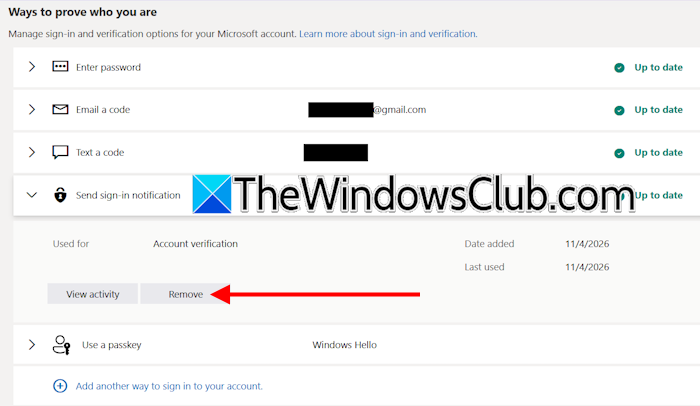
- Open your web browser on your PC and sign in to your Microsoft account.
- Open the Authenticator app on your phone and approve the sign-in request.
- Select Security on the left side.
- Now, select Manage how I sign in under the Account Security tab.
- Expand the Send sign-in notification tab. This is the Microsoft Authenticator sign-in option.
- Now, click Remove.
- Click Remove again in the confirmation box.
Refresh the page (if required). After following the above steps, Authenticator will be removed from your Microsoft account.
2] Remove your Microsoft account from the Authenticator app on Android or iPhone
The next step is to remove your Microsoft account from the Authenticator app on your Android or iPhone device. Android phone users can follow the steps provided below:
- Launch Microsoft Authenticator on your Android phone.
- If you have enabled the Cloud backup feature for your account, disable it first.
- Tap the three dots in the top-right corner and select Settings.
- Turn off the Cloud backup option.
- Return to the Authenticator app Home screen.
- Tap the Microsoft account you want to remove.
- Tap the Settings icon in the top-right corner.
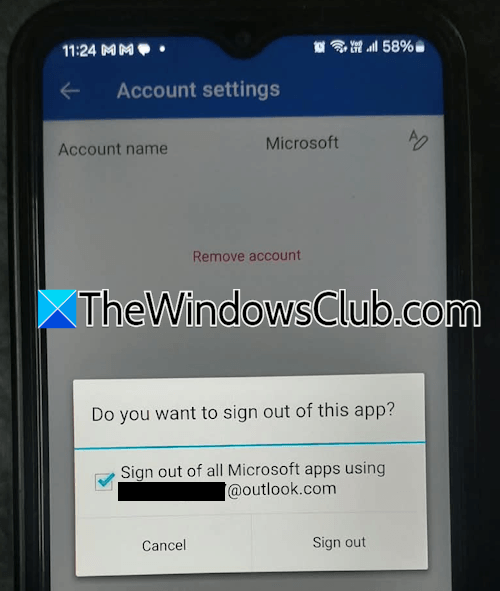
- Select Remove account.
You will receive a pop-up asking you to sign out of all Microsoft apps using your Microsoft account. Select the checkbox and tap Sign out.
If you are an iPhone user, follow these steps:
- Open the Microsoft Authenticator app on your phone.
- Tap on the Hamburger menu in the top-left corner and select Settings.
- If you have turned iCloud Backup ON, disable it.
- Now, scroll down to the Autofill section and tap on Sync Account.
- Now, select Stop Sync and Remove Autofill Info. Select Stop Syncing in the confirmation box.
- Now, select the account you want to remove and tap the gear icon in the top-right corner.
- Select Remove account.
What happens if you remove your Microsoft account from the Authenticator app without deleting the Authenticator sign-in option?
If you want to remove your Microsoft account from the Microsoft Authenticator app, we strongly recommend that you first remove the Authenticator sign-in option from your Microsoft account.
Removing your Microsoft account from the Authenticator app does not automatically remove the Authenticator sign-in option from your Microsoft account. This means that the sign-in option remains active even after you remove your account from the app. As a result, you will continue to receive sign-in approval requests through the Authenticator app whenever you try to sign in to your Microsoft account.
In this situation, you can access your account only if you have configured other sign-in methods. However, if Microsoft Authenticator is your only available sign-in option, removing your account from the app could permanently lock you out of your Microsoft account.
That’s it. I hope this helps.
What happens if I delete the Authenticator?
If you delete the Authenticator app, you may lose access to all the email accounts added to it. When you install the Authenticator app the next time, you will not get the accounts back. Instead, you will see a clean interface. The app will still ask for the security code, even if you use the Cloud backup option to restore your email accounts. In such a case, you can use other sign-in options. However, if the other sign-in options are not available on your account, you may permanently lose your email accounts.
Is it possible to sign in without Microsoft Authenticator?
Yes, you can sign in to your account without Microsoft Authenticator. However, it is only possible if other sign-in options are configured on your account. You can add multiple sign-in methods to your account, such as password or passkeys.
Read next: Not receiving code on Microsoft Authenticator app.
