
The Microsoft Authenticator app is a vital tool for securing your accounts with two-factor authentication (2FA). When it stops delivering approval notifications or one-time codes, it can lock you out of your Microsoft account and other connected services. In this post, we are going to see what you can do if you are not receiving code on the Microsoft Authenticator app.
Why is Microsoft Authenticator not getting a code?
The Microsoft Authenticator may not receive codes due to a poor internet connection on your phone, which blocks push notifications. Incorrect time and date settings on your device can also prevent the time-sensitive codes from generating correctly. Additionally, the app’s specific connection to your account may have a sync error that needs resetting.
Fix Not receiving code on Microsoft Authenticator app
This problem typically occurs due to simple connectivity or configuration issues. The most common reasons are a poor internet connection on your phone, incorrect time/date settings, disabled notifications for the app, or a need to refresh the account within the Authenticator app itself.
If you are not receiving code on the Microsoft Authenticator app, follow the solutions mentioned below.
- Check your phone’s Internet connection
- Synchronize your account time
- Remove and re-add your Microsoft account
- Use a Backup Method
Let us talk about them in detail.
1] Check your phone’s Internet connection
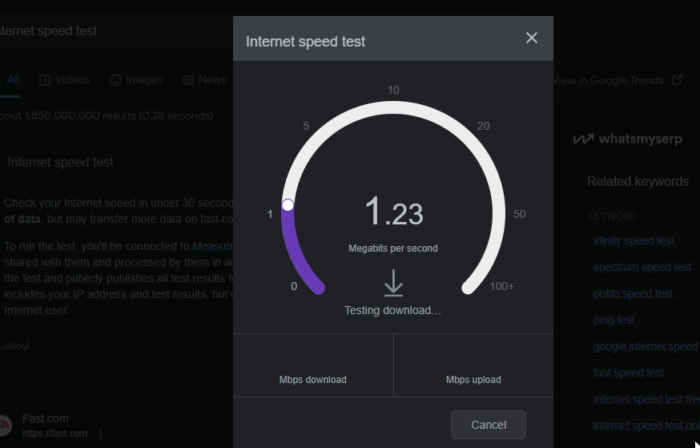
Push notifications for the Authenticator app are delivered over the internet. A simple connection glitch can block this data path. Toggling connections or switching networks forces your phone to re-establish a fresh, clean link to Microsoft’s servers, allowing the notification to come through.
First of all, toggle Airplane mode on and off to reset the connection. Then, switch between Wi-Fi and mobile data to see if one works. Additionally, check your Internet connection using a free Internet speed tester. The app needs an active internet connection to receive cloud-based notifications.
2] Synchronize your account time
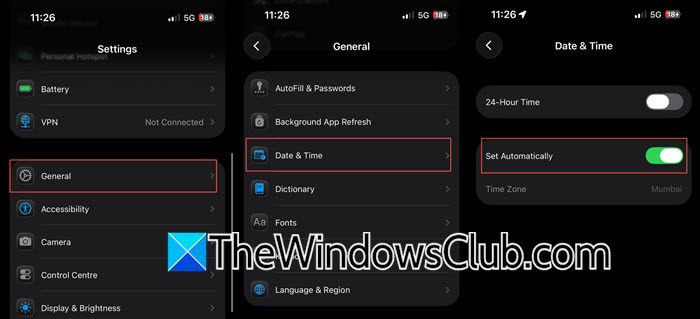
Verification codes are generated using a time-based algorithm (TOTP), so if your phone’s clock is even slightly out of sync, the code it generates will be different from the one expected by Microsoft’s server. We need to make sure to use the correct time on our phone for it to work.
On Android, go to Settings > System or General Management > Date and time. Ensure “Automatic date and time” (or “Use network-provided time”) is turned ON.
If you are using an iPhone, go to Settings > General > Date & Time, and ensure Set Automatically is ON.
The app automatically corrects for time drift in the background. Simply force-close the app and re-open it. This can trigger a fresh sync with the servers.
3] Remove and re-add your Microsoft account
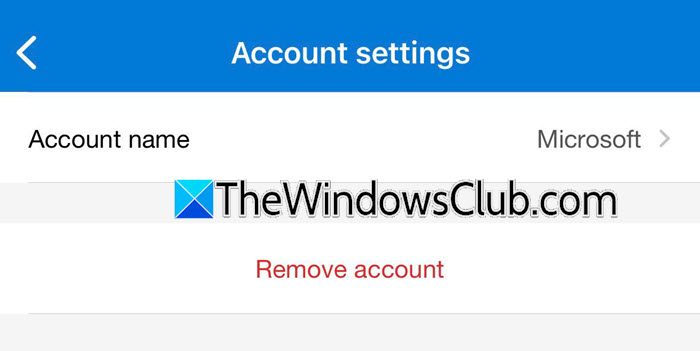
In this solution, we will force a complete reset of the secure link between the app and the server. Removing the account clears out any corrupted data or sync errors, and re-adding it establishes a fresh connection and downloads new, valid cryptographic keys, ensuring your codes are generated correctly.
In the Authenticator app, tap on your Microsoft account, and click on the Cog icon. Select Remove account. Add it back by signing in again. This refreshes the connection and often resolves sync issues.
Finally, check if the issue is resolved.
Read: Accidentally deleted Microsoft Authenticator app; Can’t sign in
4] Use a Backup Method
On the sign-in screen, look for and click Use a different verification method or I can’t use my authenticator app right now. Choose to receive a code via SMS or email to regain access to your account. Once in, you can troubleshoot the app further.
Hopefully, with the help of these solutions, your issue will be resolved.
Read: How to use Microsoft Authenticator app on PC and Phone
Why am I not getting a notification on Microsoft Authenticator?
You may not be receiving notifications due to a weak or unstable internet connection on your mobile device, which is required for push alerts. The issue could also be that app notifications are disabled in your phone’s system settings, or battery optimization features may restrict the app itself.
Also Read: Import or Export passwords from Microsoft Authenticator.
