
If Microsoft Authenticator is showing the wrong location of the sign-in request, here is how you can fix the problem. It could happen due to a VPN or proxy, your OS’s location data being inaccurate, etc. Here we have gathered almost all possible reasons so that you can find yours and fix the security issue within moments.
Microsoft Authenticator shows the location and IP address of the sign-in request for Microsoft accounts. It helps you check whether the request is valid or if someone is spoofing your credentials to access your account.
Why does Microsoft Authenticator show wrong location?
One of the following reasons could force Microsoft Authenticator to show the wrong location:
- You are using a VPN or proxy to mask your original location.
- You are using an ISP that reroutes all the incoming and outgoing traffic through another network.
- Your computer has some issues with the geolocation settings.
- Your browser is not updating your original location.
Microsoft Authenticator shows wrong location
If Microsoft Authenticator shows the wrong location, follow these instructions:
- Disable all types of VPN and proxy
- Verify your system time zone settings
- Switch to another internet source
- Clear browser cookies and cache
- Allow browser to access your location
- Restart Geolocation service
To learn more about these solutions, continue reading.
1] Disable all types of VPN and proxy
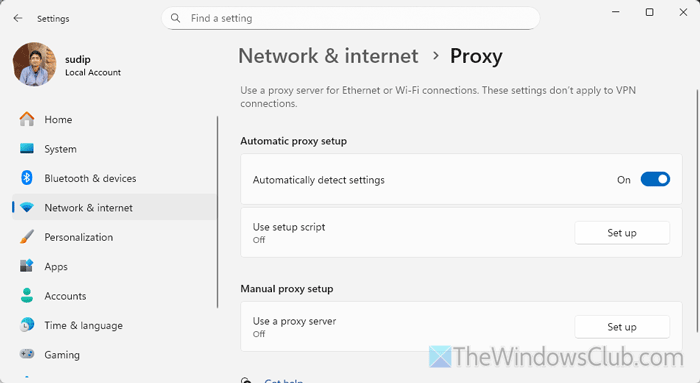
It is the first thing you must do. The main purpose of using a VPN or proxy is to hide your original location. If you use any such app or service, Microsoft Authenticator will capture that masked location for obvious reasons.
That is why it is highly recommended to disable all types of VPN and proxy services if you want to get the original location and IP address. That said, it includes the browser extensions as well.
2] Verify your system time zone settings
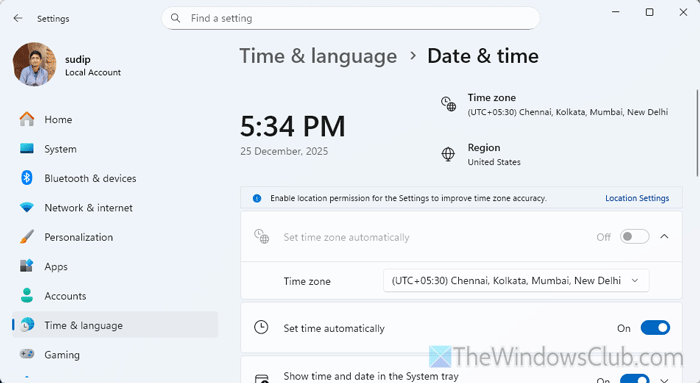
If your Windows computer is set to an incorrect time zone, this problem may arise. According to the official statement, Microsoft Authenticator requires the time zone settings and location settings to provide accurate geolocation. That is why, follow these steps to verify the time zone settings in Windows 11:
- Press Win+I to open Windows Settings.
- Go to Time & language > Date & time.
- Click the Time zone drop-down menu and select the correct time zone for your location.
However, you can set time zone automatically as well.
3] Switch to another internet source
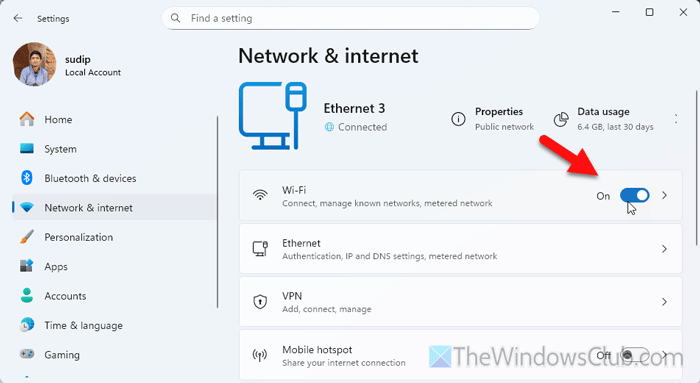
At times, this problem may arise due to your ISP’s original rerouting settings. Many ISPs reroute their incoming and outgoing traffic through another location. If your ISP does the same, you can find the aforementioned problem.
That is why it is suggested to switch to another internet source. If you are using Wi-Fi, try going with a mobile hotspot or Ethernet, and vice versa.
Read: How to change WiFi Network Connection Priority in Windows
4] Clear browser cookies and cache

If your browser doesn’t update your location in its settings, you cannot find the correct location. It happens when you use multiple VPN extensions in your browser.
Therefore, first, check if you have disabled all the VPN extensions. If yes, it is time to clear the browser cookies and cache.
It would be better if you also removed the specific site data. For that, open the particular website and click on the View site information button. Next, click the Site settings option and click on the Delete data button.
Read: Clear Cookies and Cache for one site in Chrome, Edge, Firefox
5] Allow browser to access your location
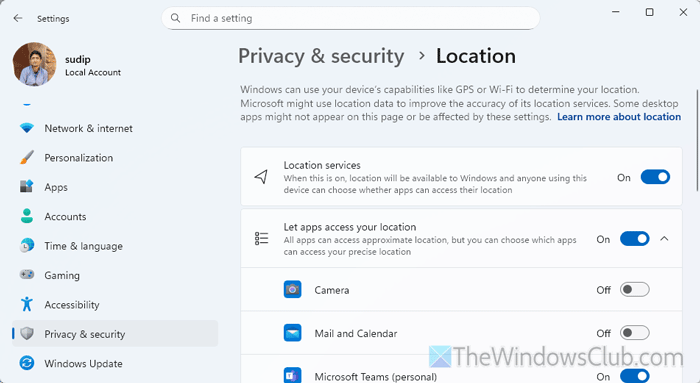
To allow your browser to access your location, follow these steps:
- Open Windows Settings on your computer.
- Go to Privacy & security > Location.
- Toggle the Location services button to turn it ON.
- Toggle the Let apps access your location button to turn it ON.
Although these steps are sufficient, you might find the browser name in the list. If so, you must verify whether it is enabled or not.
Read: How to change Location settings in Windows 11
6] Restart Geolocation service
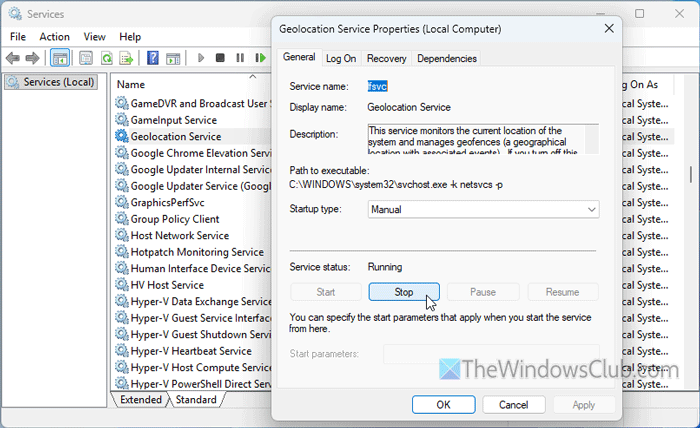
To restart the Geolocation service, follow these steps:
- Search for “services” in the Taskbar search box and click on the individual search result.
- Double-click on the Geolocation Service option.
- Click the Stop button.
- Click the Start button.
- Click on the Apply and OK buttons.
Read: Windows 11 Location wrong
How do I change the location in Microsoft Authenticator?
To change the location in Microsoft Authenticator, open the Microsoft Authenticator settings on your mobile and tap on the Permissions setting. Select Location and choose the Allow all the time option.
Why does my login show a different location?
The main reason why your login shows a different location is that you are using a VPN or proxy. Another reason could be your ISP, which may be rerouting your traffic.
Read: Microsoft Edge detects the wrong Geographical Location.
