
Yesterday I wanted to go somewhere and was using my Laptop for navigation. I was flabbergasted upon noticing that the place I was supposed to go is kilometers away from me; in reality, it should be just a few hundred meters away. Upon inspecting my current location, I noticed that it is wrong. Finally, I had to enter my starting position manually in Google Maps to reach my destination. Long story short,the Windows 11 location was wrong in this case, and in this post, we will see how to fix this issue.
Why is my PC showing the wrong location?
Your PC displays the incorrect location primarily because Windows uses your IP address for geolocation, which can be inaccurate if your ISP’s database is outdated or if your IP address is registered to a different region. One of the reasons is VPNs/proxies, as it redirect your traffic through remote servers, making you appear elsewhere. Service glitches (like a stuck/corrupted Geolocation Service) or Windows updates that reset settings can also trigger errors. Finally, incorrect time zones or cached location data may conflict with fresh signals.
Windows 11 shows wrong locations primarily because it uses IP-based geolocation, which suffers from outdated ISP databases registering IPs to incorrect regions. This worsens with IPv6 addresses lacking proper location records in geolocation services. VPNs or proxies reroute traffic through distant servers (e.g., displaying Delhi when you’re in Mumbai), while service glitches, such as corrupted system files or a disabled Geolocation Service (ifsvc), further disrupt accuracy.
Fix Windows 11 location wrong
If the Windows 11 location is incorrect, follow the solutions mentioned below.
- Verify IP Consistency and Disable VPNs
- Restart and configure Geolocation Service
- Change Windows Time Server
- Reset Location Permissions and Cache
Let’s discuss them in detail.
1] Verify IP Consistency and Disable VPNs
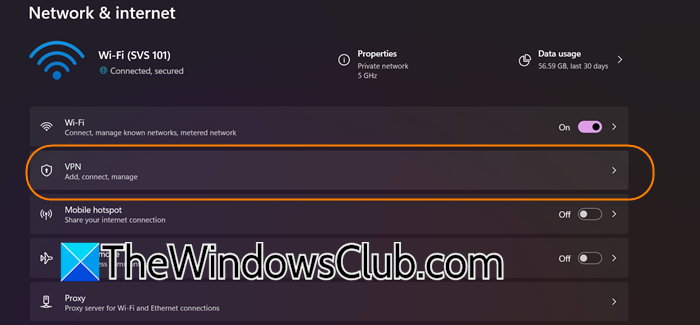
Windows 11 determines your location primarily using your device’s public IP address, not GPS (unlike phones). If your public IP’s registered location in geolocation databases is wrong, Windows will display an incorrect location. VPNs and proxies exacerbate this issue by masking your actual IP address with one from a remote server.
- First of all, go to WhatIsMyIP.com in your browser.
- You need to check the Geolocation or IP Location.
- Compare this to your actual physical location.
- You need to disable VPNs/Proxies. Go to Settings > Network & Internet > VPN.
- Turn off the toggle to disable your active VPN connection.
So, if your VPN is active, your location will be different; therefore, disabling it will do the trick for you.
2] Restart and configure Geolocation Service
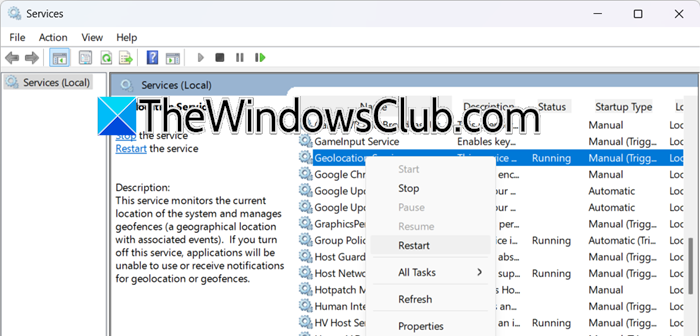
The Windows Geolocation Service (lfsvc) is the core system component that processes location data from your IP address, Wi-Fi networks, and other sources. If this service freezes, crashes, or gets misconfigured, Windows can’t update your location accurately, even if your IP is correct. Restarting it clears temporary glitches, while setting it to “Automatic” ensures it runs persistently.
- Open Services.msc by searching for it in the Start Menu.
- Then, look for the Geolocation Service, right-click on it, and select Restart.
- Once the service starts, right-click on it and select Properties.
- Set the Startup type to Automatic.
- Click on Apply > Ok.
Check if the issue is resolved.
3] Change Windows Time Server
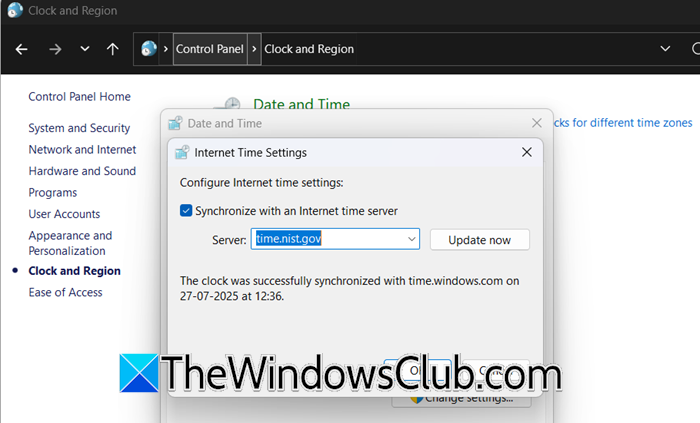
Windows uses your system’s time zone as a secondary clue to validate your location when IP geolocation is ambiguous or conflicting. If your time zone is wrong (e.g., set to “Tokyo” while you’re in London), it can override accurate IP-based location data. Syncing with a reliable time server, such as time.nist.gov, forces Windows to reconcile your time zone with network-based location signals, thereby resolving inconsistencies.
Follow the steps mentioned below to change the Windows Time Server.
- Open the Control Panel by searching for it from the Start menu.
- Go to Clock and Region > Date and Time.
- Navigate to the Internet Time tab.
- Now, click on Change settings…
- Set time.nist.gov from the drop-down menu.
- Click on Ok.
Reboot your computer, and check if the issue is resolved.
Read: Windows does not update Daylight Savings Time (DST) change
4] Reset Location Permissions and Cache
Windows stores cached location data and app-specific permissions to speed up future location requests. If this data becomes corrupted, outdated, or misconfigured, it overrides fresh geolocation signals, forcing apps to use incorrect coordinates. Resetting these clears stubborn software-level conflicts, especially after updates or permission errors. To do so, follow the steps outlined below.
- Open Settings.
- Go to Privacy & security > Location.
- Then disable Location services.
- Now, click on Clear location history (if it is available, on some Windows 11 versions, it’s absent).
- Reboot your computer.
- Once the computer starts, enable Local Service.
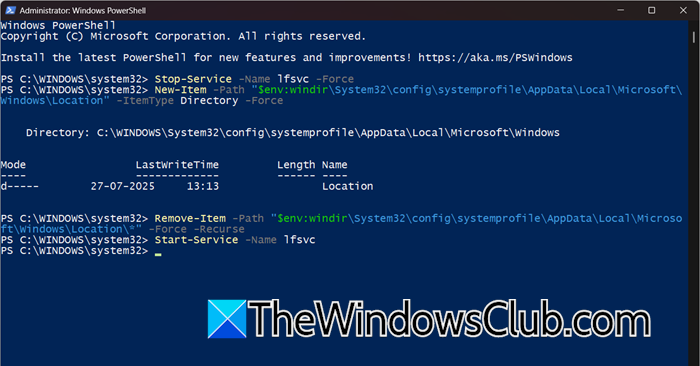
If the Clear location history option was missing for you, open PowerShell as an admin and run the following commands one by one.
Stop-Service -Name lfsvc -Force
New-Item -Path "$env:windir\System32\config\systemprofile\AppData\Local\Microsoft\Windows\Location" -ItemType Directory -Force
Remove-Item -Path "$env:windir\System32\config\systemprofile\AppData\Local\Microsoft\Windows\Location\*" -Force -Recurse
Start-Service -Name lfsvc
Finally, check if the issue is resolved.
If you notice an incorrect location in a web-based app, such as Google Maps, make sure to clear your browser’s cache (Chrome, Edge, etc).
All the best.
Read: Time Zone keeps changing automatically in Windows 11
Windows 11 location keeps changing
Windows 11 constantly recalculates your location based on your internet connection. When your IP address changes (due to router resets, switching networks, or ISP updates), Windows retrieves new, sometimes inconsistent, location data from online databases. Using Wi-Fi or moving between networks exacerbates this issue, as your device reacquires nearby signals and updates your coordinates.
The location service itself can cause fluctuations if corrupted or overloaded. Conflicting signals from apps, outdated cache files, or background services may force rapid recalculations. After Windows updates, resetting permissions, or bugs can also trigger location bouncing between old and new data until the system stabilizes.
However, you can follow the aforementioned solutions in this case as well, as they are fairly similar in terms of resolving network issues.
