
Some users encountered the “Too many requests” error while signing into their Outlook account. The same error occurred when they attempted to sign in to their Microsoft account. If you encounter the same problem while signing into your Outlook or Microsoft account, the solutions provided in this article will help you.

Too many requests error while signing into Outlook
Use the following solutions to fix the “Too many requests” error while signing into the Outlook account:
- Check Outlook service status
- Use other ways to sign in
- Switch to another internet connection
- Power cycle your router
- Disable VPN (if applicable)
- Switch to another web browser
- Disable extensions
- Clear your web browser cache and cookies
- Reset your network
All these fixes are explained below in detail.
1] Check Outlook service status
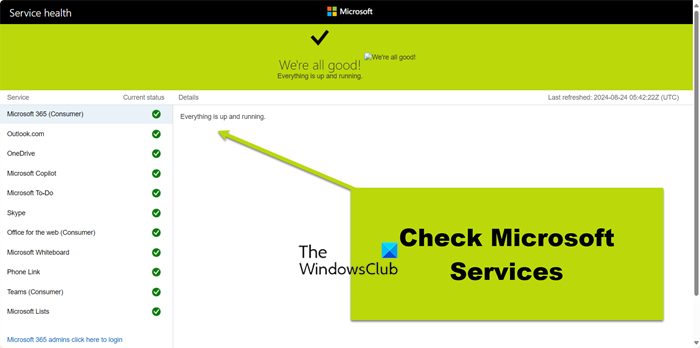
This error can occur due to a server outage. You can check the status of all Microsoft services on the official website. If there is no outage with Outlook servers, you will see a green tick. If the website shows a server outage, you need to wait till Microsoft resolves this problem.
2] Use other ways to sign in
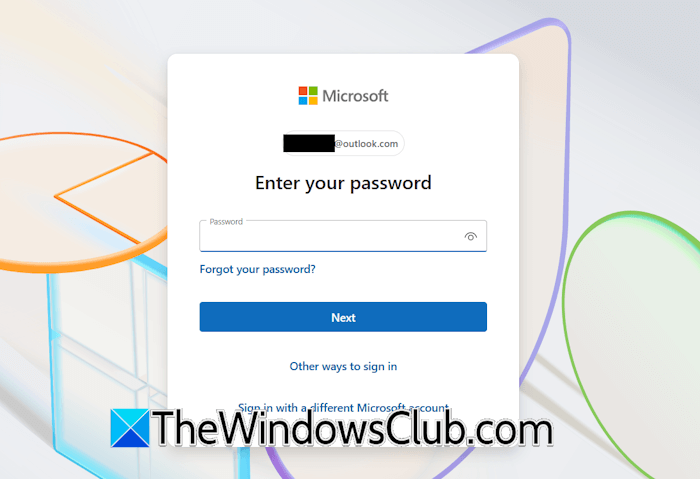
You can use other ways to sign in. In most cases, this error occurred when using the password sign-in method. Hence, you can try other sign-in options. After entering your user name on Outlook.com, click Other ways to sign in. Now, select a way other than password to sign in to your Outlook or Microsoft account.
3] Switch to another internet connection
Such types of sign-in problems are also associated with a particular network connection. Microsoft shows this error when it detects unusual traffic from a particular IP address. Therefore, switching to a different network connection should resolve the issue.
4] Power cycle your router
If the error disappears after switching to another internet connection, the issue is with your WiFi. In this case, you can power cycle your Wi-Fi router.
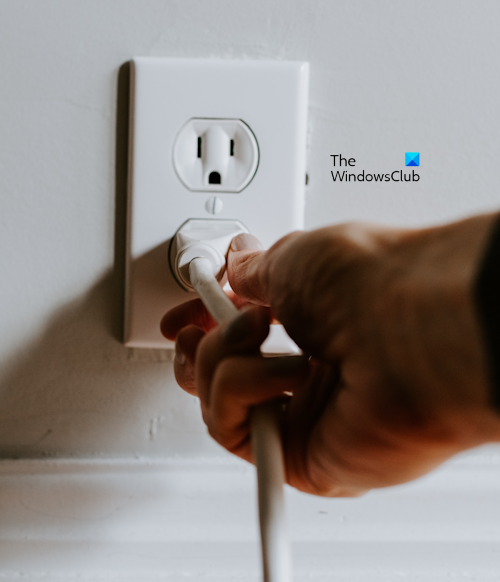
Follow these steps:
- Turn off your WiFi router.
- Disconnect the adapter from the wall socket and wait for a few minutes.
- Plug the WiFi router adapter into the wall socket and turn on the switch.
Wait till the router initializes and connects to the internet. Now, check if you can sign into your Outlook or Microsoft account.
5] Disable VPN (if applicable)
If you use a VPN, the error might occur due to the VPN connection. I suggest you disconnect from the VPN and log in to your account. This will change your IP address. Therefore, the error should not occur this time.
6] Switch to another web browser
Sometimes, issues are associated with a particular web browser. This can be the case with you. To check this, launch another web browser and sign in to your Outlook or Microsoft account using that browser. If this works, the problem is with your previous web browser. Now, you can reset that web browser.
7] Disable extensions
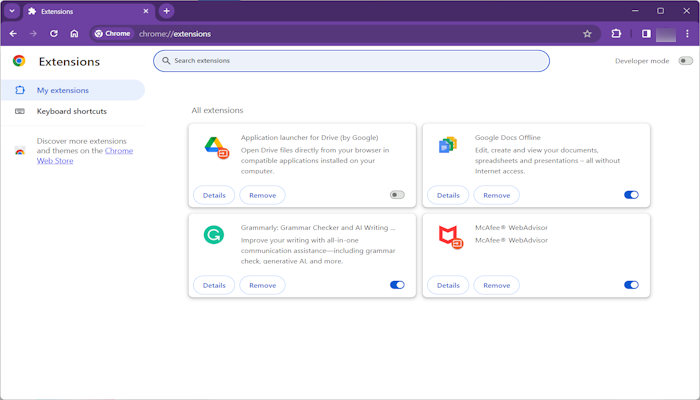
One of the browser extensions might be causing this issue. To confirm this, disable all your browser extensions and reload the page. Now, see if the error occurs while signing into your account. If the issue disappears, you need to find the problematic extension. First, sign out of your account. Now, enable any one of the extensions and reload the page. Sign in to your account. Repeat the process until the error reappears. When the error appears again, the extension you have just enabled is the culprit. After finding the problematic extension, uninstall it and find its alternative.
8] Clear your web browser cache and cookies
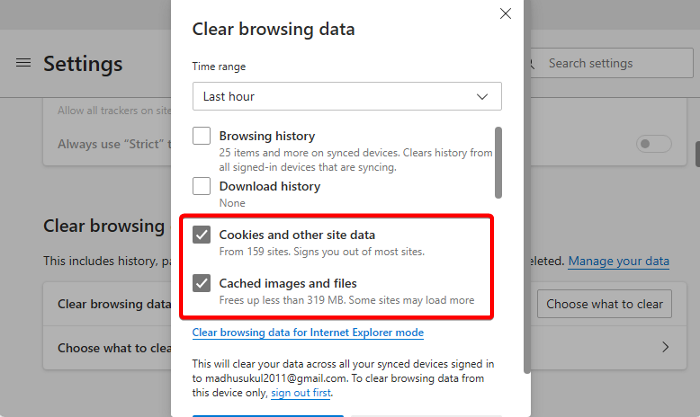
Open a private or incognito window of your web browser and log in to your Microsoft or Outlook account there. If the error does not occur, clear your browser cache and cookies. To do so, press the Ctrl + Shift + Delete keys. This will open the Clear browsing data pop-up window. Now, select the cache and cookies checkbox and click Clear.
9] Reset your network
The last resort is to reset your network. This action will reinstall the network adapters and set the networking components to their default values. Before performing this action, save all your pending work, as your system will restart automatically after 5 minutes.
I hope this helps.
How to fix the Outlook login problem?
If you are unable to log in to your Outlook account, please check the server status on the official Microsoft website. If there is no server outage, you can try some fixes, such as switching to another Wi-Fi network, using a VPN, clearing your browser cache and cookies, etc.
How to recover an Outlook account?
If you forgot the password of your Outlook account, you can use the “Other ways to sign in” option to recover your Outlook account. This option includes sending a verification code to both your registered email address and contact number. If you have not set any recovery options for your account, you can use the Get Help app to recover your account.
Read next: Accidentally deleted Microsoft Authenticator app.
