
Some users have noticed that all their sent emails are going to the inbox in Outlook. This issue is frustrating because the inbox is flooded with sent emails along with incoming messages, making it difficult for users to manage their inbox. This article lists some effective fixes to resolve this issue.
Sent emails going to the inbox in Outlook
Use the following fixes if all the sent emails are going to your inbox in Outlook:
- Update Office
- Disable the Conversation View
- Check Outlook Rules
- Check the Mail settings
- Disable all add-ins
- Create a new Outlook profile
- Repair or reinstall Office
All these fixes are explained in detail below:
1] Update Office
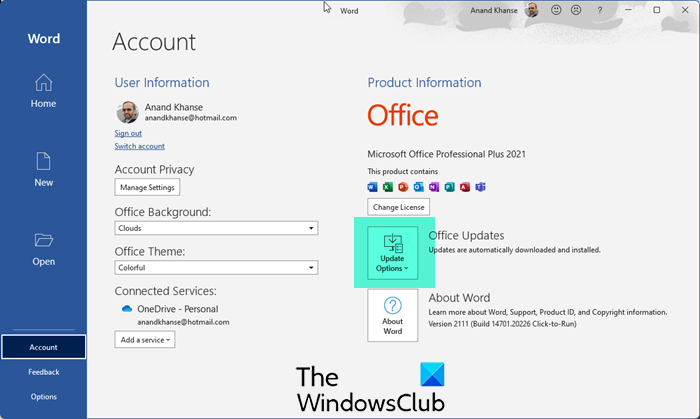
An Outdated Office version may have some bugs, causing several issues with Office applications. Therefore, the first step is to check for updates. In Microsoft Outlook, navigate to File > Office Account. You will find the option to update Office there.
2] Disable the Conversation View
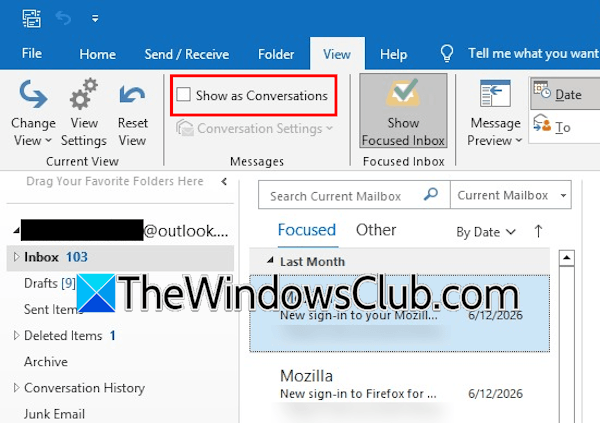
If the issue persists, check if the Conversation View is enabled in Microsoft Outlook. Under the View tab, uncheck the Show as Conversations checkbox. Now, see if the issue is fixed.
3] Check Outlook Rules
If the issue persists, check your Outlook Rules. You might have mistakenly configured an Outlook rule to save a copy of all sent emails to your inbox. Follow the instructions provided below for Microsoft Outlook:
- Navigate to the Home tab.
- Click Rules in the Move group and select Manage Rules & Alerts.
- You will see all the rules you created under the Email Rules tab.
- Now, select each rule one by one and read its description.
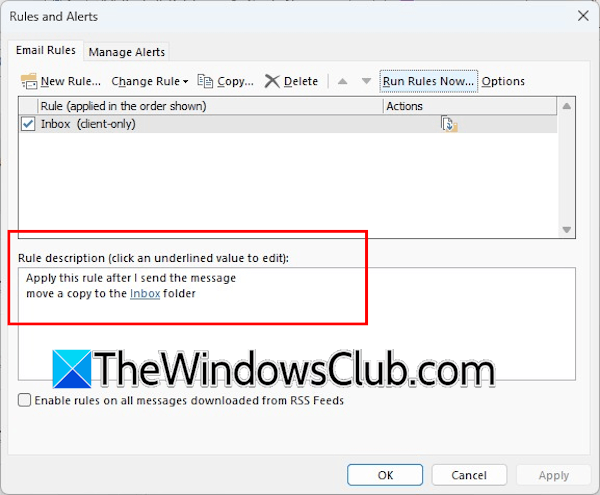
When you see the following message in the rule description, that rule is causing this problem.
Apply this rule after I send the message. Move a copy to the Inbox folder.
Now, delete that rule. Or, you can deactivate it by unchecking the respective checkbox. Click Apply and OK to save changes. If you use the New Outlook app, open its Settings and navigate to Mail > Rules.
4] Check the Mail settings
You should also check the Mail settings in Microsoft Outlook. The following steps will guide you on this:
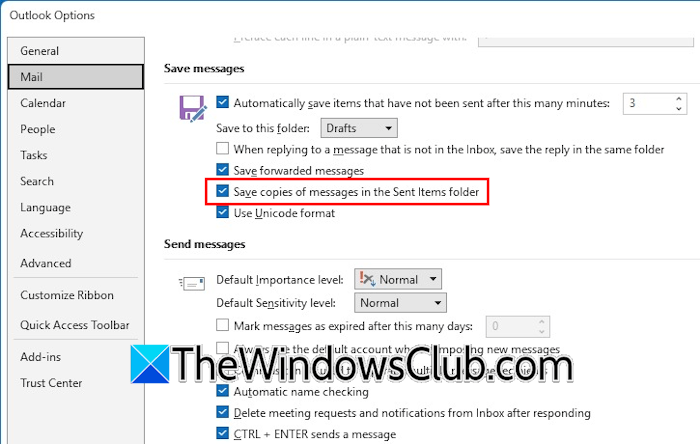
- In Microsoft Outlook, navigate to File > Options.
- Select Mail in the Outlook Options window.
- Scroll down to the Save messages section.
- Select the Save copies of messages in the Sent items folder checkbox.
5] Disable all add-ins
Sometimes, issues occur due to problematic add-ins in Microsoft Office applications. This can be the case with you. To confirm this, disable all the installed add-ins and see if the issue persists.
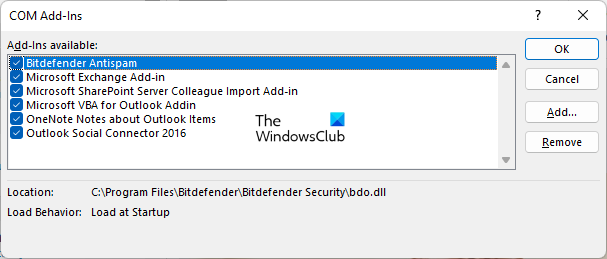
Follow these steps:
- Open the Outlook Options window in Microsoft Outlook.
- Select Add-ins from the left.
- Select COM Add-ins in the drop-down on the right and click GO.
- You will see all the Add-ins installed in Outlook. Uncheck all the checkboxes to disable all the add-ins.
- Click OK to save changes.
- Re-launch Outlook and send a test email.
If the sent email does not appear in the inbox this time, this means that one of the add-ins is the culprit. Now, enable an add-in and relaunch Microsoft Outlook. After that, send a test email. Repeat this step until the issue reappears. When the issue reappears, the add-in you have just enabled is the culprit. Now, remove that add-in. If you purchased that add-in, contact its support team to resolve the issue.
6] Create a new Outlook profile
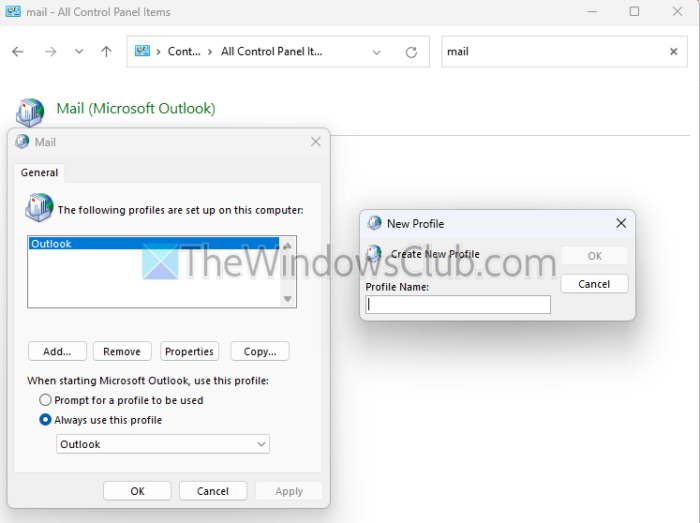
Sometimes, problems are associated with a particular Outlook profile. To confirm if this is the case with you, create a new Outlook profile. After that, add your Outlook email to that profile. Now, send a test email and see if it appears in your inbox. If not, your previous Outlook profile might have been corrupted. In this case, you can copy or move the PST file from your previous Outlook profile to the new Outlook profile. Microsoft Outlook also allows you to export and import rules.
7] Repair or reinstall Office
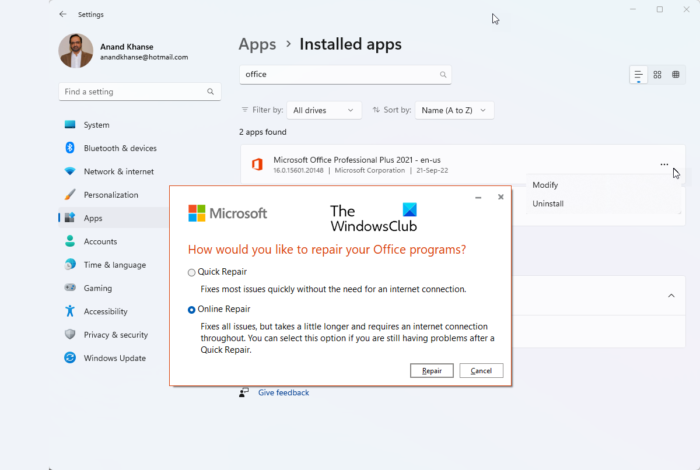
If the issue persists even after trying all the fixes mentioned above, some of the Office files might have been corrupted. In this case, you can repair Microsoft Office. Run an online repair. If repairing Office does not help, the last resort is to uninstall and reinstall Office. Before proceeding, make sure that you have its activation key, as it will be required to activate your Office license after reinstallation.
That’s it. I hope this helps.
How do I stop emails from going to my inbox?
If you do not want emails from a particular sender in your inbox, you can block that sender. The option to block a sender is available in Outlook and Gmail. If you do not want to block someone in Outlook, you can create a rule to move the email from that sender to another folder instead of your inbox.
How to make emails appear in the inbox in Outlook?
If you want to get every email you send to appear in your inbox in Outlook, you have to create a rule. The option to create rules is available in Microsoft Outlook, the New Outlook app, and Outlook.com. Name your rule, add a condition, and define the action. After that, save the rule.
Read next: Outlook stuck in sign in loop.
