
If Outlook is stuck in a sign-in loop, this article will help. According to reports, users cannot sign into their Outlook or Microsoft accounts due to the sign-in loop problem. The issue occurs in Microsoft Outlook, the new Outlook app, and the Outlook on the Web app. After entering their credentials, Outlook keeps reverting to the first login screen.
Outlook is stuck in sign-in loop
Use the following fixes if Outlook is stuck in a sign-in loop and you cannot access your emails:
- Remove and add your account
- Sign out of everywhere
- Clear the cached credentials
- Check Authentication settings
- Create a new Outlook profile
- Clear cache and cookies
- Use a different web browser
- Repair and reset the New Outlook app
- Repair or reinstall Office
All these fixes are explained in detail below.
1] Remove and add your Outlook account
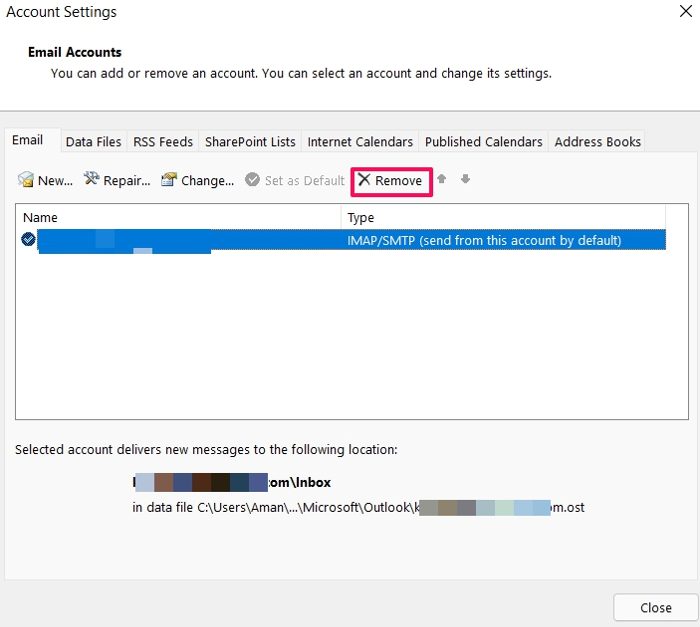
Try to remove your account from Microsoft Outlook or the New Outlook app. The steps to remove your account from Microsoft Outlook are as follows:
- Open the Control Panel.
- Search for Mail.
- Click Mail (Microsoft Outlook).
- A new window will appear. Click Email Accounts.
- Under the Email tab, select the account you want to remove, and click Remove.
- Click Close.
Restart your computer and launch Microsoft Outlook. Add your email account and see if the issue persists. If the issue is with your school or work account, you can try removing it from your system. When you are done, restart your system and add the school or work account again.
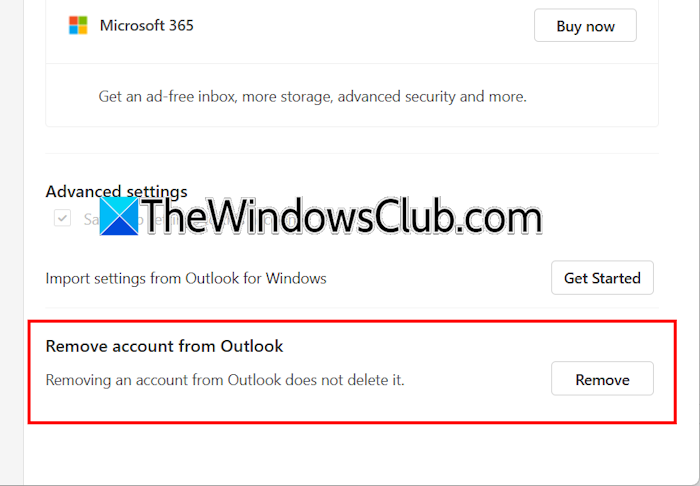
Follow these instructions to remove your email account from the New Outlook app:
- Open the New Outlook app.
- Click Settings > Accounts > Your accounts.
- Click Manage next to the email account you want to remove.
- Scroll down and click Remove.
2] Sign out of everywhere
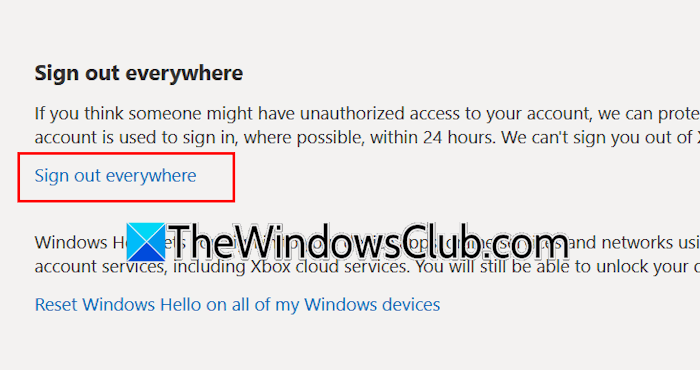
You can also try signing out of everywhere. Follow these steps:
- Open your web browser and log in to your Microsoft account.
- Select Security from the left pane, and click Manage how I sign in under the Account Security tab.
- Scroll down and click Sign out of everywhere.
- Click Sign out again.
3] Clear the cached credentials
If the issue occurs with Microsoft Outlook, you can try clearing the cached credentials. The steps to do this are as follows:
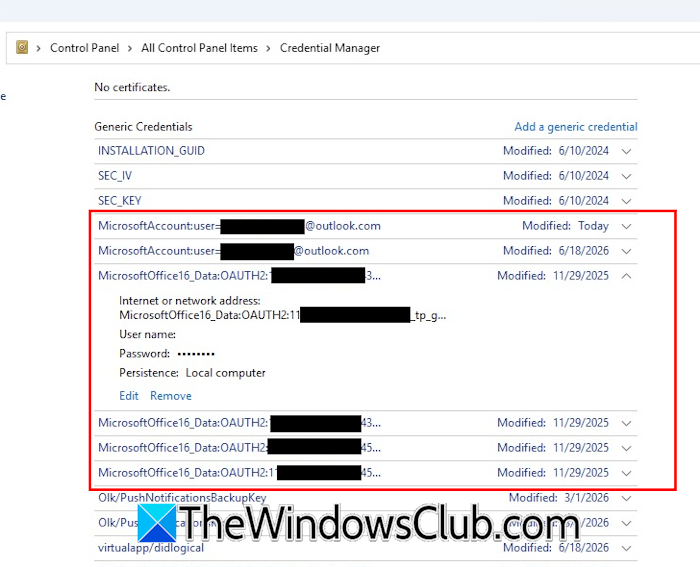
- Open the Control Panel.
- Type Credential Manager in the search bar and select the related option in the search results.
- Now, select Windows Credentials.
- Remove all entries related to Outlook, MicrosoftOffice, and MicrosoftAccount.
4] Check Authentication settings
Check the Authentication settings for Microsoft Outlook. Follow the steps provided below:
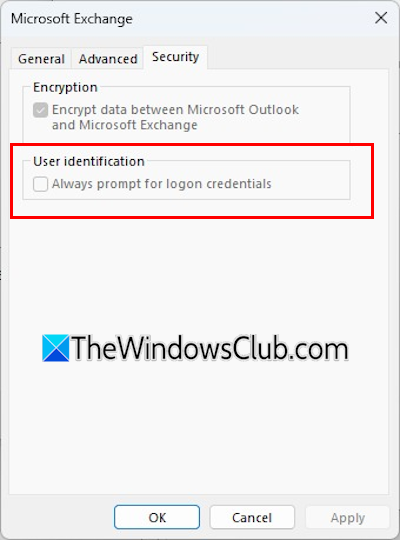
- In Microsoft Outlook, navigate to File > Account Settings > Account Settings.
- Under the Email tab, select your account and then click Change.
- Click More Settings.
- Go to the Security tab.
- The User identification checkbox “Always prompt for login credentials” should be unchecked. If it is selected, deselect it.
- Click Apply to save changes.
5] Create a new Outlook profile
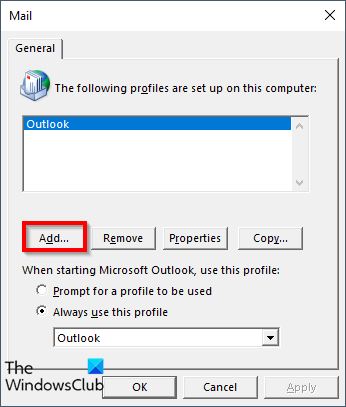
If the issue persists, you can try creating a new Outlook profile. Sometimes, issues occur with a particular profile in Microsoft Outlook. After creating a new profile in Microsoft Outlook, log in to that profile and set up your email account. Now, check if the issue persists.
6] Clear cache and cookies
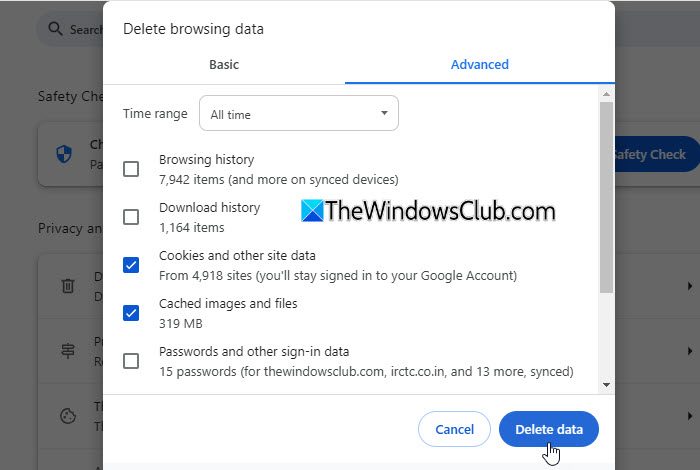
If you encounter this issue in your web browser, a corrupt cache or cookies might be responsible. Try clearing your browser’s cache and cookies and see if it helps. Press the Ctrl+Shift+Delete keys to bring up the Clear browsing data window. Now, select the cache and cookies checkboxes, and click Clear.
7] Use a different web browser
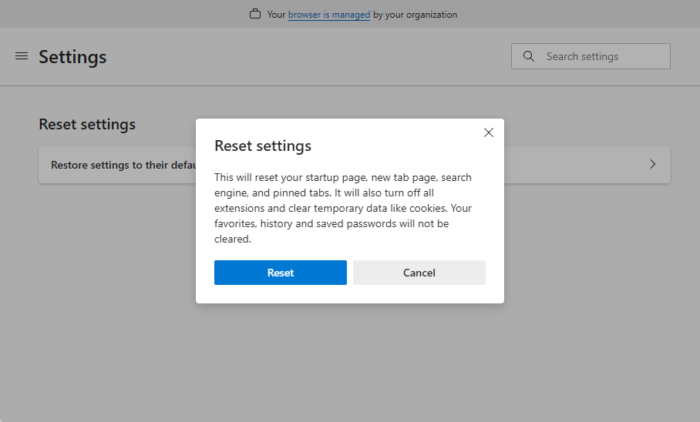
The issue might be associated with your web browser. To confirm this, open another browser and try logging into your Outlook or Microsoft account. If the issue does not occur this time, you may need to reset the previous web browser. Before resetting your web browser, sign in with your Google or Microsoft account to back up your bookmarks, extensions, and browsing data to the cloud.
8] Repair and reset the New Outlook app
Repair the New Outlook app and see if it works. Close the New Outlook app and follow the instructions provided below:
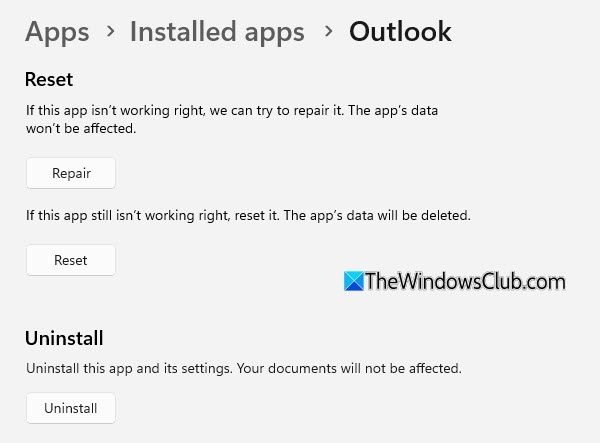
- Open Windows 11 Settings.
- Navigate to Apps > Installed apps.
- Search for Outlook.
- Click the three dots next to the New Outlook app and select Advanced options.
- Scroll down and select Repair. Now, launch the New Outlook app and see if the issue persists. If yes, reset it. This will erase all the app’s data.
9] Repair or reinstall Office
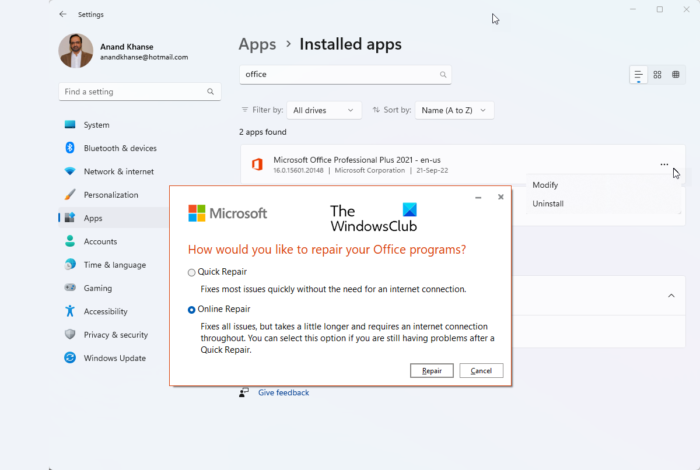
If none of these fixes work, you can try repairing or reinstalling Office. While running a repair, select the Online Repair option. If repairing Office does not help, uninstalling and reinstalling can work.
That’s it. I hope this helps.
How to fix infinite login loop?
If you are stuck in an infinite login loop, the culprit may be your web browser cache and cookies. Clear your browser’s cache and cookies and see if it helps. Apart from that, the issue may also occur due to an installed extension. To check this, disable all the extensions in your web browser and see if the issue occurs. If you encounter this issue with a particular app, resetting or reinstalling it can help.
How to fix a frozen Outlook?
If Outlook keeps freezing or crashing, that might be due to an installed add-in. To check this, launch Outlook in Safe Mode. If it does not work, your Outlook data files might have been corrupted. Use the Inbox Repair Tool to repair the corrupted Outlook data files.
Read next: You’ve tried to sign in too many times with an incorrect account or password.
