
Some users cannot sign into Outlook because of the “You’ve tried to sign in too many times with an incorrect account or password” error. This error usually occurs after multiple failed sign-in attempts, repeated verification requests, or suspicious login activity detected by Microsoft. However, the affected users reported encountering this error even after entering the correct account credentials. If you cannot sign in to your Outlook or Microsoft account, this article will help.
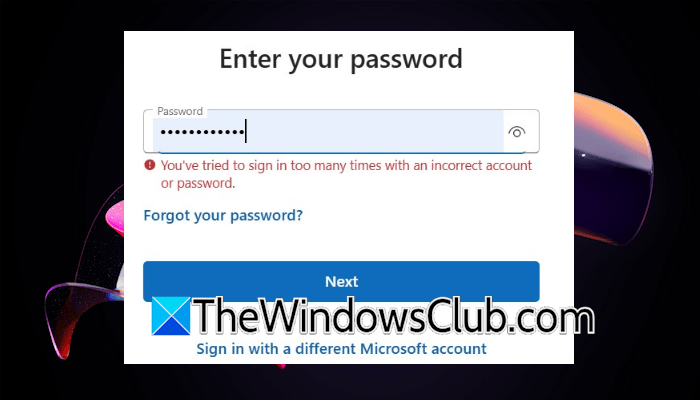
You’ve tried to sign in too many times with an incorrect account or password Outlook error
Use the following solutions to fix the “You’ve tried to sign in too many times with an incorrect account or password” error while signing into your Outlook or Microsoft account.
- Switch to another available internet connection
- Use other ways to sign in
- Use another device
- Reset your account password
- Clear your browser cache and cookies
- Use another web browser
- Use a VPN or disconnect it
- Reset your network
All these fixes are explained in detail below.
1] Switch to another available internet connection
The issue might be associated with your network. Switch to another available network and check if it helps. If another network is unavailable, you can use your mobile data and connect your system through the mobile hotspot.
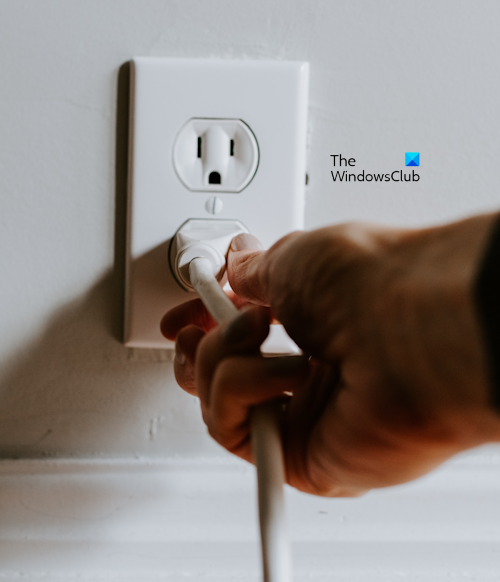
If the error does not occur after connecting to another network, power cycling your WiFi router can help fix this issue. Follow these steps:
- Turn off your WiFi router.
- Unplug the adapter from the wall socket.
- Wait for a few minutes.
- Plug in the adapter and turn on the router.
Now, check if you can sign into your Microsoft or Outlook account.
2] Use other ways to sign in
If Outlook shows you the Other ways to sign in link, you can use it. The other ways to sign in link is displayed only if you have set up multiple ways to sign in to your Microsoft or Outlook account.
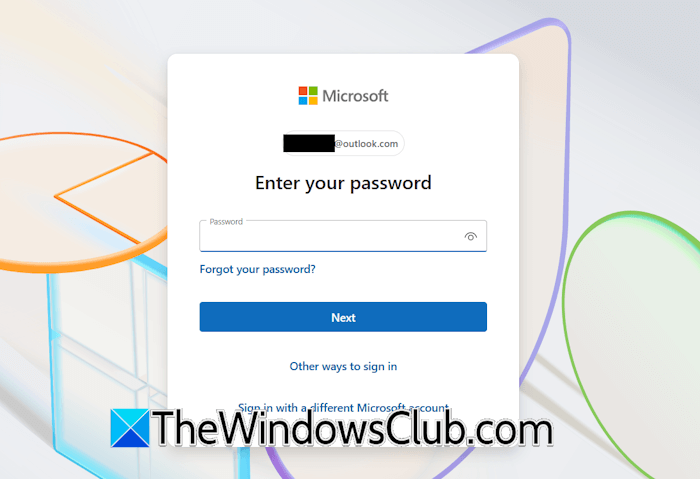
Click on the “Other ways to sign in” link to view the other ways you have added to your account. You can use any one of them. If Outlook does not show you this link, this means your account does not have alternate methods to sign in.
3] Use another device
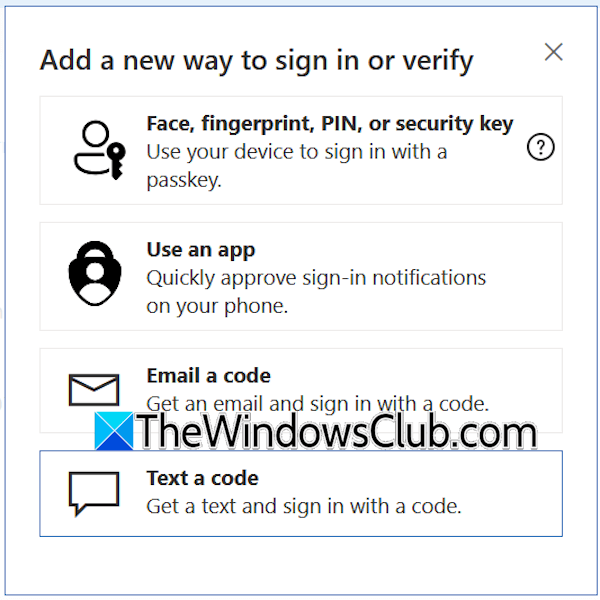
You can try using another device, such as your smartphone, to sign into your Microsoft account. If you succeed in signing into your account on another device, add other ways to sign in. Follow these steps:
- Select Security.
- Click Manage how I sign in.
- Click Add another way to sign in to your account.
After adding other ways to sign in to your account, you can use them to sign in on any device.
4] Reset your account password
Try to reset your account password. On the sign-in screen, click the Forgot your password link. Proceed with the on-screen instructions to set up a new password for your Microsoft or Outlook account.
5] Clear your browser cache and cookies
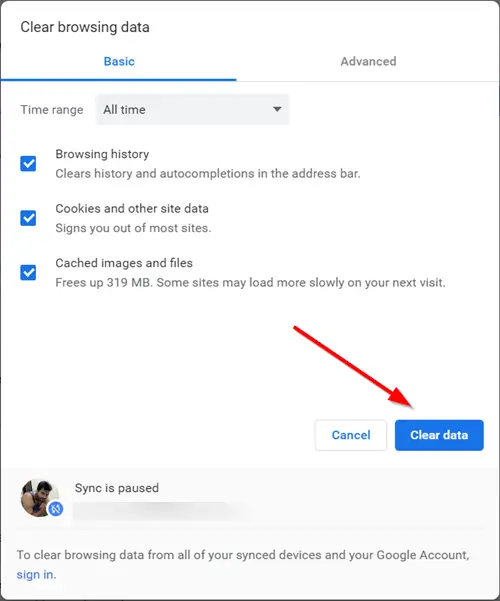
Your browser cache and cookies might be causing this problem. To check this, try to sign in to your account in Incognito or Private Mode. If the error does not occur this time, clearing the browser cache and cookies can help. Press the Ctrl + Shift + Delete keys to bring up the Clear browsing data window in your browser. After that, delete the cache and cookie data.
6] Use another web browser

Try to sign in to your account in another browser. If that works, the problem is with the previous browser. In such a case, resetting the affected browser can help. You will find the option to reset your browser in its settings. Before proceeding, save all your bookmarks and installed extensions to the cloud by signing into the browser.
7] Use a VPN or disconnect it
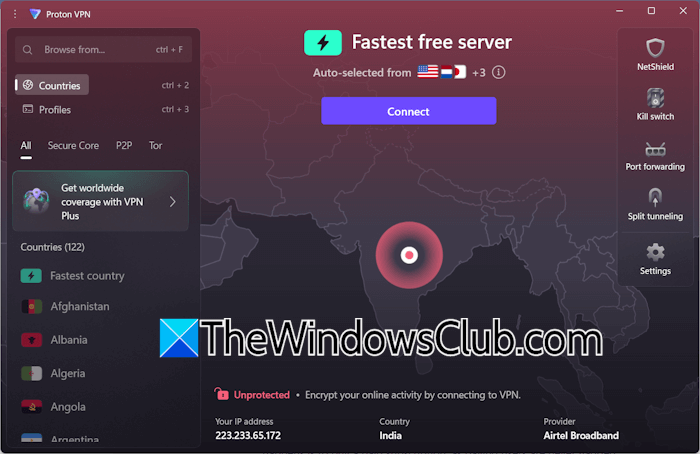
If you are using a VPN, it might be triggering this issue. Disconnect from VPN and see if it helps. Sometimes, using a VPN helps resolve the account signing issues. You can also try that. Many free VPNs are available, such as Proton VPN. You can use any of them.
8] Reset your network
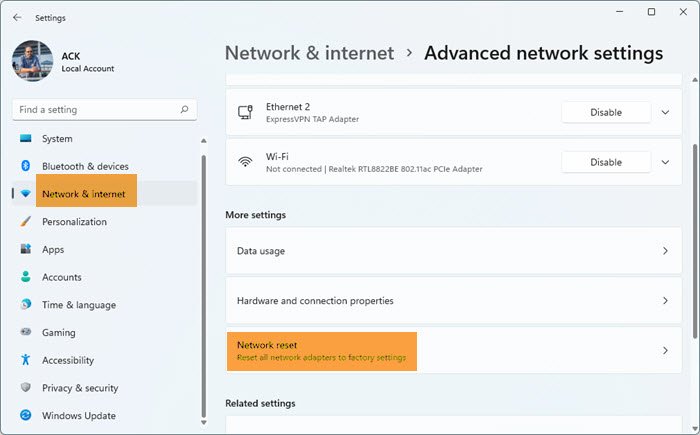
The last fix is to reset your network. Resetting the network also helps fix Outlook issues, such as the Too many requests error. Windows takes 5 minutes to perform this action. Your system will reboot automatically after 5 minutes. Therefore, save all your pending work before proceeding.
That’s it. I hope this helps.
Why does Outlook keep saying you have tried to sign in too many times?
This error occurs when you have tried too many times to sign in to your account using an incorrect password. This usually happens if someone ius is trying to gain access to your account by using different password combinations.
How to fix a need password issue in Outlook?
If Outlook shows the Need password message, you can try clearing the Outlook account credentials. If that does not work, sign out and sign in again or create a new Outlook profile. If the issue still persists, modify the Windows Registry.
Read next: This calendar can’t be shared with one or more of the people you added.
