
In this post, we will show you how to export Outlook notes to OneNote in Windows 11. We can use the Notes folder to access previous notes and create a note in the Outlook app, MS Outlook, and Outlook on the web. However, Outlook doesn’t offer a direct way or option to export notes to OneNote or other Microsoft apps. But there are a few workarounds covered in this post to help you copy or move notes from Outlook to OneNote.
Can I copy notes from Outlook to OneNote?
Yes, you can copy notes from Outlook to OneNote via the traditional way. Access the notes stored in your Outlook account and open a note. Copy the note content and then paste it in OneNote on any Notebook’s page.
How to export Outlook notes to OneNote in Windows 11
To export Outlook notes to OneNote on Windows 11, use these solutions:
- Use the OneNote (Desktop) Printer option
- Use the Quick Print option
- Manually copy a note and paste it in OneNote Notebook
- Use the Sticky Notes app.
Let’s check these options.
1] Use the OneNote (Desktop) Printer option
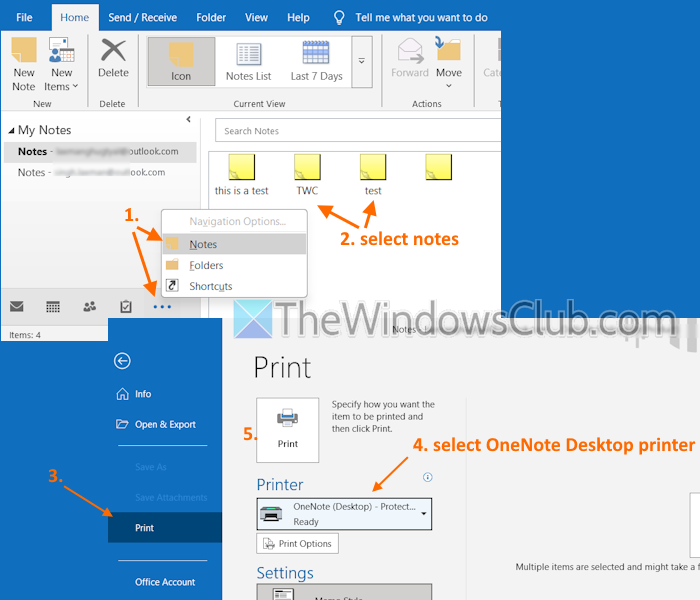
If you have already installed the OneNote app in Windows 11, the OneNote virtual printer (OneNote (Desktop) or OneNote Desktop – (Protected)) is installed by default. We can use that virtual printer to print Outlook notes (including images or screenshots) and send them to the OneNote app. The only thing is that notes are inserted as images. Here are the steps:
- Open MS Outlook (Classic Outlook)
- Look for a Notes folder in the Folder Pane. If you can find it, select that folder to access your notes. If not, click on the three horizontal dots (…) icon on the bottom part of the Folder Pane, and select the Notes option
- You will see all your existing notes. Double-clicking a note will let you view and edit a note
- Use Ctrl+Left mouse button to select your notes
- Click File > Print
- Use the drop-down menu for Printer and select OneNote Desktop – Protected or OneNote Desktop printer (whichever is available). It also shows a preview of the selected notes on the right section
- Press the Print button
- Now the OneNote app will open. Select a location in OneNote where you want to insert the printout (selected notes)
- After selecting a Notebook and page, press OK.
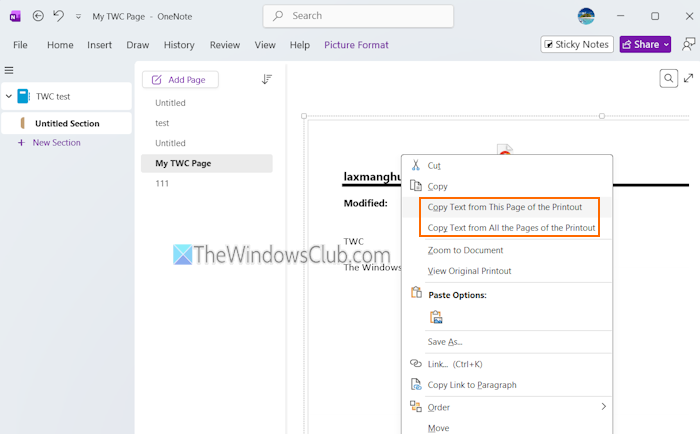
You can also right-click on the imported printout and select Copy Text from This Page of the Printout or Copy Text from All the Pages of the Printout to fetch the text and save it separately.
Read: How to attach Sticky Note to Outlook mail
2] Use the Quick Print option
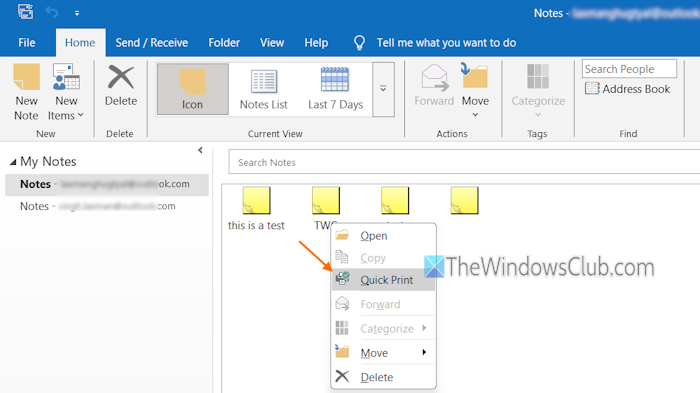
If the Send to OneNote printer or Print to OneNote is not working or available, we can use the Quick Print option. In this option, the Microsoft Print to PDF feature of Windows 11 is used. We can select a single note or multiple notes in Outlook and print them as a PDF file. After that, we can import the PDF into OneNote to export all Outlook notes to OneNote. Set Microsoft Print to PDF as the default printer and use these steps:
- Launch MS Outlook (Classic Outlook) on your Windows 11 PC
- In the Folders Pane on the left section, look for a Notes folder for your added account
- A list of all your saved notes will appear
- Use Ctrl+Left mouse button to select notes
- Right-click and select the Quick Print option. Or else, you can use the File menu > Print > select Microsoft Print to PDF > Print
- A Save Print Output As window will open
- Select the output location, give a name to the output PDF, and press Save
- Open the OneNote app
- Select a Notepad and page
- Select Insert > File Attachment to select and insert the output PDF
- In the Insert File box, select the Insert Printout option.
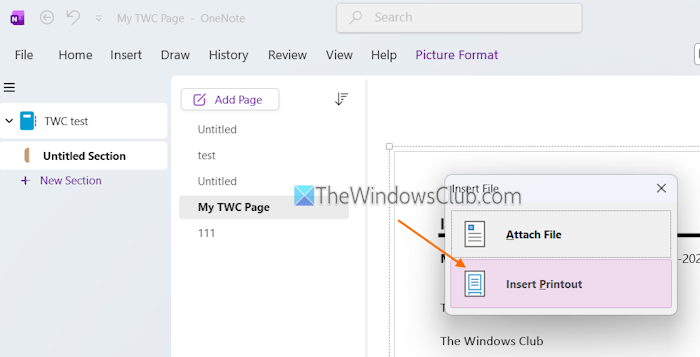
Now the PDF will be added as images containing all the Outlook notes. You can also fetch text from the images in OneNote using the right-click menu.
Also read: Create, edit, delete, and format Sticky Notes in Outlook.com
3] Manually copy a note and paste it in OneNote Notebook
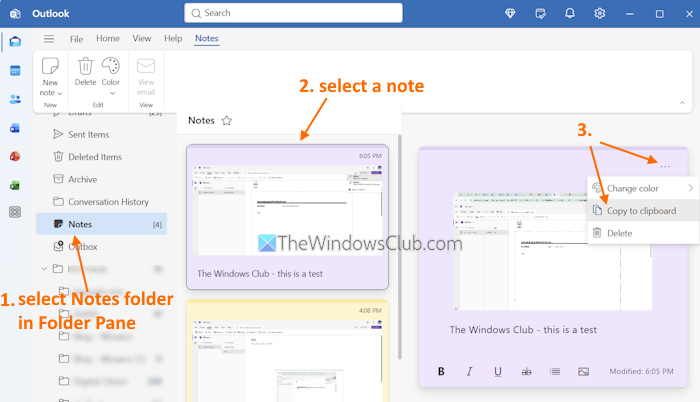
The above options don’t work for the Outlook app; this option can be used in the Outlook app, MS Outlook, and Outlook on the web. The steps are as follows:
- Open the Outlook app in Windows 11 or MS Outlook
- In the Folder Pane, click on the Notes folder
- You will see a thumbnail preview of all notes
- Select a note to open
- Click on the three horizontal dots in the top-right corner of your note
- Select Copy to clipboard. This is helpful if your note includes text and image(s)
- Open the OneNote app
- Select a Notepad and page and paste the copied content.
4] Use the Sticky Notes app
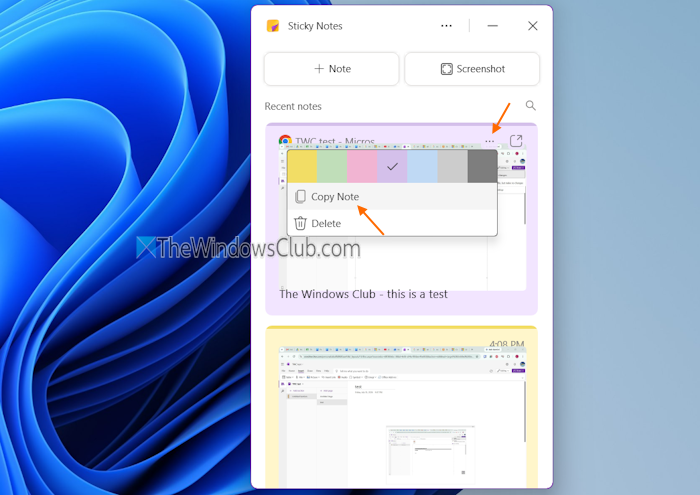
If you are signed in to the Sticky Notes app and Outlook with the same Microsoft account, your notes are synced. So, you can use the Sticky Notes app to copy a note and save it to OneNote. For this:
- Open the Sticky Notes app and sign in with the same Microsoft account (if not already)
- In the Sticky Notes dashboard, you can see all your notes, including the Outlook notes
- Click on the More actions (…) icon for a note
- Select Copy Note
- Open the OneNote app, access a page in a Notebook, and paste the copied note.
That’s all!
Now read: How to export Sticky Notes to Outlook.com in Windows
Why do I need to export Outlook notes?
Exporting your Outlook notes is good to save a copy or keep a backup. You can export your Outlook notes as a PDF and add them to other applications such as the Microsoft To Do app, OneNote, etc.
Read next: How to create Outlook tasks in OneNote.
