
Post-it notes often find their potent use on notice boards, serving as a reminder of an important upcoming event. Similar functionality is offered digitally by Microsoft Outlook. Earlier, and the most recent version of Outlook offers a sticky note option to create notes that can be attached to your email message and then be emailed to a recipient. These Sticky Notes are easy to use and come built-in directly into the Outlook program. This article explains in brief, how to attach a Sticky Note to Outlook mail. The process of attaching a computer-generated sticky note to your email message is as simple as writing on a Post-it.
Can you attach a sticky note to an email in Outlook?
Yes, you can. You can create, attach and share a Sticky Note in Outlook by following the steps given below.
Attach Sticky Note to Outlook mail
Open your Outlook mail client and press Ctrl+Shift+N. You will see a Sticky Note open.
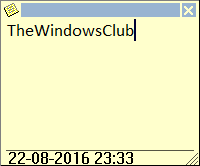
Type your message, and once you are done, press the icon in the top left corner.
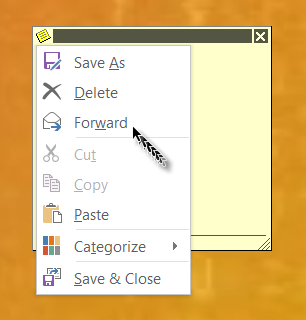
If you would like to change the appearance of note, select Categorize from the right-hand section, and choose the desired color.
If you select Save As it will save the Sticky Note to your desktop.
Select Forward, and a New Email form will open with the Sticky Note attached.
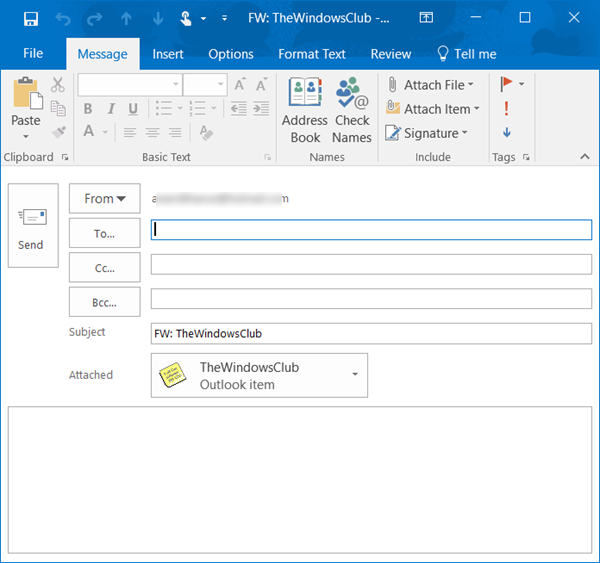
Type the email ID and a short message and send to the intended recipient, by clicking on Send.
That’s it!
Does sticky notes sync with Outlook?
Yes, Sticky Notes sync with Outlook. When you update your Sticky Notes on different devices, these changes will automatically sync to Outlook on your desktop. To view your notes online, visit www.onenote.com/stickynotes and sign in with your Microsoft account.
Now read: How to export Sticky Notes to Outlook.com.
