
If you are unable to print anything from OneNote or Print to OneNote is not working in Windows 11, here is how to fix the issue on your Windows 11/10 computer.
Why is Print to OneNote not working on Windows 11?
If Print to OneNote is not working, the reason could be:
- The new Print dialog may have a glitch. Because Windows includes a modern Print dialog, it may cause a conflict.
- Your computer is experiencing issues with the Print Spooler service.
- You do not have permission to print on your computer.
- Your printer or OneNote has some issues.
Print to OneNote not working in Windows 11
If Print to OneNote is not working in Windows 11/10, follow these solutions:
- Enable old Print dialog
- Restart Print Spooler service
- Repair and reset OneNote – Protected Virtual Printer
- Check for permission
- Repair Microsoft 365
- Reinstall Printer driver.
1] Enable old Print dialog
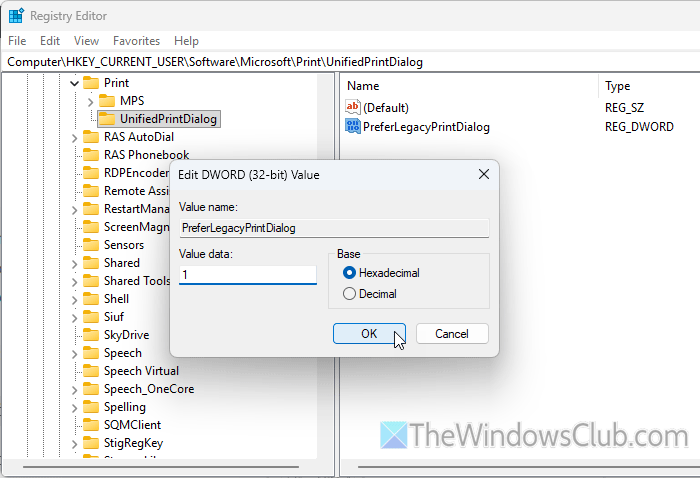
As said earlier, Windows 11 has added a new Print dialog. If this modern print dialog has a bug or glitch, it may prevent you from printing. Therefore, we suggest enabling the old Print dialog and checking whether it resolves the issue.
For that, open the Registry Editor first. Then, navigate to this path:
HKEY_CURRENT_USER\Software\Microsoft\Print\UnifiedPrintDialog
Right-click on this key, select New > DWORD (32-bit) value, and name it as PreferLegacyPrintDialog.
Double-click on it and set the Value data as 1. Click the OK button, close all windows, and restart your computer to apply the change.
2] Restart Print Spooler service
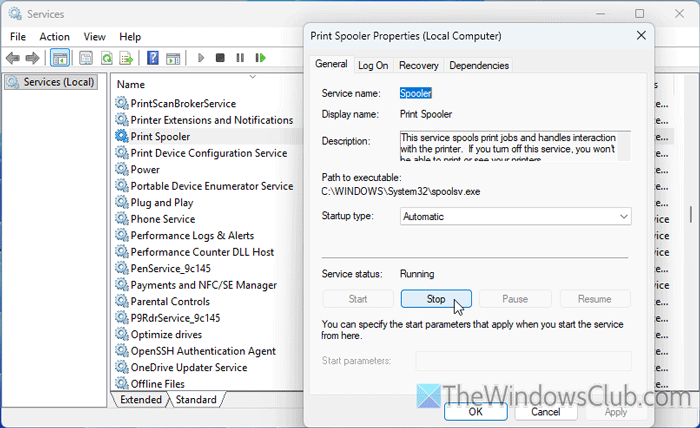
Print Spooler service deals with all the printing jobs on your computer. If this service is not running or has issues, you cannot print.
To restart Print Spooler service, follow these steps:
- Search for services in the Taskbar search box.
- Click on the individual search result.
- Find Print Spooler and double-click on it.
- Click the Stop button to stop the service.
- Choose Automatic from the drop-down menu.
- Click the Start button to restart the service.
- Click on OK.
3] Repair and reset OneNote – Protected Virtual Printer
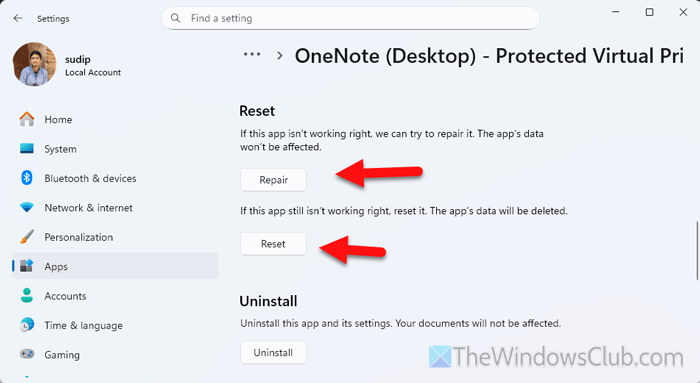
OneNote – Protected Virtual Printer appears when you try to print anything on your computer. The same appears when you print text or a drawing from OneNote as well. However, if this app is not working or has some problems, you won’t be able to print.
To repair and reset OneNote – Protected Virtual Printer, follow these steps:
- Open the Windows Settings panel on your computer.
- Go to Apps > Installed apps.
- Find OneNote – Protected Virtual Printer.
- Click on the three-dotted icon and select Advanced options.
- Click on the Terminate button to close all the running processes.
- Click the Repair button to repair the app.
However, if it doesn’t work, we recommend using the Reset option.
4] Check for permission
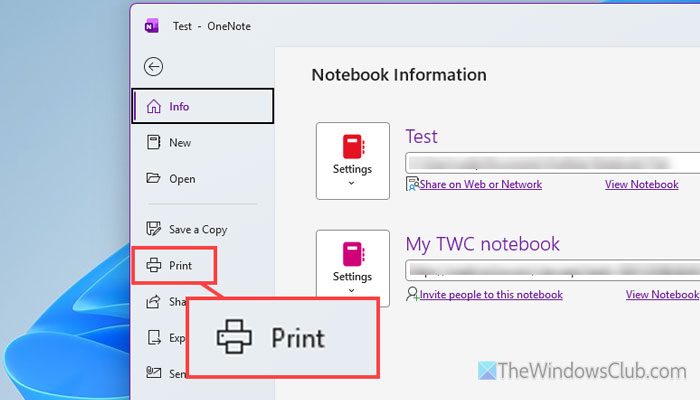
If you are in an organization and your computer is on a network, your administrator may have implemented policies that block you. In such situations, you can ask your administrator to lift the block.
5] Repair Microsoft 365
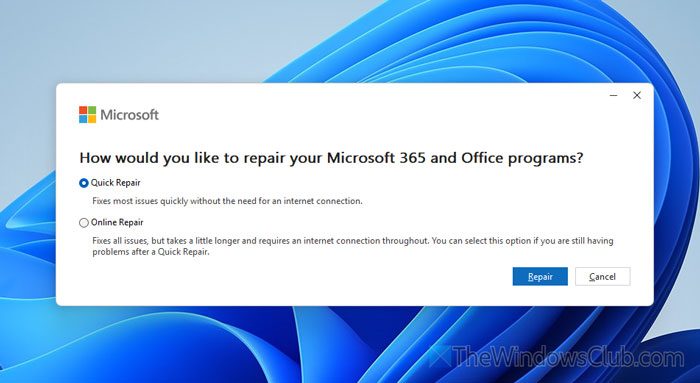
To repair Microsoft 365 in Windows 11, follow these steps:
- Press Win+I to open the Windows Settings panel on your computer.
- Go to Apps > Installed apps.
- Find Microsoft 365.
- Click on the three-dotted icon and select Modify.
- Click the Yes button.
- Choose Quick Repair and click on Repair.
If it doesn’t work, choose the Online Repair button and click on the Repair button.
6] Reinstall Printer driver
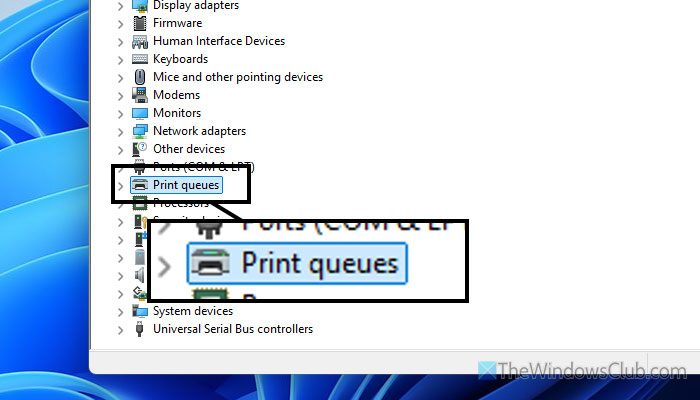
This problem may also be due to your printer. That said, it is important to check your printer once. The first step is to repair the printer driver. For that, do the following:
- Open Device Manager on your computer.
- Expand the Print queues, select your print, right-click on it, and select Uninstall device.
- Download the printer driver from the official website and install it.
Read: Print command opens Send to OneNote, Save As, Send Fax, etc., dialogue boxes
How do I print to OneNote on Windows 11?
To print to OneNote on Windows 11, press Ctrl+P to print anything. When the print dialog appears, choose OneNote – (Desktop) or OneNote (Desktop) – Protected option. Then, click the Print option.
Why can’t I print to OneNote?
If you can’t print to OneNote, there is a good chance your OneNote app is experiencing issues. On the other hand, if your printer has an issue, you may encounter the same problem when printing.
