
If you can’t use the Flip on short edge or Flip on long edge options, or they aren’t working or printing in Windows 11, this article will help. You can use these solutions regardless of your printer brand on.
Why is Flip on short edge or Flip on long edge not working?
If Flip on short edge or Flip on long edge is not working, these could be the reasons:
- You selected the wrong option for the orientation.
- Your printer has hardware issues.
- Your document has both portrait and landscape pages.
- You haven’t manually selected the printing mode.
- There are some issues with the driver and connection between your printer and computer.
Flip on short edge or Flip on long edge not printing or working in Windows 11
If Flip on short edge or Flip on long edge is not printing or working on your Windows computer, follow these instructions to resolve the issue:
- Know when to use what option
- Manually check all settings
- Ensure your document has only one type of orientation
- Fix options conflict
- Restart Print Spooler service
- Reinstall printer driver
To learn more about these solutions, keep reading.
1] Know when to use what option
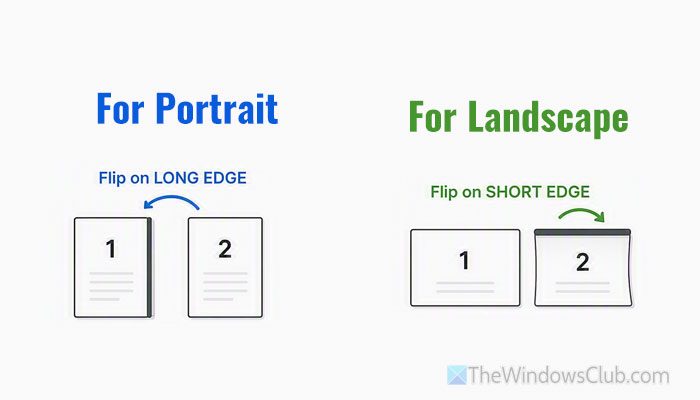
What do Flip on short edge and Flip on long edge mean?
- Flip on short edge: When you print multiple landscape documents, this option is for you if you select double-sided printing.
- Flip on long edge: When you print more than one portrait document, you must use this option.
If you don’t know the flipping process, do check the image added above
2] Manually check all settings
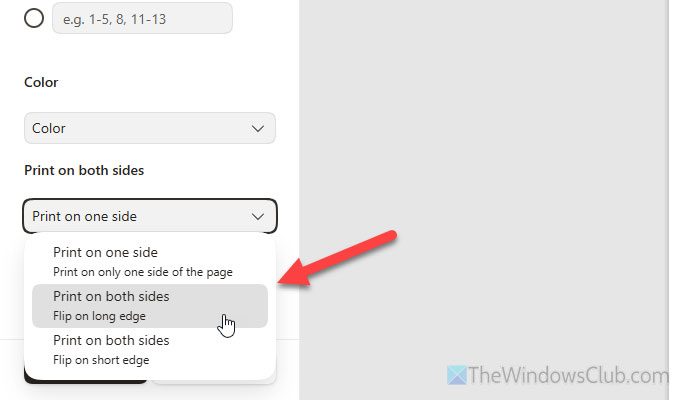
Even if you selected everything earlier, itis best to check all settings again. If you are using the Microsoft Edge browser, head to the Print on both sides section, choose either Flip on long edge or Flip on short edge.
If you are using Google Chrome, check the Print on both sides option. Then, expand the drop-down menu and select the Flip on short edge or Flip on long edge option.
Apart from that, it is a must to select ALL pages to print. Otherwise, selecting either option won’t do anything.
Another option that Microsoft Edge browser provides is the Layout. If you have a portrait document, you can choose the Portrait option, and if you have a landscape document, you can choose the Landscape option.
3] Ensure your document has only one type of orientation
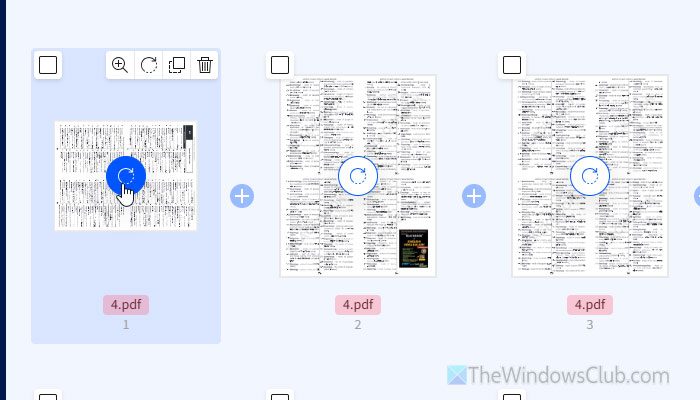
If your document has both landscape and portrait orientation – even if only one page has a different orientation- there is a chance of getting this problem since your printer won’t be able to fetch the details correctly.
Let’s say you have a 10-page PDF and one page has a different orientation. If so, visit smallpdf.com, upload your file, and rotate the page.
Then, download the file and try printing it after selecting the correct option.
Read: Rotate PDF using free software and online tools
4] Fix options conflict
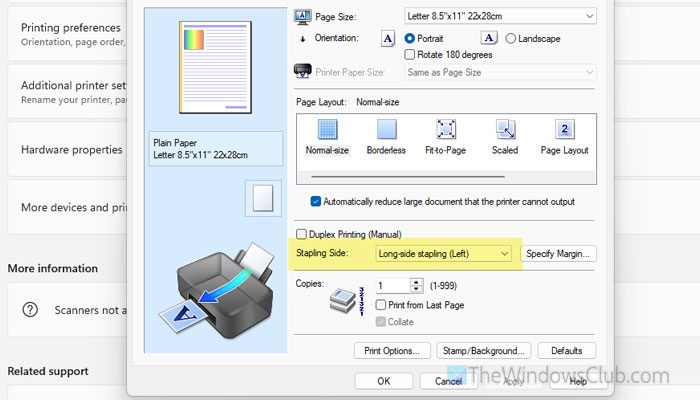
Apps and system printing dialogs may have different options, which could cause this issue. That is why we suggest checking both options manually and selecting only one.
That said, if you have already selected a specific option in the app, open the Windows Settings panel and go to Bluetooth & devices > Printers & scanners. Then, select your printer and click on the Printing preferences.
Next, go to the Page Setup menu and head to the Duplex printing section. Here you can find some options in the Stapling Side list. Choose the option that matches your requirements.
It is highly recommended to verify these settings with the app-specific option that you selected earlier.
Read: Enable System Print Dialog in Microsoft Edge in Windows 11
5] Restart Print Spooler service
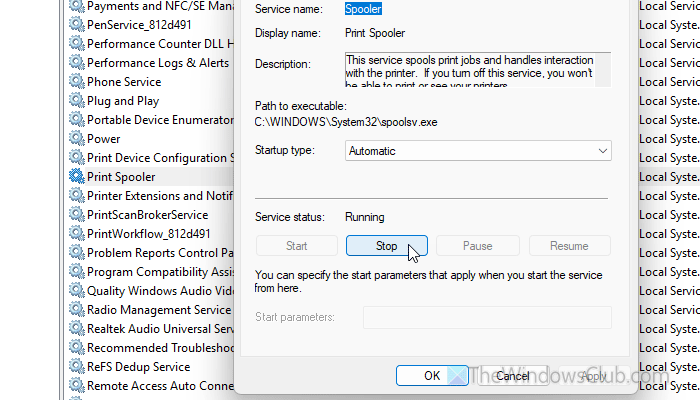
Print Spooler service is one of the most important services that helps you build the connection between your printer and computer. It also helps manage the print queues. In other words, if this service has issues, your printer won’t function correctly.
That said, itis best to restart this service once. Also, if this service is disabled by mistake, you must start it as soon as possible.
To do that, press Win+R to open the Run prompt, type services.msc, and hit the Enter button. Find the Print Spooler service and double-click on it.
Click the Start button if this service was disabled when you opened the wizard. If it is already running, restart it. For that, click the Stop button, choose Automatic from the Startup type list, and click the Start button.
Read: Print Spooler Service keeps stopping automatically in Windows 11
6] Reinstall printer driver
If you haven’t updated your printer driver in a long time, update it once. For that, go to Windows Settings > Windows Updates > Advanced options > Optional updates. If an update is available, select it to download and install.
However, if you haven’t downloaded the driver yet, download it from the official website.
Finally, if you have the driver but it doesn’t work properly, you can uninstall the driver and reinstall it. You can use the Revo Uninstaller to uninstall the driver entirely.
Then, download the printer driver from the official website and install it accordingly.
Read: Grayscale printing not working in Windows 11
Why is my printer not flipping on the long edge?
If your printer isn’t flipping on the long edge, the app-specific options and generic Windows 11 options may be conflicting. Also, if your printer doesn’t support auto-flipping, you cannot expect it to do that automatically.
Do you Flip on long edge or short edge when printing?
It depends on the page orientation. If you have a landscape page, use short-edge flipping. If you have a portrait page, use long-edge flipping.
Read: Blue Screen on Printer when printing on Windows 11.
