
If the printer is not working with Hyper-V virtual machine on Windows 11, here is what you can do to get it fixed. Whether you use Windows 11, Windows Server, or any other operating system as the virtual machine, you can go through these solutions to troubleshoot this printer issue on Windows 11.
Why is Printer not working with Hyper-V virtual machine?
If the printer is not working with a Hyper-V virtual machine, these could be the reasons:
- Your printer is offline.
- Your printer is not shared over Enhanced Session.
- Enhanced Session is not enabled in Hyper-V.
- There are some issues with the printer driver.
- The printer is not set up in Hyper-V.
Printer not working with Hyper-V virtual machine on Windows 11
If the printer is not working with a Hyper-V virtual machine, follow these instructions:
- Verify printer settings on host computer
- Restart Print Spooler service
- Enable Enhanced Session in Hyper-V
- Reinstall printer driver on host and virtual computer
- Check Local Resources settings
- Check firewall settings for networked printer
To learn more about these solutions, continue reading.
1] Verify printer settings on host computer
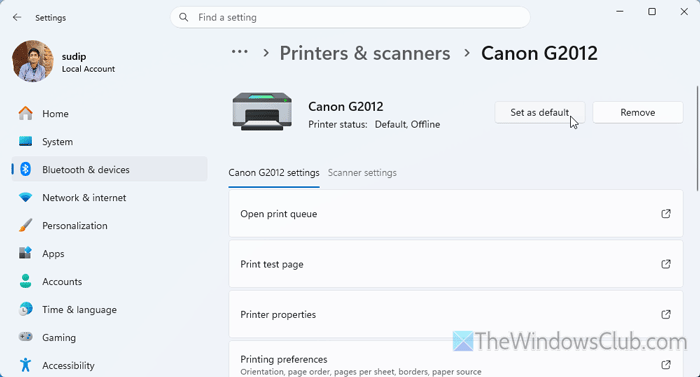
This is one of the most important things you must do before moving on to other solutions. If your printer is not working with your host computer, you can’t expect it to be working with your virtual computer – no matter which tool you use to create the virtual machine.
To be more specific, you must do these:
- Check if the printer is connected properly.
- Check your USB port if it is a wired printer.
- Make sure that the driver is not damaged. You can do that via Device Manager.
- Update the driver to the latest version.
- Remove the print queue.
- Set the current printer as the default printer.
Once done, check whether you can print on your host computer. If yes, try again with your virtual machine.
2] Restart Print Spooler service
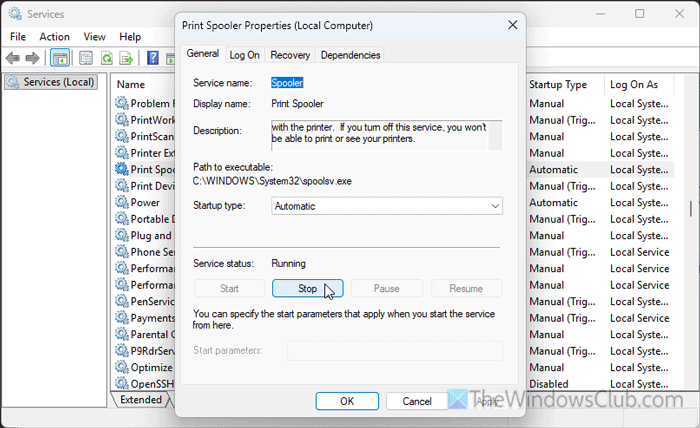
Print Spooler is one of the most important services that must be running in the background all the time in order to use your printer with your computer. If this service is not running or there is some issue with this service, you won’t be able to use your printer – no matter which printer you use and what you try to print.
Therefore, it is essential to check whether the Print Spooler service is running or not. Even if it is running, you are suggested to restart it once. For that, press Win+R to open the Run prompt, type services.msc, and hit the Enter button.
Next, double-click on the Print Spooler service and click the Stop button. Then, choose Automatic from the drop-down menu, and click the Start button.
Finally, click the OK button to save the change.
Read: Local Print Spooler Service is not running
3] Enable Enhanced Session in Hyper-V
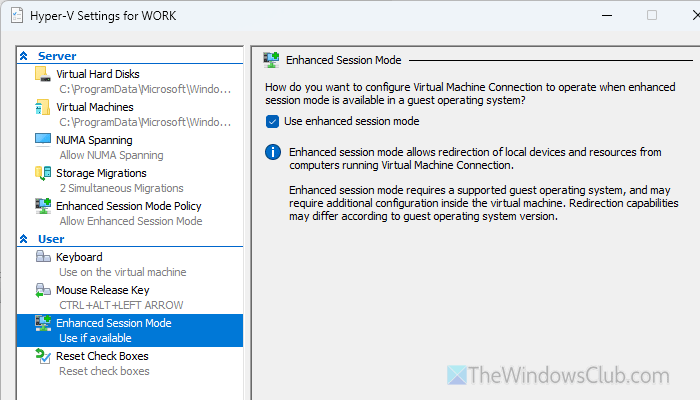
Enhanced Session is one of the most important things you must enable if you want to use a printer with your virtual machine. In simple terms, Enhanced Session Mode helps you establish a connection between your virtual machine and local devices, such as printers, speakers, etc. If you disable this service or turn it OFF, you cannot use your printer with your virtual machine.
To enable enhanced session mode in Hyper-V, select the virtual machine you want to enable it for, and select the Hyper-V Settings option. Next, go to the Enhanced Sessions Mode tab and tick the enhanced sessions mode checkbox.
Click the OK button to save the change.
As mentioned earlier, this facility is virtual machine-specific. In other words, if you want to enable it for other virtual machines, you must repeat the same steps for that particular virtual machine installation.
Read: Hyper-V Enhanced Session Login option is missing
4] Reinstall printer driver on host and virtual computer
If you have a printer and you want to use it with your computer, the respective driver must be installed on your computer. Whether it is a wired or wireless printer, the driver must be on your computer irrespective of the manufacturer. Also, it is very important to download the driver ONLY from the official websites, as all the printer manufacturers provide the driver for all their printers on their official websites.
It is suggested to check out this article to download the Printer driver for your printer.
5] Check Local Resources settings
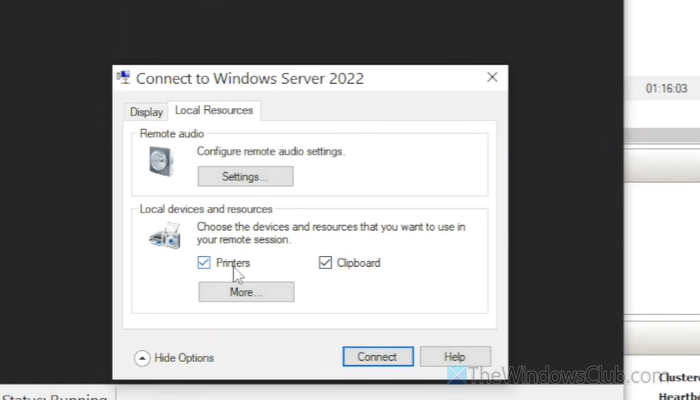
Local Resources is where you can enable or disable the printer facility for your virtual machine. Not only that, but it is possible to enable or disable drives, USB devices, smart card, clipboard, copy-paste, etc.
To check the Local Resources settings, you must enable Enhanced Session Mode. Once it is enabled, try connecting to your virtual machine. At startup, you may see a pop-up window. Instead of clicking the Connect button, click the Show Options button.
Then, switch to the Local Resources tab and make sure that the Printers checkbox is ticked. If not, tick the corresponding checkbox and click the Connect button.
You can also click the More button to enable or disable other services such as Smart cards, Drives, etc.
Once done, click the OK button to save the change and click the Connect button to start your virtual machine.
6] Check firewall settings for networked printer
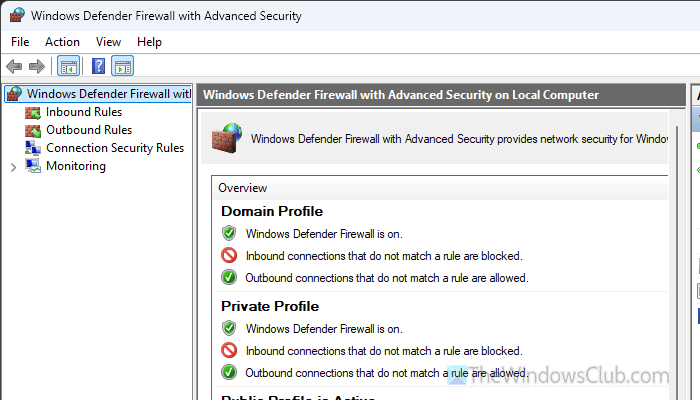
If you have a shared printer on your network and you want to use it with your Hyper-V virtual machine, it is important to check whether it is open for use or not. Most of the time, it might be blocked in the firewall.
You can do two things:
- Disable your firewall temporarily if you are using third-party firewall software.
- If it helps, check all the inbound and outbound rules.
Even if you are using the built-in firewall of Windows 11, you can check the settings related to the printer.
Read: Printer Sharing not working in Windows 11
How to connect printer to virtual machine?
To connect a printer to a Hyper-V virtual machine, you must enable Enhanced Session mode. Then, open the Local Resources section and enable the Printer checkbox. Once done, install the printer driver and start using your printer.
How to solve printer not working?
If the printer is not working, the first thing you need to do is to verify the connection. Then, you can uninstall the old driver and reinstall the latest version, remove all the other printers, restart the Print Spooler service, etc.
