
One of the great conveniences of using a virtual machine is the ability to print documents directly from your VMware guest operating system to a printer connected to your Windows host. However, we have noticed that, in some cases, VMware Printer is not working for the end-user, and they have to look for alternatives. In this post, we are going to discuss this issue in detail and try to find potent solutions.
Fix VMware Printer is not working
When a VMware guest OS like Windows 11 or Linux fails to print to a host-connected printer, it’s usually due to communication issues between the virtual machine and the host hardware. Common causes include a corrupted VMware Physical Printer Driver, a disabled VMware print service on the host, or a missing “thinprint” driver inside the guest. In some cases, recent Windows updates on either the host or guest can overwrite or conflict with these drivers, preventing the printer from appearing or causing jobs to get stuck in the queue.
If the VMware Printer is not working, follow the solutions mentioned below.
- Restart the VMware Printer Service
- Change the Connection Protocol
- Reinstall the View Agent or Client
- Verify the Group Policy Configuration
- Install or reinstall VMware Tools
Let us talk about them in detail.
1] Restart the VMware Printer Service
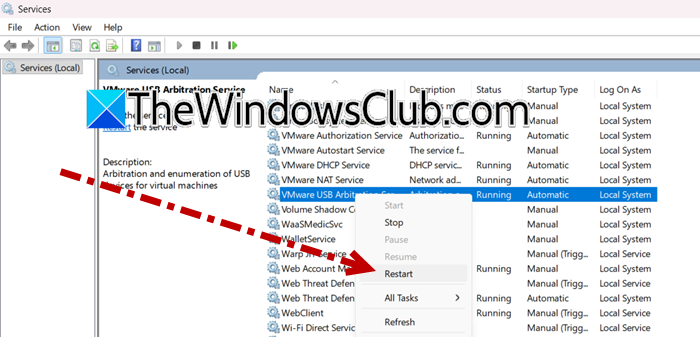
VMware service acts as the essential communication bridge between the virtual machine and the physical hardware on your Windows host. If this service becomes hung, stopped, or corrupted, the data path from the guest OS to the printer is severed. Restarting the service forcibly resets this connection, clearing any temporary glitches and re-establishing the link that allows the virtual machine to send print jobs to the host printer. You need to follow the steps mentioned below to do the same.
- Hit Win + R, type services.msc, and press Enter.
- Look for services named VMware USB Arbitration Service or any service with “Printer” in the name.
- Right-click the service and select Restart. If it isn’t running, select Start.
After restarting the service, power off and restart your virtual machine. Finally, check if the issue is resolved.
2] Change the Connection Protocol
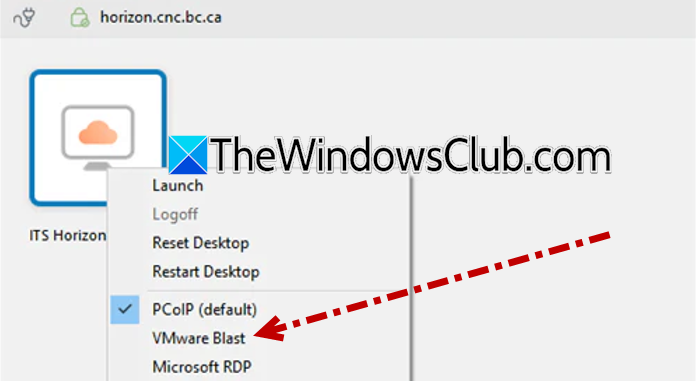
In virtual desktop environments, the connection protocol can sometimes interfere with printer mapping. Certain versions of VMware have known bugs with the PCoIP protocol that may cause printers to disconnect or become unavailable when reconnecting to a session. Switching to an alternative protocol often resolves this without any additional configuration.
If you are currently using PCoIP, switch to the VMware Blast protocol. Alternatively, configure your connection to use RDP (Remote Desktop Protocol) instead.
Click the three dots next to your desktop in the VMware Horizon client, then select VMware Blast.
Test printing after changing the protocol to see if the issue persists.
3] Reinstall the View Agent or Client
For those using VMware Horizon, the View Agent is responsible for establishing communication between the virtual desktop and the client device. If this software becomes outdated or corrupted, printer redirection may fail completely. Refreshing these components can restore the lost connection.
On the virtual desktop or server, reinstall the VMware View Agent. On the local workstation, reinstall the View Client application.
Reboot both systems after reinstalling and check if the printer is detected.
4] Verify Group Policy Configuration
In managed network environments, location-based printing relies heavily on proper Group Policy settings. A common oversight is using the wrong version of the policy file, which can prevent printers from deploying correctly to end users. This often happens when a 32-bit policy file is present on a 64-bit server.
Check your server for the location-based printing GPO .dll file. Ensure the correct version (32-bit or 64-bit) is installed based on your server architecture. If the wrong version is found, replace it with the appropriate one to restore printer deployment.
5] Install or reinstall VMware Tools
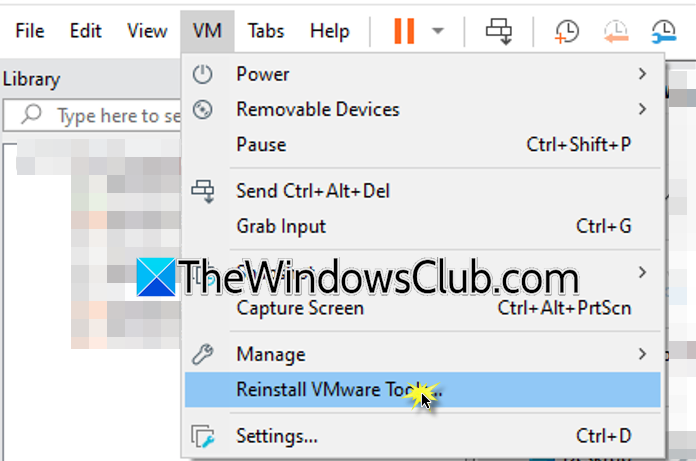
VMware’s virtual printer relies on the Thinprint driver, which comes with VMware Tools. If this driver isn’t installed or gets corrupted, the guest OS won’t detect the host printer. Reinstalling VMware Tools with the Complete setup ensures Thinprint is properly installed, allowing the printer option to appear and function.
- Power on your virtual machine.
- Once the guest OS (CentOS, Windows, etc.) has fully booted, click on VM in the top menu bar of VMware.
- From the dropdown menu, select Install VMware Tools. If VMware Tools is already installed, the option will say Reinstall VMware Tools.
- A dialog box may appear asking you to confirm. Click Download and Install or OK.
- Inside your guest OS, a virtual CD/DVD drive will be mounted containing the VMware Tools installer.
- For Windows guests: Open File Explorer, go to the CD/DVD drive, and double-click setup.exe or VMwareTools.exe. When prompted for the installation type, select Complete (not Typical) and proceed.
- For Linux guests (like CentOS): Open a Terminal. Extract the installer using tar -zxvf /media/VMware\ Tools/VMwareTools-x.x.x-xxxx.tar.gz -C /tmp. Then run sudo /tmp/vmware-tools-distrib/vmware-install.pl -d (the -d flag accepts default options and installs all components, including Thinprint).
- Follow the on-screen instructions until the installation is complete. If prompted to reboot during the installation, allow it.
- Restart the virtual machine after the installation finishes.
Once rebooted, go to Settings > Devices and Printers (Windows) or the equivalent printer settings in your guest OS. Your host printer should now appear.
Read: How to use Host Configured Printer on VMware Workstation VM
Why is my printer working but not printing?
If the printer appears online but jobs get stuck in the queue, the issue is usually a corrupted print spooler or a stalled print job inside the guest OS. Go to Services in your guest machine, locate the Print Spooler service, and restart it. After restarting, clear any pending documents from the queue and try printing again.
Read: How to import, export, clone VM in VMware Workstation
How to enable virtual printer in VMware?
The virtual printer is enabled through the virtual machine’s hardware settings. First, ensure your VM is powered off, then go to VM > Settings, click Add, select Printer, and click Finish. If the Printer option does not appear in the Add list, you need to reinstall VMware Tools with the Complete setup to install the missing Thinprint driver.
Read: Install and configure MultiPoint Service on Windows Server.
