
When VMware Workstation shows Cannot scan local directory. You might not have permission to perform the operation; it usually appears while copying files or folders between the host and the virtual machine. So basically, VMware cannot read the source directory cleanly, so it cancels the copy.
Cannot scan local directory. You might not have permission to perform the operation.
Cancelling the file operation.
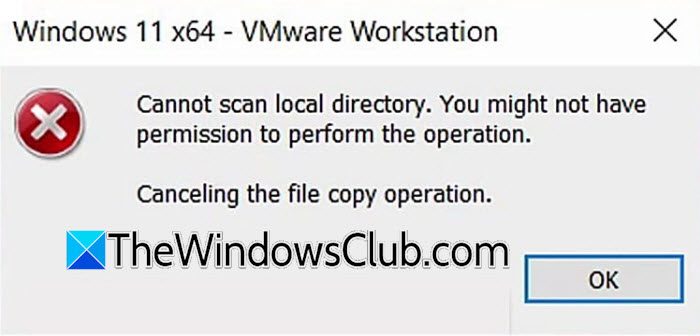
VMware cannot scan local directory. You might not have permission
This is usually not a random VMware bug. In most cases, the source folder is either protected by Windows permissions, being blocked by security software, or contains a file that is already open or locked by another app. Hidden or system folders can also trigger the problem during copy operations because VMware has to scan the directory before it starts the transfer.
- Close anything that is locking files in the folder
- Move the source files out of protected Windows folders
- Run VMware Workstation with elevated rights
- Check folder permissions on the host
- Temporarily disable Controlled Folder Access or add an exclusion
- Copy the folder through a clean path instead of dragging a problematic tree
If VMware cannot scan local directory, follow the solutions mentioned below.
1] Close anything that is locking files in the folder
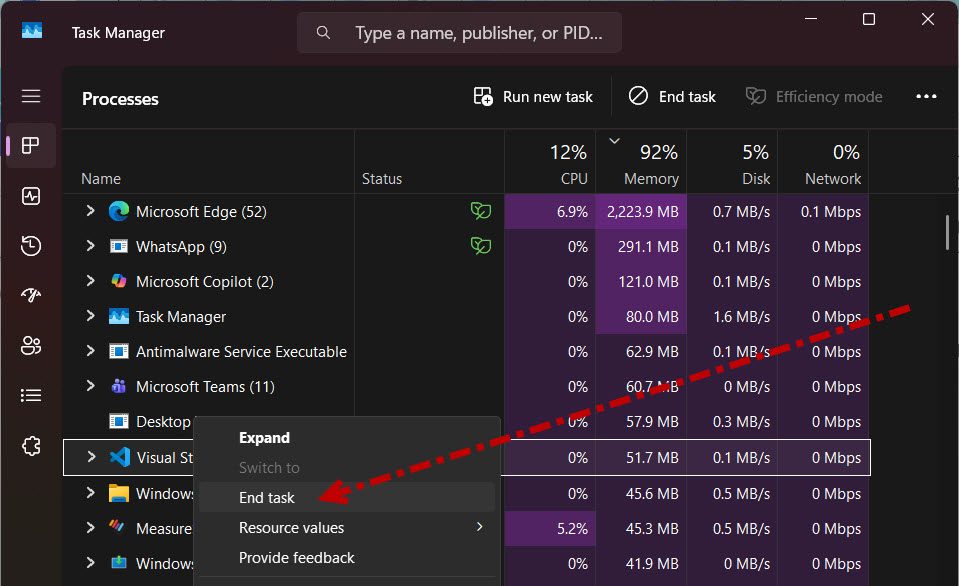
If one file inside the folder is open, VMware may fail while scanning the whole directory. This is a common real-world cause, especially with Office files or active project folders. Therefore, close all apps that may be using the files, then try the copy again. Follow the steps below to do the same.
- Open the Task Manager, and close Excel, Word, editors, terminals, or backup tools using that folder.
- If needed, reboot the host to release stuck file handles.
- Retry the copy from VMware Workstation.
Finally, check if the issue persists.
2] Move the source files out of protected Windows folders
Folders under locations like Desktop, Documents, Downloads, OneDrive, or other protected paths can be blocked by Windows security features or stricter permissions. VMware works best when the source is in a simple local folder with normal access rights. Microsoft’s Windows Security docs show that Controlled folder access can block apps from accessing protected folders.
- Create a folder such as C:\VMCopy.
- Move the files you want to copy into that folder.
- Avoid copying directly from synced or protected locations.
Try the VMware copy again to see if it works.
3] Run VMware Workstation with elevated rights
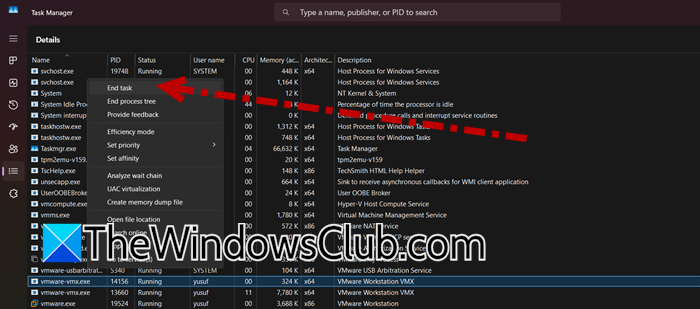
If VMware is not running with enough privileges, it can fail when it tries to scan or read the source directory. Running it as Administrator is a practical fix when the problem is permission-related. VMware’s own docs also show that related access issues can come from service or rights problems on the host. So, close VMware Workstation from the Task Manager; now, open it as an administrator.
4] Check folder permissions on the host
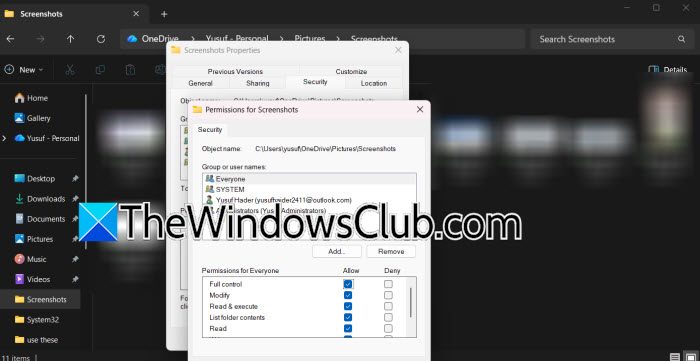
If your Windows account does not have full read access to the source folder, VMware will fail at the scan stage. Windows permissions are inherited from the folder tree, and Deny rules override Allow rules, so one wrong entry can break the copy. Granting your user account proper access often fixes the issue immediately. Follow the steps below to do the same.
- Right-click the source folder and open Properties.
- Go to Security.
- Select your user account.
- Give it Read and Write permissions, or Full Control if appropriate.
- Apply the changes and try again.
Finally, check if the issue persists.
5] Temporarily disable Controlled Folder Access or add an exclusion
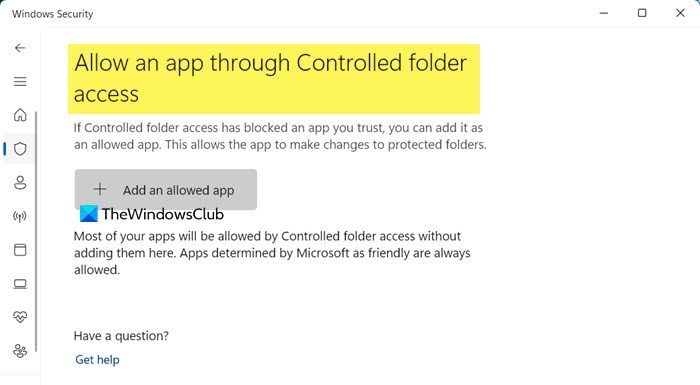
Windows Defender’s Controlled Folder Access protects important folders by blocking unauthorized apps. If VMware is treated as an untrusted app, the copy can fail even though the file is valid. A short test with the protection turned off, or adding VMware Workstation as an allowed app, is often enough to confirm the cause. To disable Controlled Folder Access or add an exclusion.
- Open Windows Security.
- Go to Virus & threat protection.
- Now, scroll down to Ransomware protection > Manage ransomware protection.
- Now, turn off Controlled Folder Access or allow VMware Workstation through.
- Retry the copy, then turn protection back on.
Finally, check if the issue persists.
6] Copy the folder through a clean path instead of dragging a problematic tree
Some folders may not copy successfully because they have hidden items, special files, or complex structures that VMware has trouble handling. Instead of dragging and dropping the folder directly, try creating a new copy path or packaging the folder first. Many users have reported errors with folders that contain hidden items or complicated folder trees. So, make a new folder outside the original tree, and copy only the needed visible files first. If the issue is with a complex folder, zip it, and copy the zip file instead. After transferring the files, you can unzip them.
That’s it!
Read: How to fix VMware Internal Error while powering on.
How to fix the VMware authorization service is not running?
If the VMware Authorization Service is not running, open Services on Windows, find VMware Authorization Service, and start it. Set the startup type to Automatic so it runs after every reboot. If it still fails, repair or reinstall VMware Workstation, then restart the system. This service is needed for VMware to run virtual machines with proper permissions, so once it is active, the error usually goes away.
Read: VMWare VM unable to connect to the Internet
How to disable bus sharing in VMware?
To disable bus sharing, power off the virtual machine first. Then open the VM’s .vmx file in a text editor or use VMware settings, and remove or set the SCSI bus-sharing option to none. Save the file and start the VM again. Bus sharing is only needed for special clustered setups, so disabling it is safe for normal single-VM use.
Also Read: VMware cannot change network to bridged; No un-bridged host network adapters.
