
If VMware displays the error Cannot change network to bridged: There are no un-bridged host network adapters, it means the virtualization software cannot find a suitable physical network adapter to bridge with. As a result, you cannot switch the virtual machine to Bridged networking mode. In this post, we will see what you can do to resolve it.
Virtual Network Editor
Cannot change network to bridged: There are no un-bridged host network adapters.
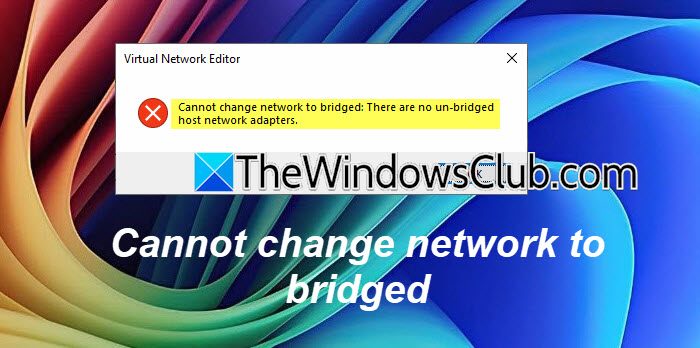
This error usually appears when the VMware Bridge Protocol is missing or disabled on the host network adapter. It can also occur if the VMware Bridge Service is not running, the Virtual Network Editor configuration is corrupted, or Windows network settings have changed after an update. In some cases, outdated VMware components or damaged virtual network adapters can also prevent VMware from detecting eligible network adapters.
VMware Cannot change network to bridged: There are no un-bridged host network adapters
If VMware cannot change the network to bridged, follow the solutions mentioned below.
- Enable the VMware Bridge Protocol on your network adapter
- Restart the VMware Bridge Service
- Restore the default virtual network configuration
- Reinstall the VMware network adapters
- Reset Windows network settings
- Try a workaround
Let us talk about them in detail.
1] Enable the VMware Bridge Protocol on your network adapter
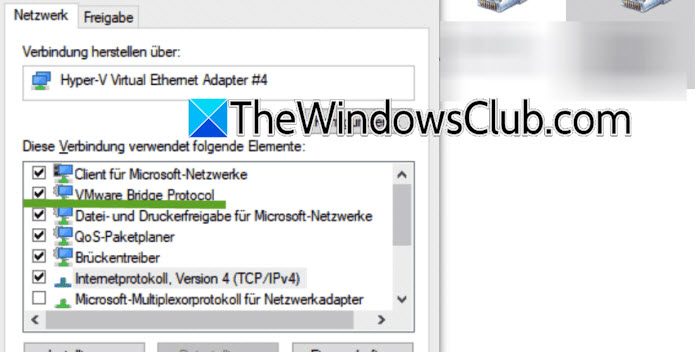
VMware relies on the VMware Bridge Protocol to connect a virtual machine directly to your physical network adapter. If this protocol is disabled or missing, VMware cannot create a bridged connection. Follow the steps mentioned below to do the same.
- Press Win + R, type ncpa.cpl, and press Enter.
- Right-click your active Ethernet or Wi-Fi adapter and select Properties.
- Look for VMware Bridge Protocol.
- If it is unchecked, enable it.
- Click OK and restart VMware.
- Try changing the network adapter to Bridged again.
Hopefully, this should do the job for you.
2] Restart the VMware Bridge Service
The VMware Bridge Service manages bridged networking. If the service is stopped or fails to start, VMware cannot detect available host adapters for bridging. Open services.msc and look for VMware Bridge Service (VMnetBridge). If the service is present, ensure it is running and set to Automatic. If the service is missing, repair the VMware installation because the Bridged Networking component may not be installed.
Restart VMware and check if the error is resolved.
3] Restore the default virtual network configuration
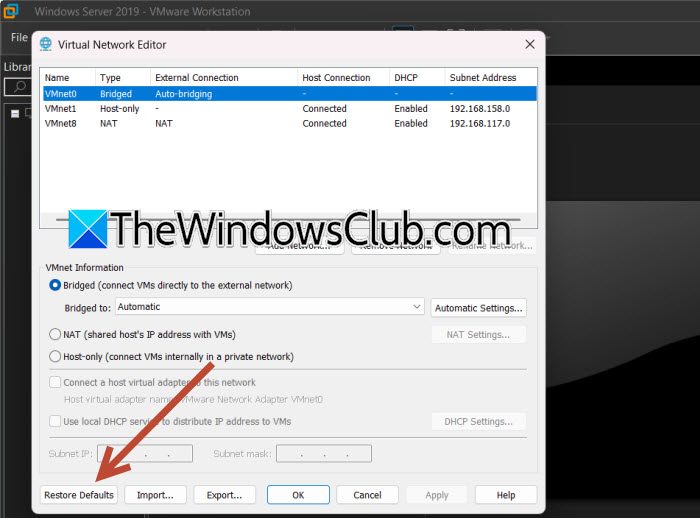
Incorrect virtual network settings or accidental changes in the Virtual Network Editor can prevent VMware from assigning VMnet0 to a physical adapter. Restoring the defaults recreates the required network configuration. Follow the steps mentioned below to do the same.
- Close all running virtual machines.
- Open VMware Workstation as an administrator.
- Go to Edit > Virtual Network Editor.
- Click Change Settings if prompted by UAC.
- Click Restore Defaults.
- Wait for VMware to recreate the virtual networks.
- Restart your computer.
- Open VMware and verify that Bridged (VMnet0) is available.
Now, check if the issue is resolved.
4] Reinstall the VMware network adapters
Corrupted VMware virtual network adapters or damaged networking components can prevent bridged networking from functioning properly. Reinstalling them creates fresh virtual adapters and restores missing components. Follow the steps mentioned below to do the same.
- Close VMware completely.
- Open Control Panel > Programs and Features.
- Select VMware Workstation and click Change.
- Choose Repair and complete the process.
- Restart your computer.
- If the issue persists, uninstall VMware completely.
- Install the latest version of VMware Workstation.
Launch VMware and verify that bridged networking works.
5] Reset Windows network settings
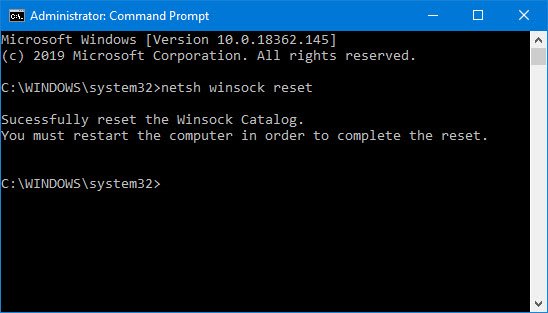
Corrupted network configuration, third-party VPN software, or recent Windows networking changes can interfere with VMware’s ability to bridge network adapters. Resetting the network stack restores the default configuration.
Open Command Prompt as Administrator and run the following commands.
netsh winsock reset
netsh int ip reset
ipconfig /flushdns
Restart the computer and check if the issue persists.
6] Try a workaround
If the problem continues after trying all the solutions above, temporarily switch the virtual machine to NAT networking to confirm that the VM itself has network connectivity. If NAT works but Bridged does not, the issue is almost always related to the VMware Bridge Protocol, the VMware Bridge Service, or the host network adapter configuration rather than the virtual machine itself.
Hopefully, with the help of these solutions, your issue will be resolved.
Read: VMWare VM unable to connect to the Internet
How do I enable Bridged networking in VMware?
To enable Bridged networking in VMware, open the virtual machine settings and select Network Adapter, then choose Bridged. If the option does not work, ensure the VMware Bridge Protocol is enabled on your Windows network adapter and that the VMware Bridge Service is running. You should also restore the default settings in the Virtual Network Editor if the configuration has become corrupted. Restart VMware after making the changes to apply the new network settings.
Read: Network adapter not working after importing virtual machine
Can Windows updates break VMware Bridged networking?
Yes, Windows updates can sometimes affect VMware Bridged networking by changing network adapter settings, removing the VMware Bridge Protocol, or modifying the network stack. Security software or updated network drivers may also interfere with VMware’s ability to detect eligible adapters. If the problem appears after an update, restore the default virtual network configuration, repair the VMware installation, verify the bridge service is running, and reinstall the latest network drivers if necessary.
Also Read: VMware network adapter not showing up in Windows 11.
