
If you are seeing VMware Workstation unable to connect to its ideal host controller, the problem is usually related to USB passthrough or the VMware USB controller inside the virtual machine. This error often appears when VMware cannot claim the USB device cleanly from the host machine.
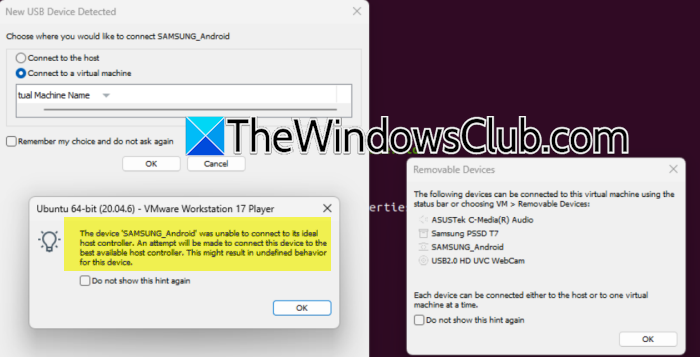
The device was unable to connect to its ideal host controller. An attempt will be made to connect this device to the best available host controller. This might result in undefined behavior for this device.
Why does VMware Workstation fail to connect USB?
VMware might fail to connect USB if it cannot access the USB device through the host controller. The USB Arbitration Service may be stopped, the device may already be claimed by Windows, or the VM may be using the wrong USB controller mode. In some cases, the VMware installation itself is damaged, or the virtual machine’s USB settings are misconfigured, which prevents the device from attaching properly.
VMware Workstation unable to connect to its ideal host controller
This error means VMware Workstation is trying to attach a USB device, but the virtual machine cannot access the host’s USB controller properly. It usually happens when the VMware USB arbitration service is stopped, the VM has an incompatible USB controller version, the host is already using the device, or VMware does not have enough permission to take control of the USB device.
If the VMware Workstation is unable to connect to its ideal host controller, follow the steps mentioned below.
- Restart the VMware USB Arbitration Service
- Connect the USB device in VMware
- Change the VM USB Compatibility settings
- Remove and re-add the USB Controller in the VM
- Update or repair VMware Workstation
Let us discuss them in detail.
1] Restart the VMware USB Arbitration Service
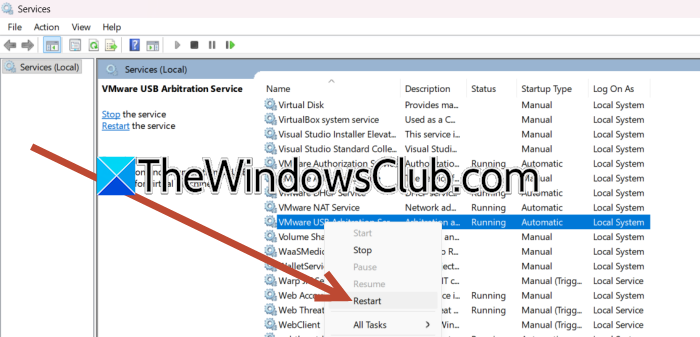
USB Arbitration Service is responsible for handling USB devices between the host and the virtual machine. If it is stopped or stuck, VMware cannot connect the device properly.
Hit Win + R, type services.msc, and press Enter. Now, find VMware USB Arbitration Service, right-click it, and choose Restart. If it is stopped, click Start. Reopen VMware Workstation and reconnect the USB device.
2] Connect the USB device in VMware
There is a possibility that the USB device might be locked by Windows. To give VMware full control of the device, disconnect it from the host and connect it directly to the VM.
Plug in the USB device. Now, go to VMware, go to VM > Removable Devices. Then go to the USB device, such as SAMSUNG_Android. Now, click Connect (Disconnect from host). If the device still fails, unplug it and connect it again after the VM is fully powered on.
3] Change the VM USB compatibility setting
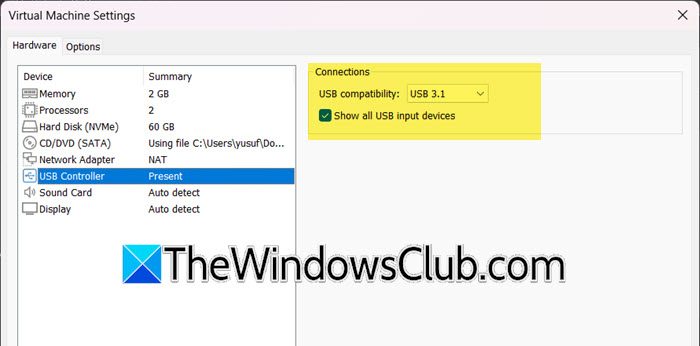
Some USB devices work better with specific controller versions. If the virtual machine (VM) uses the wrong USB setting, VMware might not be able to connect the device. It’s important to check that the USB device and the VM settings are compatible for proper operation. You can follow the steps mentioned below to do the same.
- First of all, shut down your virtual machine.
- Now, right-click on the machine and select Settings.
- Go to the USB Controller tab.
- Now, change the USB compatibility to USB 2.0 or USB 3.0/3.1.
- Finally, save the settings and start the VM again.
Now, check if the issue persists.
4] Remove and re-add the USB controller in the VM
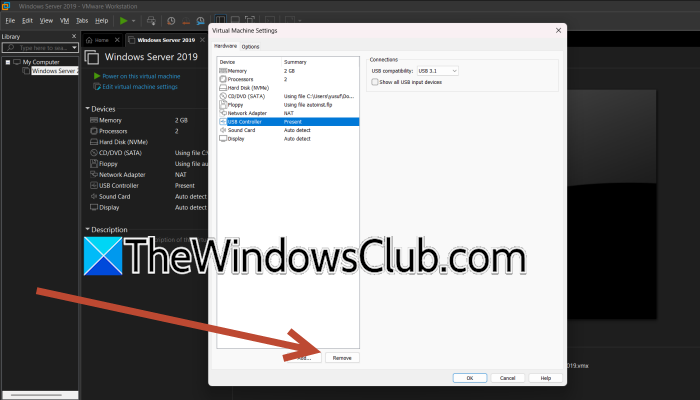
If the USB controller inside the VM is corrupted or misconfigured, VMware may not detect the host controller correctly. Re-adding it forces VMware to rebuild the USB device path.
To do the same, follow the steps mentioned below.
- Power off the VM.
- Now, right-click on the machine and select Settings.
- Remove the USB Controller if it is already present.
- Add it again from Add > USB Controller.
Save the VM, start it, and try connecting the USB device again.
Read: VMware Player USB device greyed out
5] Update or repair VMware Workstation
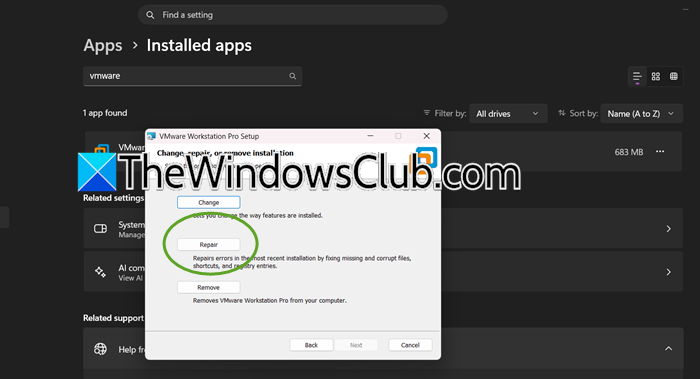
If VMware Workstation is outdated or some program files are corrupted, the USB controller may not initialize correctly. Updating or repairing the installation often fixes broken USB passthrough components and helps VMware connect to the correct host controller.
To update or repair VMware Workstation, follow the steps mentioned below.
- Close VMware Workstation.
- Now, open Settings.
- Go to Apps > Installed apps.
- Click on the three dots and select Modify.
- Now, click on Next when VMware Workstation Pro Setup appears.
- Click on Repair.
If Repair isn’t available, uninstall VMware Workstation. Then, download and install the latest version of VMware Workstation. Finally, reboot your computer and try connecting the USB device again.
That’s it!
Read: VMware not detecting USB device
How can I fix VMware host controller?
To fix this issue, start by restarting the VMware USB Arbitration Service and reconnecting the device from VM > Removable Devices. If the issue continues, change the VM’s USB compatibility to USB 2.0 or USB 3.0/3.1, then remove and re-add the USB Controller in VM settings. These steps work because they refresh the USB passthrough path, clear controller conflicts, and force VMware to rebuild the connection to the host device.
Also Read: VMware Workstation Insufficient permission to access the file.
