
The error message “Insufficient permission to access file” in VMware Workstation usually arises when the software does not have the necessary permissions to read or modify important virtual machine (VM) files (such as .vmx or .vmdk). This lack of access can hinder operations like starting, migrating, or restoring a VM. The problem is often related to file permissions, conflicts in file ownership, or system processes that interfere with access. There are various scenarios for this error.
VMware Workstation cannot connect to the virtual machine. Make sure you have rights to run the program, access all directories the program uses, and access all directories for temporary files.
The VMware Authorization Service is not running.
Failed to load partitions for device \. \PhysicalDrive0:
Insufficient permission to access file.
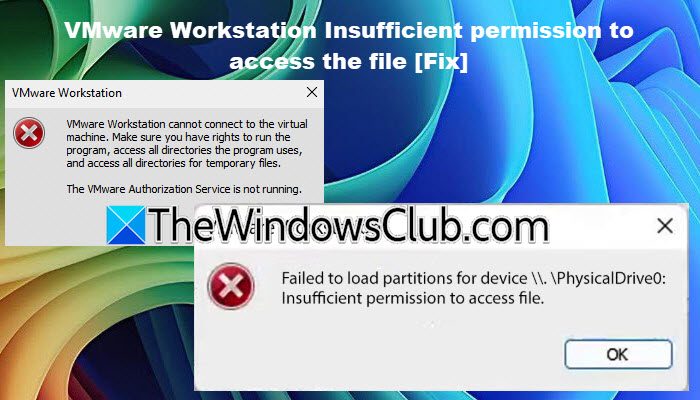
VMware Workstation Insufficient permission to access the file
If VMware Workstation has insufficient permission to access the file, follow the solutions mentioned below.
- Grant access to the user
- Check for File Locks and Conflicting Processes
- Verify and Remove the Read-only Attribute
- Check VMware Authorization Service
Let us talk about them in detail.
1] Grant access to the user
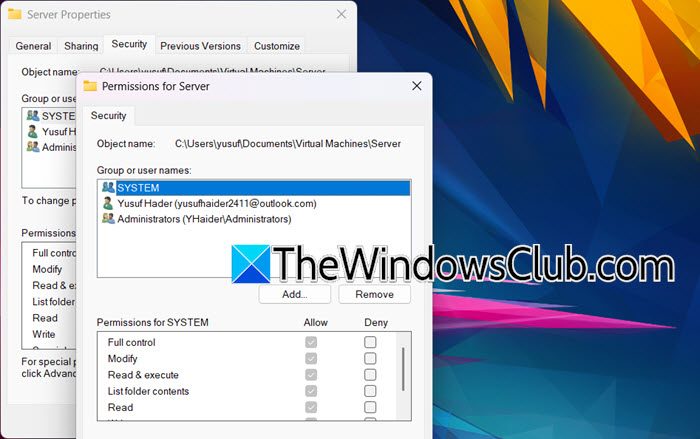
As mentioned in the error message, one of the reasons for this issue is the lack of permissions. In this solution, we are going to grant your user privilege over the VMware folder. Please note that we apply permissions to the entire folder because VMware creates, deletes, and modifies these files dynamically. If you only change permissions on the .vmdk file today, the problem might recur tomorrow when VMware tries to create a new .vmem or .log file that still has the old, restrictive permissions.
- First of all, go to the folder containing your virtual machine files (e.g., D:\Virtual Machines\Your_VM\).
- Right-click the folder and select Properties.
- Go to the Security tab.
- Click Edit… to change permissions.
- Select your user account from the list. If it’s not there, click Add…, type your username, and click Check Names to validate it.
- In the Permissions for [User] box, ensure Full control is checked
- Click Apply > Ok.
- Now, click Advanced and in the advanced security settings, check the box that says Replace all child object permission entries with inheritable permission entries from this object.
- Click Ok.
Hopefully, this will do the job.
2] Check for File Locks and Conflicting Processes
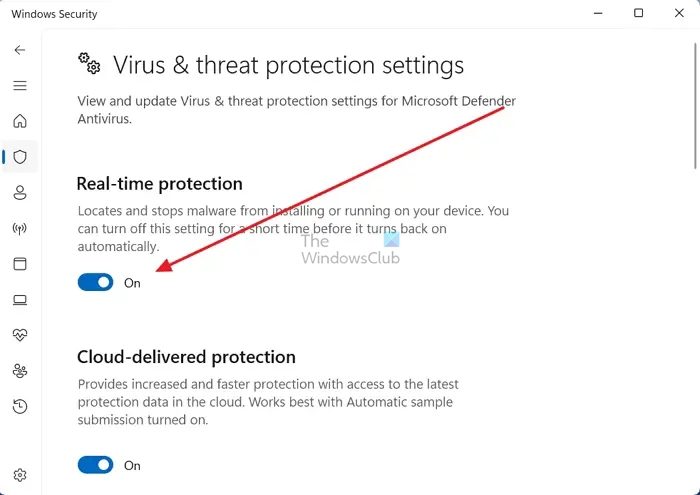
Virtual machines require exclusive read/write access to their files (especially the .vmdk disk file) to operate correctly. This is to prevent data corruption. Suppose another process, even a well-intentioned one like an antivirus scanner, has a lock or is actively reading those files. In that case, VMware will be denied access and throw the “Insufficient permission” error. To get rid of this, follow the steps mentioned below.
- Shutdown your virtual machine and terminate any process related to VMware Workstation.
- Temporarily disable Real-Time Protection or your antivirus if you are currently using one.
- If you are using any backup software, disable that too.
- Check if the issue persists. If the issue was resolved, enable antivirus and backup software one by one to find out the culprit, and then make your decision based on that.
Hopefully, this will do the job for you.
3] Verify and Remove the Read-only Attribute
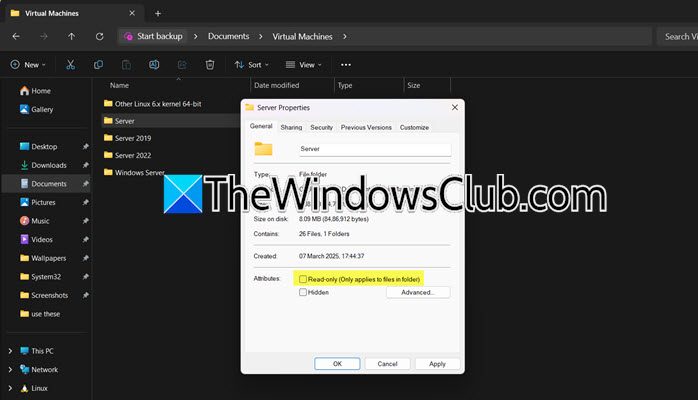
The Windows file system uses attributes to manage how files work. The Read-only attribute is a setting that tells the operating system and programs that a file cannot be changed or edited. This provides basic protection for the file. If VMDK or VMX files have the Read-only attribute set, VMware is explicitly prevented from writing to them by the Windows operating system itself. To check this, you need to follow the steps mentioned below.
- Open File Explorer and go to the folder where your VM files are stored, for example, C:\Users\YourName\Documents\Virtual Machines\Ubuntu_VM.
- Find the file mentioned in the error message. It will most likely be a .vmdk (virtual disk) file. Right-click on that file and select Properties from the context menu.
- In the Properties window, look at the Attributes section at the bottom of the General tab.
- If the Read-only checkbox is ticked, it means the attribute is applied. Untick it and click Apply > Ok.
You should also check the main configuration file (.vmx) and any other .vmdk files in the folder for the same attribute.
4] Check VMware Authorization Service
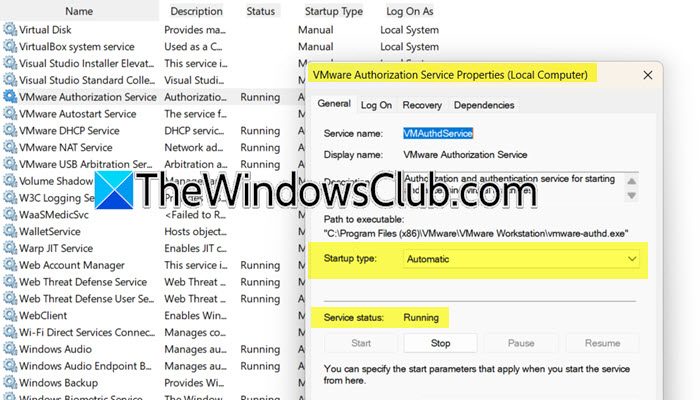
As mentioned in one of the error messages, “The VMware Authorization Service is not running”, you may encounter this issue if the VMware Authorization Service is disabled. The VMware Authorization Service (VMwareAuthdService) is a background process that manages permissions for certain VMware operations. Open Services.msc on your host machine, look for VMware Authorization Service, double-click on it, and make sure that the Startup type is set to Automatic and it is running.
Hopefully, with the help of these solutions, you will be able to resolve the issue.
Read: How to import, export, clone VM in VMware Workstation
How to fix you do not have permission to open this file?
To fix “you do not have permission to open this file,” we need to grant permission to your username. For that, right-click the file, select Properties, navigate to the Security tab, click Edit, select your user account, and check the Full control box to grant yourself permission; finally, click Apply > OK to confirm the changes.
Read: How to enable AutoStart of VMs on VMware ESXi and Workstation
How to give permission to a user in VMware?
To give a user permission in VMware Workstation, go to Edit > Preferences > Shared VMs, click Add User, select the user from the system, and assign them the Administrator role to grant full control over shared virtual machines.
