
VMware Workstation allows you to create virtual machines that can use system resources. However, we noticed a peculiar issue where the virtual machine cannot access the Bluetooth that is installed on the host machine. In this post, we are going to explain what to do when Bluetooth is not working in VMware Workstation VM.
Bluetooth not working in VMware Workstation VM
Bluetooth connectivity issues in VMware Workstation VMs are usually due to VMware’s Bluetooth passthrough limitations, driver conflicts, or misconfigured services. When a Bluetooth adapter is shared with a VM, the host may retain partial control, causing pairing to succeed but connections to fail.
If Bluetooth is not working in VMware Workstation, you can follow the solutions and workarounds mentioned below.
- Reclaim Bluetooth Adapter from VMware
- Reset Host Bluetooth Services and Drivers
- Disable Power Management for Bluetooth
Let us talk about them in detail.
1] Reclaim Bluetooth Adapter from VMware
If VMware’s Bluetooth sharing doesn’t fully pass the adapter to the VM, it creates a virtual bridge that forces the host and VM to compete for control. Due to this, you may encounter Bluetooth connectivity issues. To resolve it, you need to follow the steps given below.
- First of all, shut down your virtual machine.
- Now, go to VM > Settings > Hardware > USB Controller.
- You then have to untick Show Bluetooth devices with the virtual machine to disable passthrough.
- Now, go ahead and remove the USB Controller.
- Then, add it again, and tick Show Bluetooth devices with the virtual machine.
- Finally, open the machine and check if the issue is resolved.
Hopefully, this will do the job for you.
2] Reset Host Bluetooth Services and Drivers
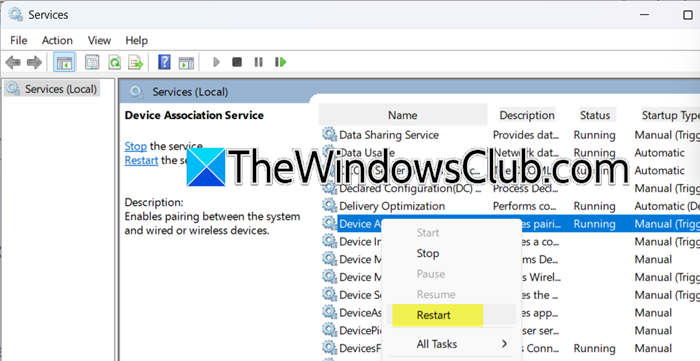
After VMware passthrough, Windows 11 Bluetooth services often crash or hang due to driver corruption or resource conflicts. Restarting services flushes stuck processes, while driver reinstalls fixes low-level communication errors between the host OS and Bluetooth hardware.
- Open Run (Win + R), type “services.msc”, and click Ok.
- Now, look for BluetoothUserService, Bluetooth Support Service, and Device Association Service.
- Make sure they are running; if they are not, right-click on the service and select Start. You can right-click on the service and select Start. If the service is running, right-click on it and select Restart.
Finally, check if the issue is resolved.
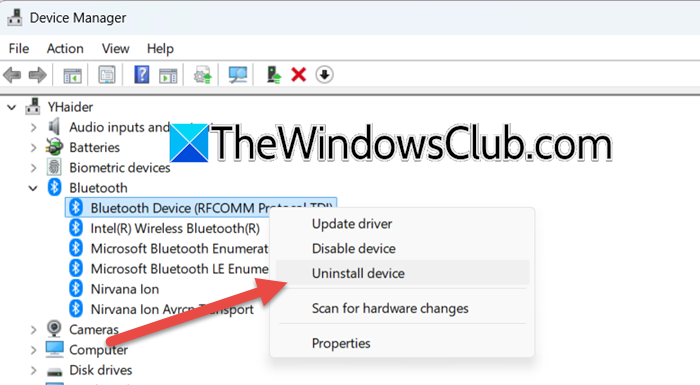
To reinstall the Bluetooth driver, you need to follow the steps mentioned below.
- Open the Device Manager by searching for it in the Start Menu.
- Now, expand Bluetooth, right-click on the Bluetooth driver, and click on Uninstall device.
- Click on Uninstall.
- Right-click on Bluetooth and click on Scan for hardware changes.
Finally, check if the issue is resolved.
3] Disable Power Management for Bluetooth
Sometimes, Windows powers down Bluetooth adapters to conserve energy. After VMware passthrough, this often prevents the adapter from waking up properly, causing the host to fail to reconnect. Disabling power management forces the adapter to stay active, eliminating resume failures. Follow the steps mentioned below to do the same.
- Open Device Manager.
- Expand Bluetooth, right-click on the Bluetooth driver, and click on Properties.
- Go to the Power Management and untick Allow the computer to turn off this device to save power.
- Click on Ok.
Finally, reboot the host machine and see if the issue is resolved.
That’s it!
Read: VirtualBox Failed to attach the USB device to the virtual machine
How do I enable Bluetooth on my VMware workstation?
If you want to enable Bluetooth on your VMWare Workstation VM, go to your VM, right-click on it, and select Settings. Go to USB Controller and then tick Show Bluetooth devices with the virtual machine. Finally, click on Ok.
What could be the problem of Bluetooth not working?
Outdated drivers, device incompatibility, or interference from other wireless signals often cause Bluetooth issues. Sometimes a simple restart or toggling Bluetooth off and on resolves it, but corrupted settings or missing system updates can also be culprits. If it’s a peripheral, check that it’s sufficiently charged and in pairing mode. For Windows, running the Bluetooth troubleshooter can pinpoint the glitch quickly.
Also Read: Bluetooth devices not showing or connecting in Windows 11.
