
If Bluetooth is not detecting devices and you are experiencing problems with Bluetooth devices in Windows 11 or 10, this post will help you troubleshoot the issue. Perhaps you cannot connect using a Bluetooth device, or the connection may fail. If you are facing problems with your Bluetooth devices not showing, pairing, or connecting, or not finding devices in Windows 11/10, then this post will help you resolve the issue.
Read: How to turn on Bluetooth in Windows 11.
Bluetooth devices not showing in Windows 11/10
The method suggested below should resolve the issue encountered by some users. The Bluetooth connectivity problem may be related to a Bluetooth mouse, keyboard, or headphones that are already paired but cannot connect, especially if you have recently upgraded from an older version of Windows. In such situations, it is always recommended to first check the error displayed. If you do find a message flashing on your computer screen, verify the status of the Bluetooth speakers in the Device Manager first. It needs to be Enabled. If it is, then read on.
Bluetooth not detecting devices
If your Bluetooth devices are not showing, pairing or connecting, or not finding devices, try these suggestions:
- Run Hardware and Device Troubleshooter
- Restart Bluetooth Support Service
- Enable the Bluetooth Audio Service
- Update Bluetooth Device Driver.
You may need an admin account to execute some of the steps.
1] Run Hardware and Device Troubleshooter
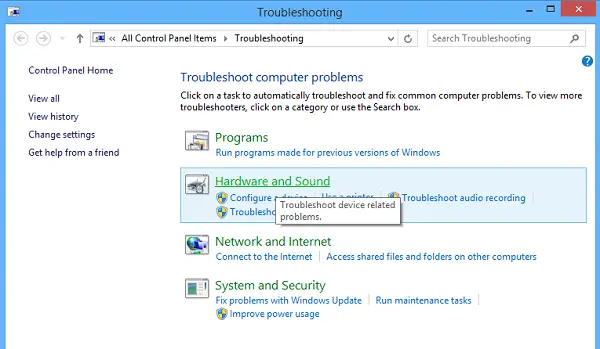
The built-in Hardware Troubleshooter scans for issues and makes sure that any new device or hardware attached to your computer is installed correctly or not. To run the troubleshooter, do the following:
- Open Run prompt
- Type and Press the Enter key after typing the following msdt.exe -id DeviceDiagnostic
- It will launch the hardware troubleshooter.
Read: Bluetooth device Paired but Not Connected in Windows
2] Restart Bluetooth Support Service
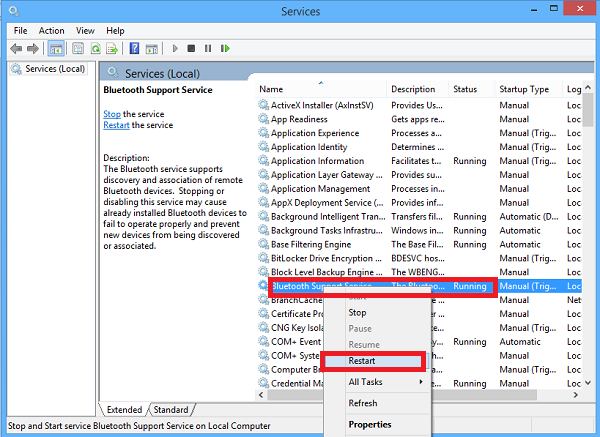
You may want to check if the related Services are started and running smoothly. To do this, press Windows key + R, type services.msc. Next, right-click on the Bluetooth Support service and select Restart.
Right-click on Bluetooth support service and select Properties, and ensure that the startup type is Automatic.
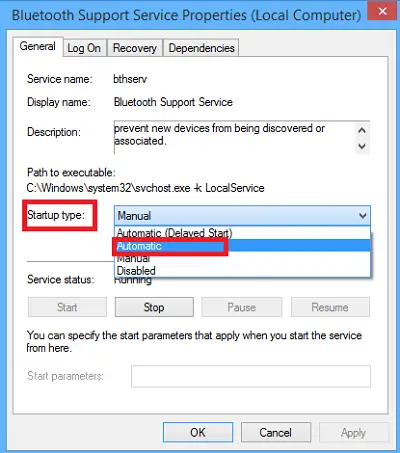
The Bluetooth service supports discovery and association of remote Bluetooth devices. Stopping or disabling this service may cause already installed Bluetooth devices to fail to operate properly and prevent new devices from being discovered or associated.
Read: Bluetooth keyboard paired but not working on Windows
3] Enable the Bluetooth Audio Service
Verify whether the settings for the Bluetooth speaker given below are enabled by default or not. If not, it will allow it and check if it solves the issue. Follow the steps to enable the Bluetooth Audio Service.
Press Win+X key together and select Control Panel from the list. Select Devices and Printers.
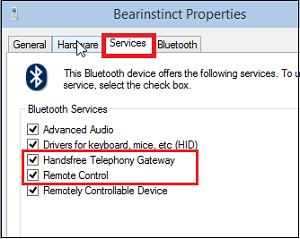
In Devices and Printers, locate the Bluetooth speaker device and right-click on it. Click on Properties and navigate to the Services tab.
Select Audio Sink, Hands-free Telephony, and Remote Control and click on Apply.
Read: How to Send or Receive files using Bluetooth File Transfer.
4] Update Bluetooth Device Driver
- To do this, you can use the Device Manager.
- Press Win+R, type devmgmt.msc to open the Device Manager. Expand Bluetooth.
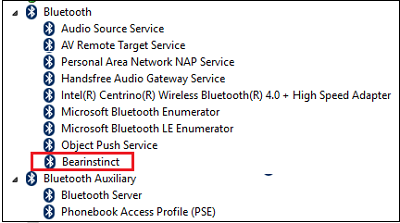
- Click on Properties, and click on the Driver tab.
- Click the Update Drivers button.
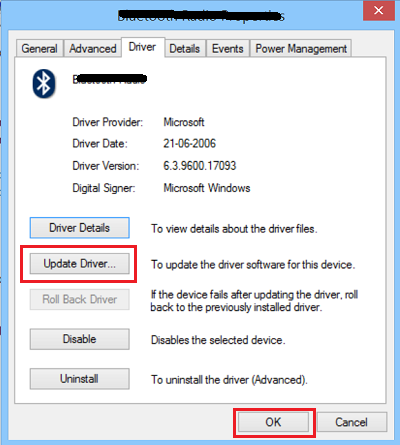
- It will show the option which will ask you to launch the Windows Search.
- You can then check Windows Update > Advanced Options > Optional updates
- If there is a driver update available for your Bluetooth, then install it.
I hope something helps!
Fix Event ID 22, BTHPORT_DEBUG_LINK_KEY_NOT_ALLOWED, where some Bluetooth devices may fail to pair or connect on a Windows PC
Some Windows users are experiencing issues pairing, connecting, or using certain Bluetooth devices after installing Windows Updates. These updates are important as they close security vulnerabilities by intentionally preventing connections from Windows to unsecure Bluetooth devices or adding features to the OS. However, if Bluetooth devices do not pair or connect, here is what you can do.
In the Event Log Manager, you may see Event ID 22 with the error message:
BTHPORT_DEBUG_LINK_KEY_NOT_ALLOWED
If you face this issue on your Windows 11/10 computer take these steps to resolve the issue:
- Update Bluetooth drivers
- Uninstall the Windows Update.
1] Update Bluetooth drivers
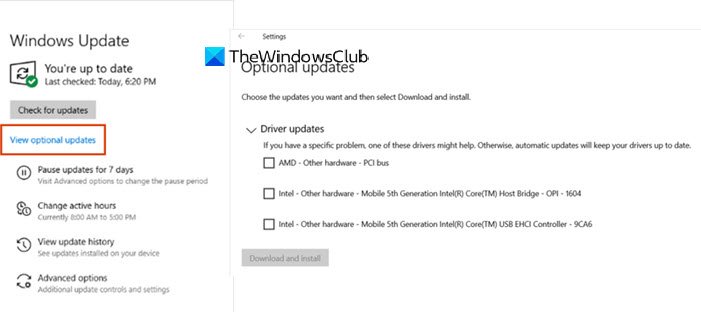
Driver and Security Updates and OEM updates for their devices go hand in hand. The chances are that your Bluetooth device has an update as well.
You can search it from within Windows Update to download the latest version of the driver from OEM websites and install it.
Read: How to connect to Bluetooth Personal Area Network (BTPAN) in Windows 11
2] Uninstall the Windows Update
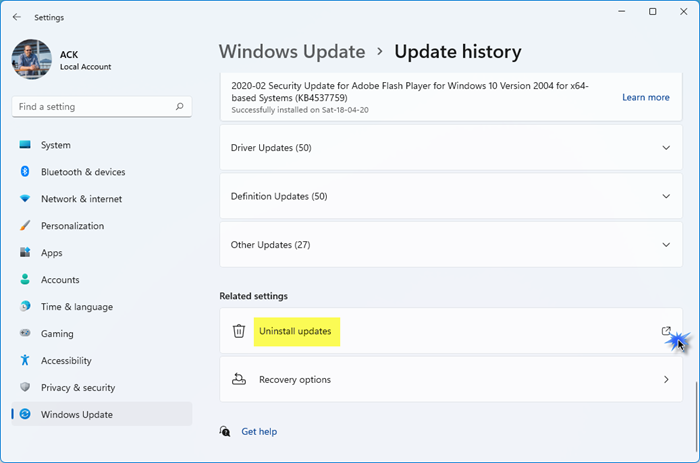
If necessary, you may temporarily uninstall these problematic Windows Updates. However, you are also exposing the computer to a Bluetooth vulnerability.
- Go to Settings > Update and Security > Windows Update
- Click on View Update history > Uninstall Updates
It will open a new window that lists all recent updates. You can double-click it and select the relevant update to uninstall.
I hope this works for you and that you can connect with the Bluetooth devices without any issues.
Why is my Bluetooth not finding devices?
If your Bluetooth is not finding devices, it could be due to several issues. Ensure your devices are in pairing mode and close to each other. Check if the Bluetooth is turned on for both devices. Interrupting Wi-Fi signals or a device’s power-saving mode can hinder connectivity. Clearing the Bluetooth cache and updating your device’s software can also resolve the issue.
Why my phone cannot connect to PC via Bluetooth?
If your phone cannot connect to a PC via Bluetooth, ensure both devices are Bluetooth-enabled and in pairing mode. On your phone, swipe down for Quick Access and tap the Bluetooth icon until it’s highlighted blue. On your PC, go to “Settings” > “Bluetooth & Devices” to confirm Bluetooth is active. Pair both devices by following the on-screen instructions.
Related: Bluetooth device Paired but Not Connected.
How do I turn on pairing mode?
Most of the Bluetooth devices come with a dedicated pairing mode. When the device is long-pressed, the light blinks in a specific pattern. You can then turn on Bluetooth on your laptop and click on Add device button to find that device.
Related: That didn’t work, Make sure your Bluetooth device is still discoverable, then try again.
How do I force a Bluetooth device to pair?
You cannot force, but if an already paired device is not connecting, you can remove the device and then re-pair it. When the device is removed from the list, it can be repaired.
Related: Bluetooth is missing or not showing in Device Manager
Bluetooth devices not connecting after Windows 11 update
After a Windows 11 update, some users may face Bluetooth connection issues. This often happens due to outdated drivers, disabled Bluetooth services, or compatibility glitches introduced by the update. Running the built-in Bluetooth troubleshooter can automatically detect and fix common problems. If that does not help, consider uninstalling these problematic Windows Updates.
My Laptop keeps connecting to some other speaker.
If your laptop keeps connecting to another device instead of your speaker, you can either turn off the device you do not want to connect to or disconnect it from the laptop’s Bluetooth connection.
Have a look at these posts too:
- Bluetooth not working in Windows
- Keyboard or Mouse is not working
- Bluetooth Mouse disconnects randomly in Windows.
- Bluetooth speaker paired, but no sound or music
- Cannot send or receive the file via Bluetooth.
