
For most, Bluetooth often means the ability to connect their headset, computer, and smartphone wirelessly. But there are several other uses of Bluetooth. Today in this post, we will see how to turn on or enable and use Bluetooth in Windows 11 and Windows 10, to send & receive files.
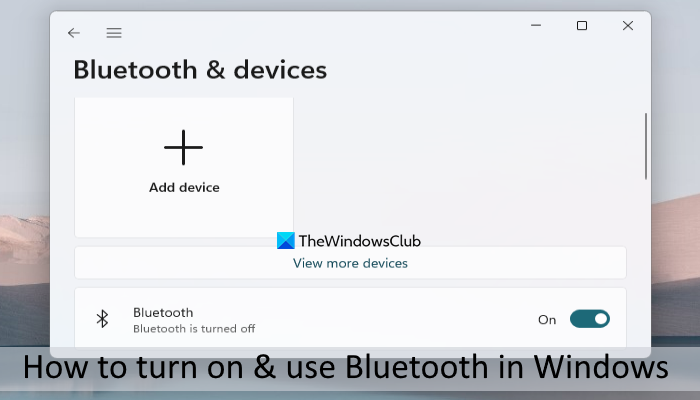
Enable or Turn On Bluetooth in Windows 11/10
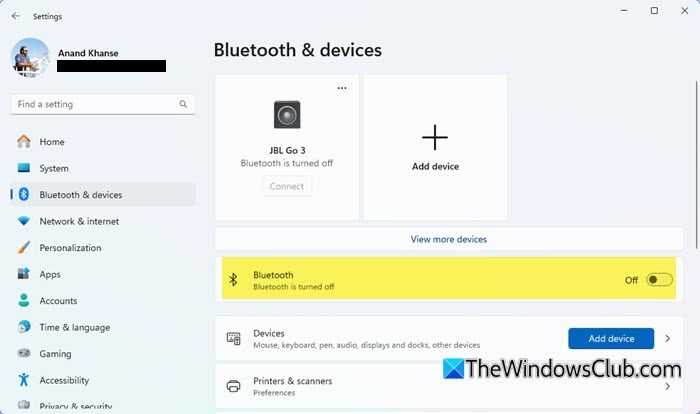
To turn on Bluetooth in Windows 11 using Settings:
- Open Windows Settings
- Select Bluetooth & devices
- Now in the right panel, you will see Bluetooth.
- To enable Bluetooth, toggle the Bluetooth slider to the ON position.
To turn on Bluetooth in Windows 10 using Settings:
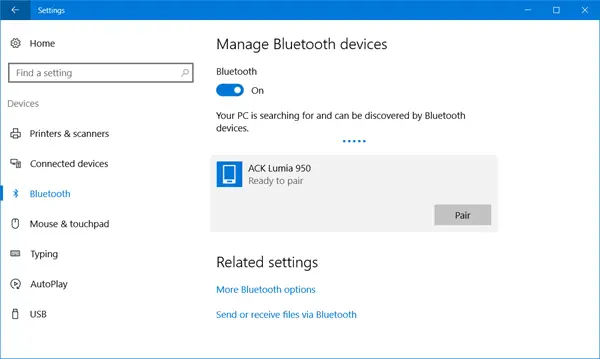
- Click open the Start Menu.
- Next open Settings
- Select Devices to open the Windows Devices Settings.
- Now in the left panel, you will see Bluetooth.
- Click on it to open the following settings.
- To enable Bluetooth, toggle the Bluetooth slider to the ON position.
Having done that, your PC will start searching for other devices to pair up with. Make sure to turn on Bluetooth on your smartphone or other device.
Once the device is found, it will be displayed there. Click on it to expand it. You will see a Pair button.
Clicking on Pair will connect your PC to your other device.
Before the devices are paired, you will have to confirm that the passcode displayed on both devices is the same.
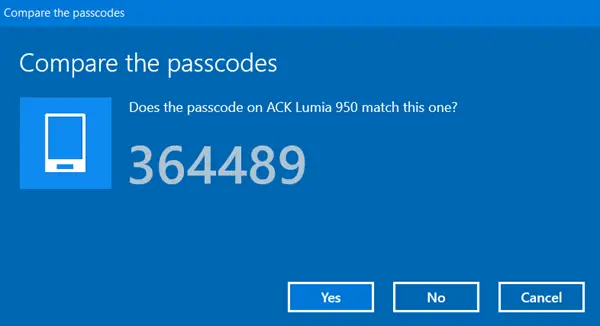
Once you have confirmed this, click on Yes – and the devices will be connected via Bluetooth.
Incidentally, clicking on More Bluetooth settings (first image above) will open up the following panel where you will be offered more settings like – Allow Bluetooth devices to find this PC, Alert me when a new Bluetooth device wants to connect, Show the Bluetooth icon in the notification area, etc.
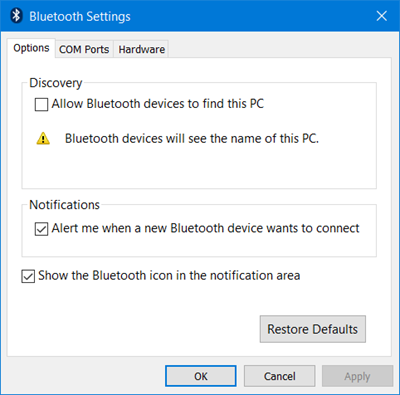
Once the devices are connected, you can use the Bluetooth connection to send or receive files.
You might want to also read about Infrared on Windows.
Related: How to turn off or disable Bluetooth in Windows
Enable Bluetooth using Windows Registry in Windows 11
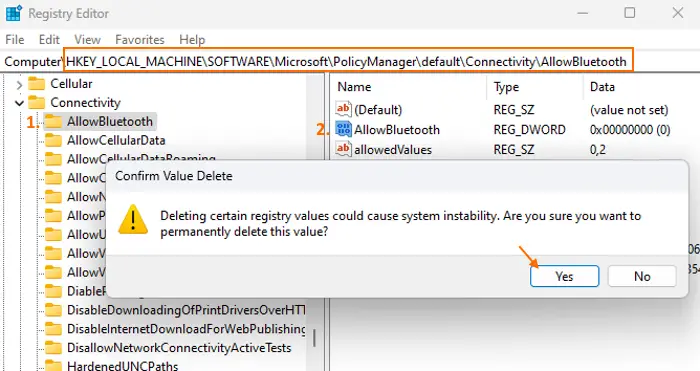
This option will be very helpful when you find that Bluetooth is greyed out and its toggle is not working to turn on/off Bluetooth. If Bluetooth is disabled and you aren’t able to turn it on using the Settings app or other ways, then you can enable Bluetooth using Windows Registry (also known as Registry Editor) on a Windows 11/10 computer. Before you use this Registry trick, you should have a backup of your Windows Registry. After that, you can follow the steps covered below:
- Open Windows Registry
- Access the AllowBluetooth key
- Delete the AllowBluetooth DWORD (32-bit) value
- Restart File Explorer
- Close the Windows Registry.
In the first step, you need to open Windows Registry. Just type regedit in the Search box and use the Enter key to open it.
After opening the Windows Registry, access the AllowBluetooth Registry key. Here is its path:
HKEY_LOCAL_MACHINE\SOFTWARE\Microsoft\PolicyManager\default\Connectivity\AllowBluetooth
Look at the right section of that Registry key. You will see an AllowBluetooth DWORD (32-bit) Value, a blue one. You need to delete that value.
For this, right-click on the AllowBluetooth DWORD value and use the Delete option. In the confirmation window, press the Yes button.
Finally, restart File Explorer or your computer. This will enable the Bluetooth feature and you will be able to turn it on/off easily.
In case you ever need to disable Bluetooth on your Windows 11/10 computer, you can follow the above steps. Just create a new DWORD (32-bit) Value, rename it to AllowBluetooth, and double-click on it. Set its Value data to 2, and use the OK button to save the changes.
Restart your computer to apply the new setting.
How to use Bluetooth in Windows 11
Click on the Send or receive files via Bluetooth link displayed in the settings (first image above). The following wizard will open.
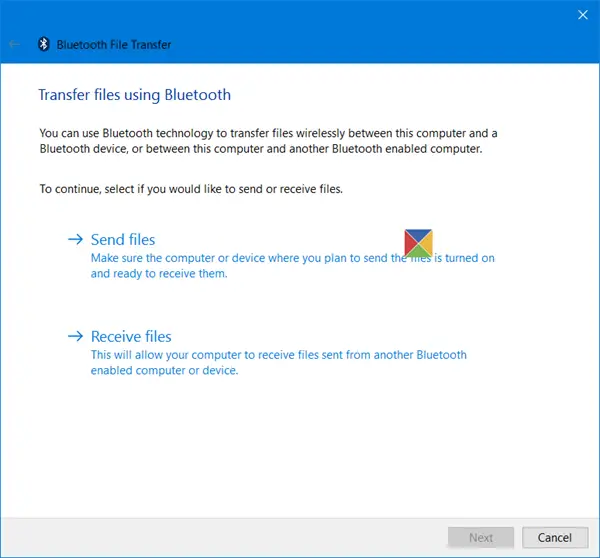
It is an easy-to-use wizard you can use to send or receive files via Bluetooth.
Why can’t I turn on my Bluetooth on Windows?
There could be several reasons why you can’t turn on Bluetooth on Windows 11 or 10. Starting with the hardware, it may also involve the respective driver. To resolve the issue, check if the Bluetooth hardware is functioning properly. Next, verify that the driver is installed on your PC.
Read: Toggle to turn Bluetooth On or Off is missing in Windows
Why did my Bluetooth disappear in Windows 11?
If the Bluetooth button or icon is missing or disappeared in Windows 11/10, you can get it back within moments. You need to open the Windows Settings pane and select the “Show the Bluetooth icon in the notification area” checkbox. Additionally, you can verify if the corresponding service is running.
How do I activate the Bluetooth on?
By default, the Bluetooth feature is enabled on Windows 11 and Windows 10. You just need to turn it on using the Settings app or any other way you prefer. However, if you are unable to turn on Bluetooth, it is most likely because a Registry setting has disabled it. You need to find that setting and delete it to activate Bluetooth. You can follow the steps outlined in the post above to enable or activate Bluetooth using the Windows Registry.
Facing issues? Read these posts:
