
Windows makes it easy to send or receive files using Bluetooth File Transfer, so, you can share a photo, video, or other files with a friend who has an Android phone, iPhone, laptop, or tablet. Let’s cover the method to send or receive files using Bluetooth File Transfer on Windows 11/10.
Send or Recieve files using Bluetooth File Transfer in Windows 11/10
Bluetooth technology has simplified the process of sharing files between devices. Most popular devices and brands today, support this technology. Please note that to carry out this process successfully, you need to have Bluetooth technology enabled on both devices.
Send files via Bluetooth in Windows 11
Before you begin, make sure the other device you want to share with is paired with your PC, turned on, and ready to receive files:
- Turn on your ‘Bluetooth’ device and make it discoverable.
- Turn on Bluetooth on your PC if it’s not on already
- Right-click on the Bluetooth taskbar icon and select Send a file
- The Bluetooth File Transfer Wizard will open
- Choose the file, select the file and you are done!
Let us see the procedure in detail.
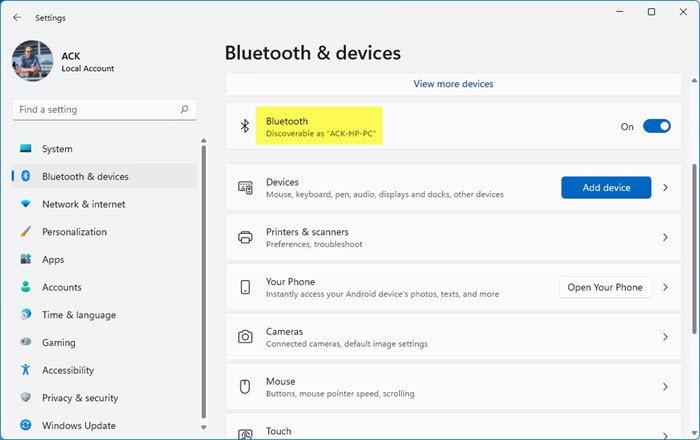
First, turn on your Bluetooth device via Windows 11 Settings and make it discoverable.
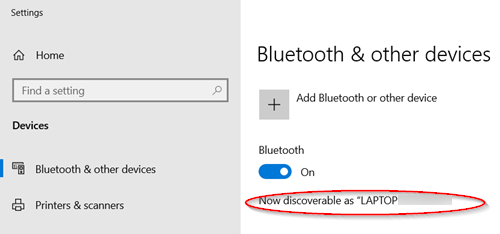
In Windows 10, you will see the setting here.
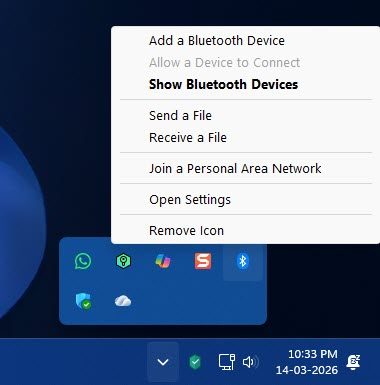
Once your device is discoverable, go to ‘Show Hidden Icons’ residing on Windows Taskbar, choose ‘Bluetooth’ and select ‘Send a file’ option.
The Bluetooth File Transfer Wizard will open.
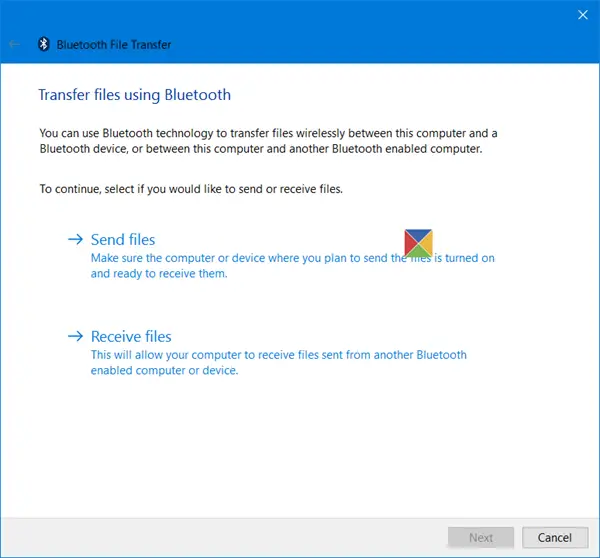
Choose the device you want to share to > ‘Next’.
Select ‘Browse’, choose the file or files to share > Open > ‘Next‘ to send it > ‘Finish‘.
On the receiving device, have your friend accept the file.
Receive files via Bluetooth in Windows 11
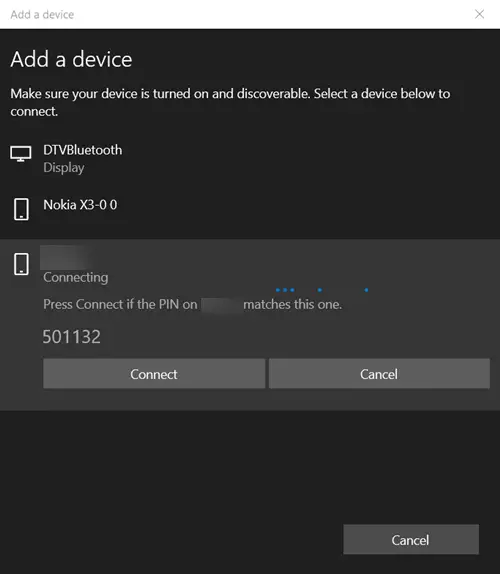
Make sure the other device you want to receive from is paired with your PC, turned on, and ready to send files.
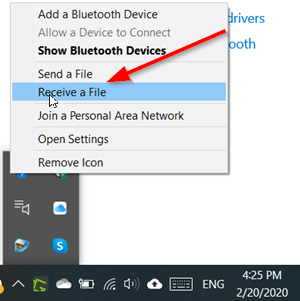
Then, go to ‘Show Hidden Icons’ residing on Windows Taskbar, choose ‘Bluetooth’ and select ‘receive a file’ option.
The file transfer should begin immediately after someone initiates the process of transferring files to your computer from Bluetooth-enabled device.
You may also see a message informing you that a Bluetooth device is trying to connect to your computer. Accept the connection to complete the transfer.
Facing issues? Read these posts:
- Bluetooth is not working in Windows
- Cannot send or receive a file via Bluetooth
- Bluetooth devices not showing or connecting.
