
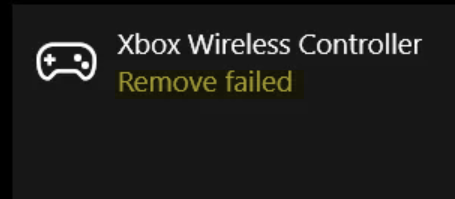
If you cannot remove or reinstall the Bluetooth mouse, keyboard, headphones, etc., devices from your Windows 11/10 PC, and you see Remove failed error, then this post will help you. Windows is a pretty flexible operating system. It supports a ton of devices you can connect to. This connection varies because you can connect the device via Bluetooth or any other wired or wireless medium.
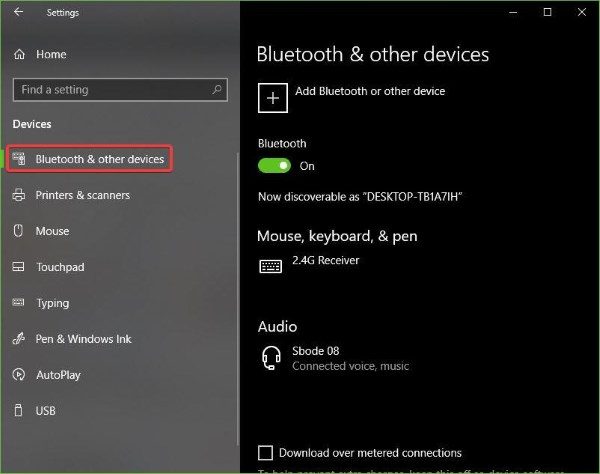
Can’t remove Bluetooth device in Windows 11
First of all, we would recommend you create a System Restore point. We will be working with registry files and modifying critical Windows settings. After that, we will remove or reinstall Bluetooth mouse & keyboard devices in Windows 11/10.
Fix Bluetooth Remove failed error in Windows 11
1] Configure Bluetooth Services
To fix this, you will have to open Windows Services Manager. Start by hitting the WINKEY + R button combination to launch the Run utility. Then type in, services.msc and then hit Enter. It will now launch the Services window and will populate a list of services.
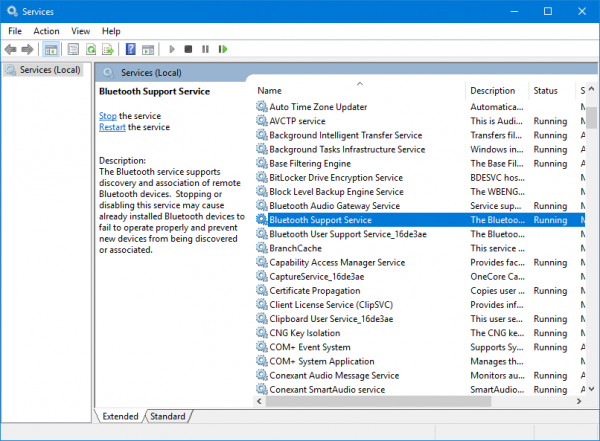
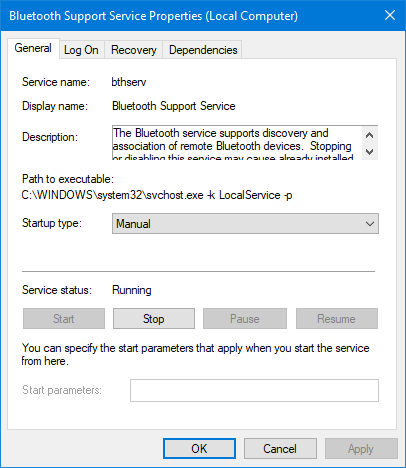
Make sure that the Startup of the following Services is set to their default values as follows:
- Bluetooth Audio Gateway Service – Manual (Triggered)
- Bluetooth Support Service – Manual (Triggered)
- Bluetooth User Support Service – Manual (Triggered)
Next, press the Start button on all to start the Services.
Now see if this helped.
2] Run Bluetooth Troubleshooter
In Windows 10, you can find various troubleshooters with a user-friendly interface, and you can utilize them to fix a problem like this. To run the Bluetooth Troubleshooter, open Windows Settings > Update & Security > Troubleshoot.
On your right-hand side, you should find an option called Bluetooth. Click on it and select Run the troubleshooter.
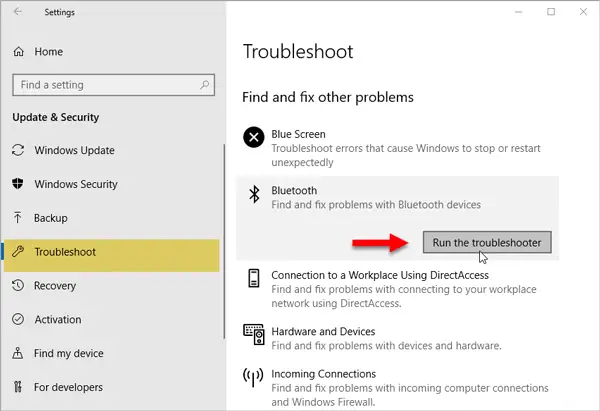
Follow the screen option to run it.
3] Update Bluetooth Drivers
Device drivers can also cause issues like this. You can try to roll back, update or Uninstall your drivers and see if this helps fix the issue.
4] Remove any interferences
If you have many wireless devices in the same room as your computer, they might interfere with your connection. We recommend switching off all other devices or moving your computer out of range of them, then checking whether the error reproduces.
5] Uninstall in Clean Boot State
Boot in Clean Boot State and try to remove the Bluetooth device. This will help if any processes are obstructing the removal.
All the best!
Other links that may interest you:
