
Bluetooth is a wireless technology protocol that enables the connection of a PC with external peripherals and devices. It can be quite useful, and many PCs come with built-in Bluetooth support. It’s basically a protocol that enables you to connect a desktop or laptop with Bluetooth-enabled devices without any cables. Sometimes users might not be even aware that their device has Bluetooth.
Check if your Windows PC has built-in Bluetooth
In this article, we’ll show you how to check if your Windows 11/10 PC has built-in Bluetooth support. You have three ways to do it:
- Check Windows Settings
- Check the Device Manager
- Check the Control Panel
1] Check Windows Settings
To check Bluetooth settings, open the Settings app in Windows 10.
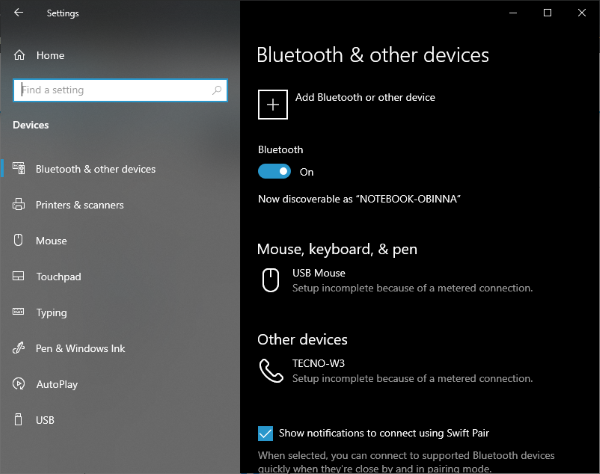
You can do it by following these steps:
- Click Start menu button and select Settings or press Windows key + I.
- Click Devices to open the window.
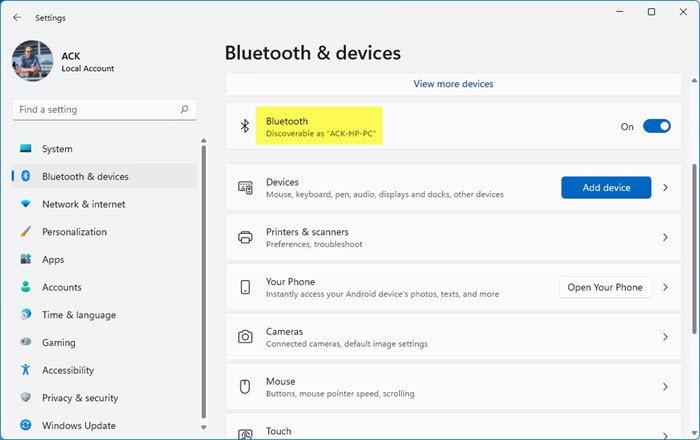
If you have Bluetooth, you should be able to toggle Bluetooth button and also be able to add Bluetooth devices.
This is how it looks in Windows 11-
2] Check the Device Manager
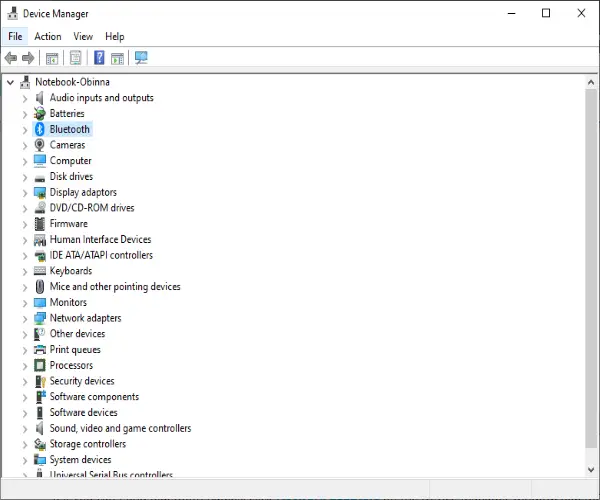
Another way to check for Bluetooth support is via Device Manager. To check if your PC has Bluetooth, do the following:
- Press the Windows key + X or right-click Start, to open the Win + X menu.
- Select Device Manager on that menu to open the window.
- On the window, look for the Bluetooth Radios category. That should be listed somewhere nearer the top of the window.
- If you can’t find Bluetooth Radios, click Network adapters on the Device Manager window. Bluetooth Radios might be listed there instead.
3] Check the Control Panel
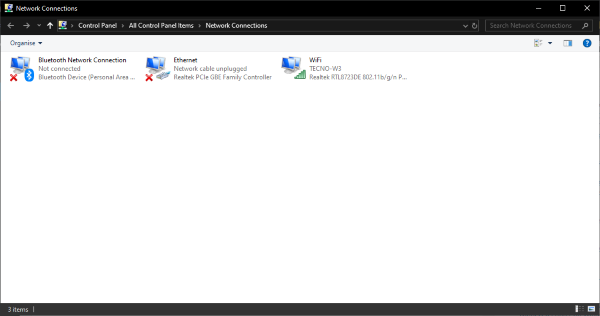
You can use the Control Panel to check if your Windows 11/10 device has Bluetooth. Look for Bluetooth applet in Control Panel. You can do it by following these steps:
- Press Windows key + R, in the Run dialog box, type ncpa.cpl hit Enter, to open network connections
- Alternatively, navigate to Control Panel > Network and Sharing Center > Change adapter settings.
There should be a Bluetooth Network Connection there. If you can’t find it listed there, then your laptop or desktop doesn’t have Bluetooth.
Users who don’t have Bluetooth can still add it to their desktop or laptop with a Bluetooth USB dongle/adapter. You just plug that into a USB slot on your desktop or laptop.
PS: If you upgraded a Windows 7 laptop or desktop to Windows 11/10, it might not support Bluetooth, and the methods listed above is also how you can check if that’s the case.
