
Bluetooth allows you to connect your devices wirelessly to each other, as well as to send & receive files. We have already seen how to turn on & use Bluetooth in Windows 11/10. In this post, we will see the various ways to turn off or disable Bluetooth in Windows 11/10.
How to disable Bluetooth in Windows 11/10
You can turn off Bluetooth in Windows 11/10 by using the following methods:
- Using Windows Settings
- Via Action Center
- Using Devices Manager
- Using PowerShell.
Let’s examine them in detail.
1] Turn off Bluetooth using Windows Settings
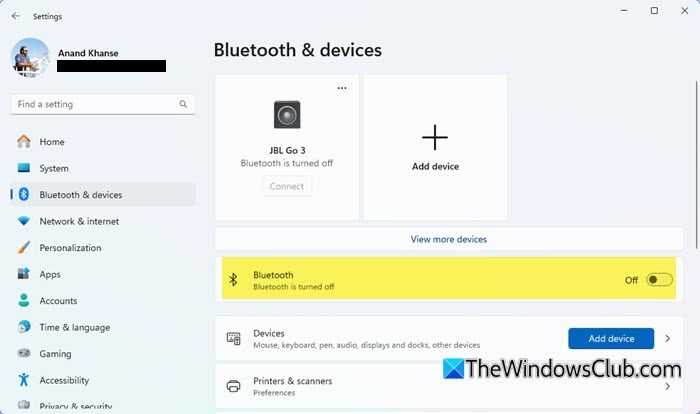
To disable Bluetooth in Windows 11 using Settings:
- Open Windows Settings
- Select Bluetooth & devices
- Now in the right panel, you will see Bluetooth.
- To disable Bluetooth, toggle the Bluetooth slider to the Off position.
To disable Bluetooth in Windows 10 using Settings:
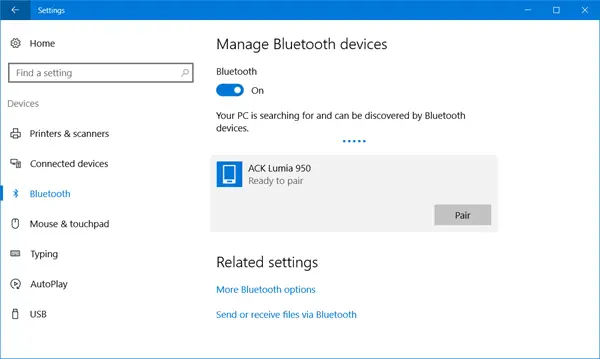
- Click open the Start Menu.
- Next open Settings
- Select Devices to open the Windows Devices Settings.
- Now in the left panel, you will see Bluetooth.
- Click on it to open the following settings.
- To disable Bluetooth, toggle the Bluetooth slider to the Off position.
A setting to turn it off is also available via Settings > Network & Internet > Airplane mode > Wireless devices > Turn Bluetooth On or Off.
2] Via Action Center
Windows 11 users can click on the Network/Speaker icons and then click on the Bluetooth icon.
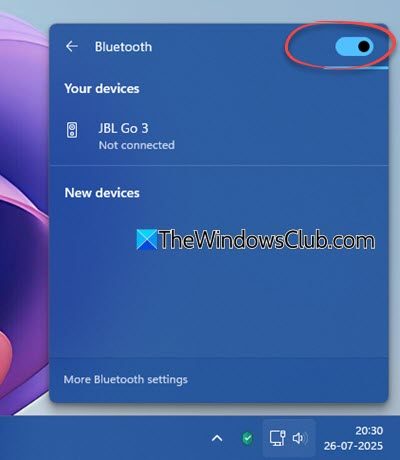
In the next panel that opens, you will see the toggle to turn Bluetooth off.
Windows 10 users can turn off Bluetooth by clicking on the Action Center icon on the right side of the Taskbar.
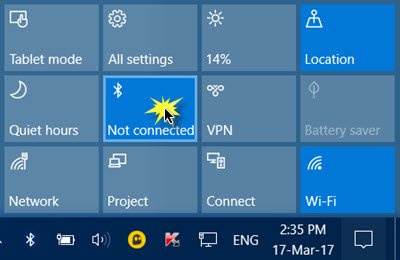
Click on it to turn Bluetooth on or off on your device.
3] Using Devices Manager
Windows 11/10 users can make use of the Device Manager. Type ‘device manager‘ in Start Search and hit Enter to open it.
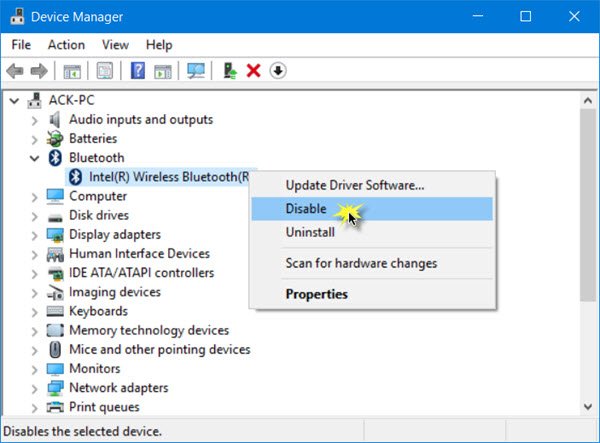
Expand Bluetooth, select your Bluetooth connection, right-click on it and click on Disable.
4] Using PowerShell
Enterprise administrators who want to disable Bluetooth to prevent Bluetooth file transfers or radio transmissions in Windows currently do not have a Group Policy Object to use. But they can make use of this PowerShell snippet mentioned on TechNet, for SCCM or MDT. Do read the post before you use the script.
# Must be run under System
 $namespaceName = “root\cimv2\mdm\dmmap”
$className = “MDM_Policy_Config01_Connectivity02”

# Add the setting to turn off the Bluetooth toggle in the settings menu
 New-CimInstance -Namespace $namespaceName -ClassName $className -Property @{ParentID=”./Vendor/MSFT/Policy/Config”;InstanceID=”Connectivity”;AllowBluetooth=0}

# Remove the setting to allow the User to control when the radio is turned on
 $blueTooth = Get-CimInstance -Namespace $namespaceName -ClassName $className -Filter ‘ParentID=”./Vendor/MSFT/Policy/Config” and InstanceID=”Connectivity”‘
Remove-CimInstance $blueTooth
Should I turn off Bluetooth on my computer?
It entirely depends on your work. If you have a mouse or keyboard connected to your computer via Bluetooth, disabling Bluetooth will lose that device. On the other hand, if the Bluetooth is not in use, you can certainly turn it off on your computer without any issue. There is no harm in turning off Bluetooth on Windows 11/10 PC.
Can you disable Bluetooth on Windows 11?
Yes, you can disable Bluetooth on Windows 11/10 computer using the guide mentioned above. It is possible to disable Bluetooth in Windows Settings, Device Manager, Action Center, and other settings. Depending on your choice, you can follow the steps above to complete the task.
How do I turn Bluetooth on and off in Windows 11?
To turn Bluetooth on or off in Windows 11/10, press Win+I to open Windows Settings, go to Bluetooth & devices, and toggle the switch. However, if you are using Windows 10, you need to open the Devices section in the Windows Settings panel.
Read: Toggle to turn Bluetooth On or Off is missing in Windows.
