
If the VMware network adapter is missing, the virtual machine won’t be able to connect to the network. We have already created a guide where the internet doesn’t work in VMware; however, in this case, the network adapter, which is installed by default, went missing after a system update or due to configuration errors. In this post, we will discuss this issue and explore possible solutions.
Fix VMware network adapter not showing up in Windows 11
This usually occurs due to corrupted virtual network settings after a Windows update, issues with VMware services or drivers not starting correctly, or conflicts within the host system’s network configuration that cause the adapter to become hidden or disabled.
If the VMware network adapter is not showing up in Windows 11/10, follow the solutions and workarounds mentioned below.
- Check for Hidden Adapters
- Reinstall Virtual Network Drivers
- Install VMware Bridge Protocol
- Reset Host Network Stack
- Verify and Restart VMware Services
Let’s discuss them in detail.
1] Check for Hidden Adapters
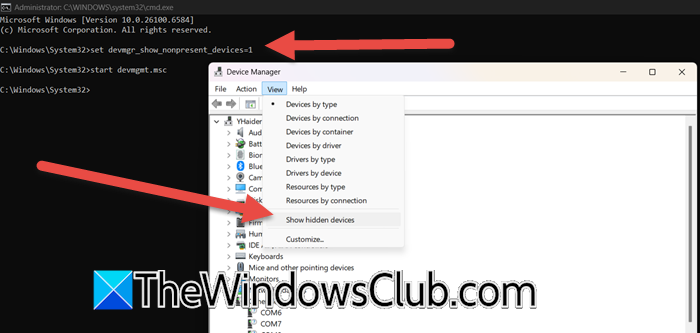
Windows keeps hidden drivers for virtual adapters that were previously installed. These non-working drivers can interfere with new adapter installations, causing them not to show up correctly. To fix this, we need to remove the old drivers. This will resolve the conflict and allow the system to detect and install the new adapter properly.
On your host PC, open Command Prompt as Administrator.
Run the following command.
set devmgr_show_nonpresent_devices=1
Next, type start devmgmt.msc and press Enter to launch Device Manager.
In Device Manager, click View and then select Show hidden devices.
Expand the Network adapters section. Look for any VMware adapters that appear dimmed or greyed out, right-click on them, and select Uninstall device.
2] Reinstall Virtual Network Drivers
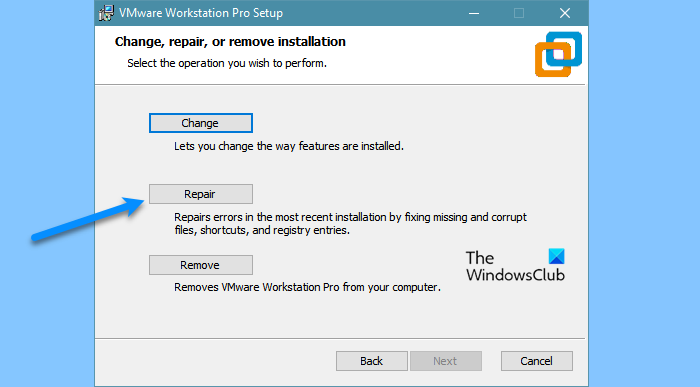
The Repair function in the VMware installer checks and replaces essential VMware files and drivers, including any broken or missing virtual network adapter drivers. This process refreshes these components without removing your virtual machines or important settings. Follow the steps below to complete the same task.
- Open Settings by Win + I.
- Then, go to Apps > Installed apps.
- Search for “VMware Workstation”, click on the three dots, and then on Modify.
- Click Next > Repair.
- Finally, follow the on-screen instructions to complete the process.
Hopefully, this would do the job for you.
3] Install VMware Bridge Protocol
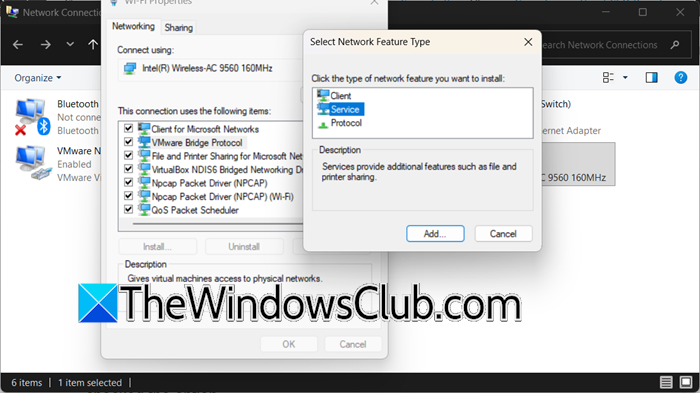
VMware Bridge Protocol is a necessary Windows network service that allows the virtual adapter to connect directly through your host’s physical network hardware. If this protocol is missing or corrupted, the virtual network adapter may fail to initialise properly and remain hidden from the system. On your host machine, you need to follow the steps mentioned below.
- Open Control Panel.
- Click on Network and Internet > Network and Sharing Center.
- Then, click on Change adapter settings.
- Right-click on your active network (WiFi or Ethernet) and click on Properties.
- Look for VMware Bridge Protocol, and if it is available, make sure the box is checked for the option.
- If it is absent, click on Install > Service > Add.
- Under Manufacturer, select VMware, and choose VMware Bridge Protocol as the network service.
- Click OK to install, then restart your VM.
Finally, check if the issue is resolved.
Read: VMware Bridged network not working or detecting in Windows
4] Reset Host Network Stack
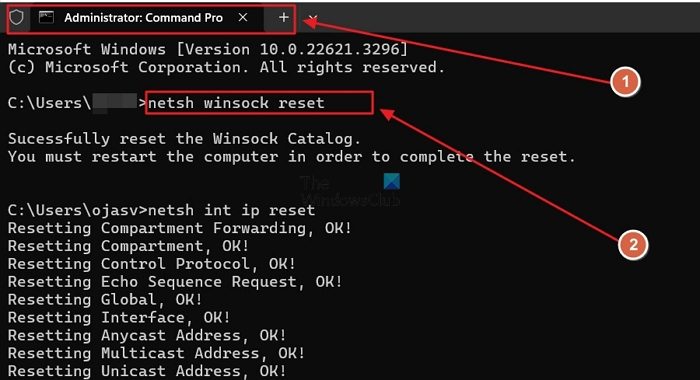
In this solution, we are going to reinstall the core Windows networking components (Winsock catalogue and TCP/IP stack) to their default, uncorrupted state. Corruption in these areas can prevent virtual network adapters from initialising and appearing correctly in the system. To do the same, you need to open Command Prompt as an administrator and then run the following command.
netsh winsock reset
netsh int ip reset
Finally, check if the issue is resolved.
5] Verify and Restart VMware Services
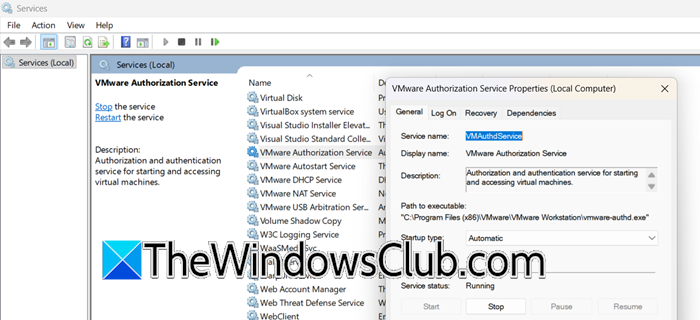
Core VMware services manage virtual network functionality. If these services are stopped or have failed to start after a system update, the network adapter will not be available. Restarting these services forces the virtual network to reinitialise.
On your host machine, open the Services application. You can do this by searching for “Services” in the Start menu.
Look for VMware NAT Service, VMware DHCP Service, and VMware Authorization Service.
