
Windows Sockets or Winsock is a technical specification or a programming interface which decides how any program handles input/output requests for Internet applications, i.e., TCP/IP in Windows. In this guide, we will learn about Winsock, why and when you need to reset, and how to reset Winsock in Windows 11/10.
What is Winsock
As we said, it’s a programming interface. Windows 11/10 includes a DLL named winsock.dll that implements the API and coordinates Windows programs and TCP/IP connections. The settings contain the computer configuration for the internet connection.
When do you need to reset Winsock
Sometimes Windows Sockets (Winsock) may become corrupt, preventing you from connecting to the Internet. The error can occur when you download an unknown file that has a malicious script. These scripts can partially block Winsock, which can block your internet connection. If you have trouble opening websites, it could be due to corrupted Winsock settings.
If you receive any of the following or a similar error message, it means you need to reset Winsock:
- An error occurred while renewing interface ‘Internet’: An operation was attempted on something that is not a socket.
- An error occurred while renewing the Local Area Connection interface: the requested service provider could not be loaded or initialized.
- An error occurred while renewing the local area connection: an operation was attempted on something that is not a socket. Unable to contact driver, Error code 2.
- The operation failed since no adapter is in the state permissible for this operation.
How to reset Winsock in Windows 11
Here are the steps to undertake to reset Winsock in Windows 11/10:
- Right-click on Start button
- Select Command Prompt (Admin)
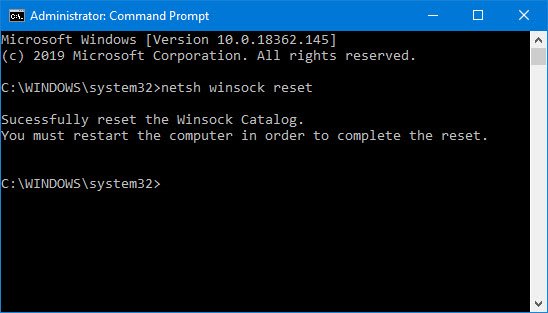
- Type netsh winsock reset and hit Enter
- To generate a log file as well, use netsh winsock reset c:\winsocklog.txt instead.
- Restart your computer.
Before you go ahead and reset Winsock, do remember to create a system restore point first.
Next, open Command Prompt as administrator and type the following command and hit Enter.
netsh winsock reset
As an admin, you can also generate a log file of the changes.
To append a log file path to the above command:
netsh winsock reset c:\winsocklog.txt
Wait for the Command Prompt to run through the reset. Now, you will have to restart your computer to see the effects.
What happens when you reset Winsock?
When you execute the command, it fixes any corruption in the DLL file. So there is no fix except to replace it with a new Winsock copy and restore the default settings.
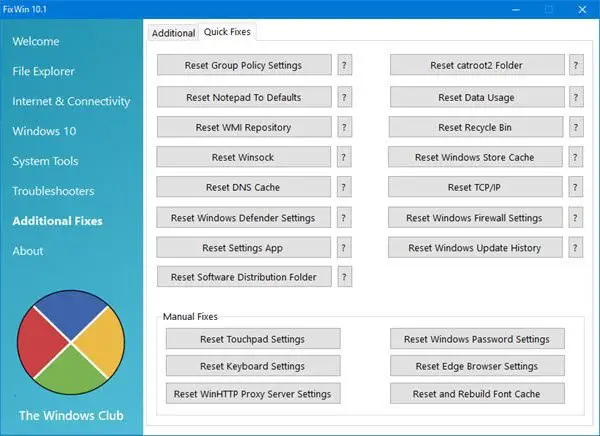
TIP: Our portable freeware FixWin allows you to reset this and most other Windows settings or functions with a single click.
NOTE: Here’s a Batch File to Release TCP/IP, Flush DNS, Reset Winsock, Reset Proxy all at once.
Related readings:
