
This post will show you how to open or launch the Command Prompt (CMD) in Windows 11/10. The Command Prompt (CMD) in Windows is used to run text-based commands to control, troubleshoot, and manage your computer. It’s especially useful for system administration, file management, and network diagnostics.
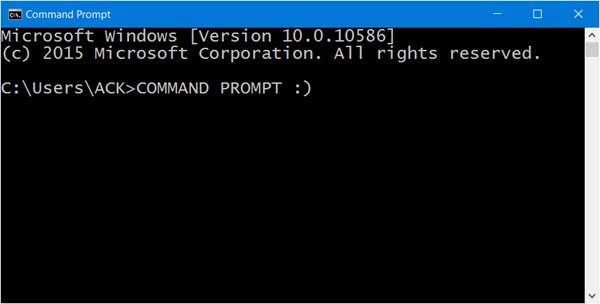
How to open Command Prompt in Windows 11
Here are the various ways to launch the Command Prompt in Windows 11/10.
1] Launch CMD using Win+X keyboard shortcut
This option is one of the easiest ways to get the job done. Just click on WinKey and X. After that, look for the words Command Prompt and click on it.
This option also allows you to run CMD as an administrator.
Read: How to Run Command Prompt as an Administrator.
2] Open Command Prompt via the Start Button Win+X Menu
Right-click on the Start Button and select Command Prompt!
3] Launch the Command Prompt using Search
Launch Search from the Windows taskbar, then search for “CMD” and right away the tool should pop up. This is one of the fastest ways to start the Command Prompt from anywhere on your desktop.
4] Launch Control Prompt from the Explorer address bar
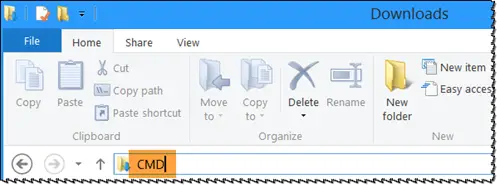
To do this, open File Explorer. Move the cursor to the search bar. Type “CMD” and click search, and the Command Prompt should launch right after. This will open the Command Prompt that folder.
5] Launch Command Prompt from Task Manager
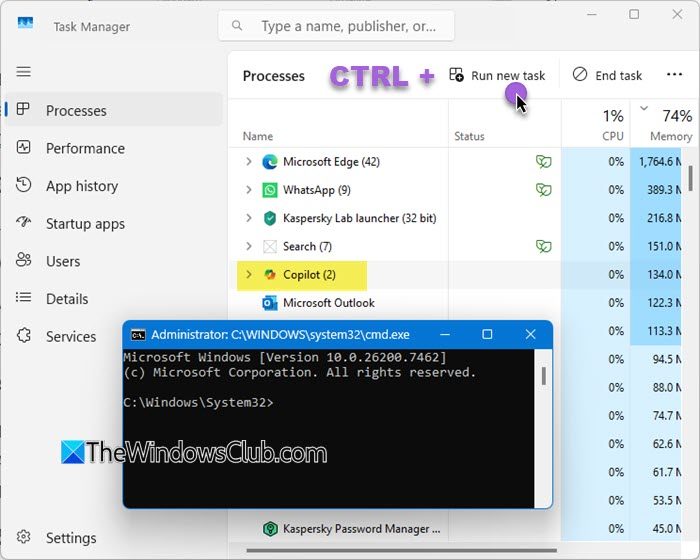
If you’re a regular Task Manager user, there is a quick way to open Command Prompt without leaving the tool. Open Task Manager.
Now just press and hold CTRL while clicking on Process Name. Then click on Run New Task. That’s it, the CMD should now be visible.
6] Launch the Command Prompt from System32 folder
If everything we’ve noted above does not work, go directly to the fileis location. Open your File Explorer, and visit the following section: C:\Windows\System32. The CMD exe file is right there, so just right-click and select “Open.”
There are other ways to open Command Prompt, but we believe these are the best. Here is an interesting geeky trick that shows you how to open an elevated Command Prompt using a CMD.
