
In this post, we compare VMware, VirtualBox and Hyper-V to determine which hypervisor best meets your production or infra needs.
Virtualization has become an indispensable part of modern computing. Whether you are a software developer testing an application on multiple operating systems, an IT administrator consolidating servers, or a technology enthusiast experimenting with Linux distributions, a hypervisor is the tool that makes it all possible. Three names dominate the landscape: VMware, Oracle VirtualBox, and Microsoft Hyper‑V. While all three allow you to run virtual machines (VMs) on a physical host, they differ vastly in architecture, performance, target audience, and licensing. Understanding these differences is crucial to selecting the right platform for your workload. In this article, we will examine the differences among these three hypervisor platforms.
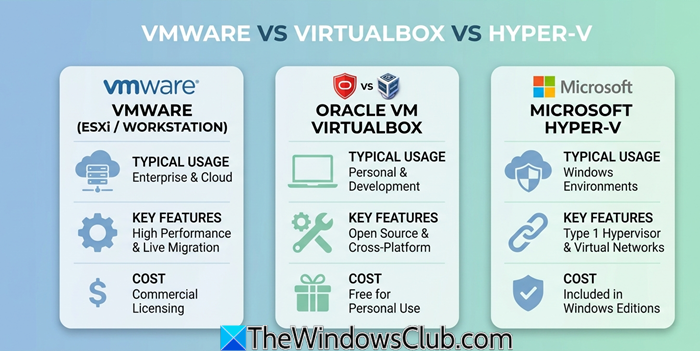
VMware vs VirtualBox vs Hyper-V
Before comparing the products, it is essential to grasp the fundamental distinction between a Type 1 (bare-metal) and a Type 2 (hosted) hypervisor.
A Type 1 hypervisor runs directly on the physical hardware without the need for an underlying operating system. It has direct access to the CPU, memory, and I/O resources, which typically results in better performance, lower latency, and higher security. Hyper‑V and VMware’s enterprise offering (ESXi) are Type 1 hypervisors.
A Type 2 hypervisor runs as an application on top of a host operating system (like Windows, macOS, or Linux). The host OS manages the hardware, and the hypervisor must pass requests through it, introducing a small layer of overhead. VirtualBox and VMware Workstation/Fusion are Type 2 hypervisors.
This architectural divide shapes nearly every aspect of their performance and usability.
VMware Workstation Pro & Player – Type 2
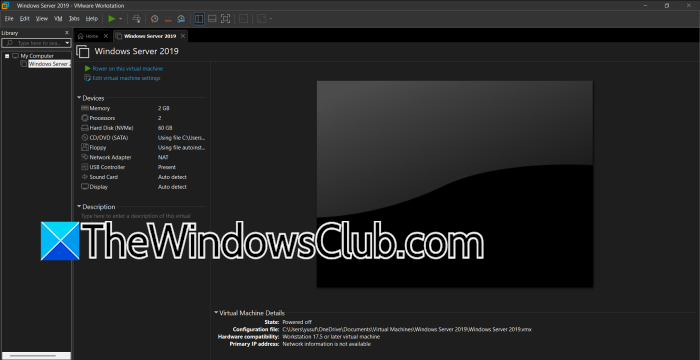
VMware is often considered the gold standard in desktop virtualization. Its flagship products for workstations are VMware Workstation Pro (for Windows and Linux) and VMware Fusion Pro (for macOS). In a landmark shift in May 2024, Broadcom (which acquired VMware) made Workstation Pro and Fusion Pro free for personal use, dramatically lowering the barrier to entry for one of the market’s most polished virtualization suites.
Here are some of the most compelling reasons to choose VMware.
- Unmatched Stability and Maturity: VMware has been refining its desktop hypervisor for over two decades. It is renowned for its rock-solid stability, broad guest OS support, and the ability to handle complex, nested virtualization scenarios without flinching.
- Superior 3D Acceleration: While it does not support DirectX 12, VMware’s virtual graphics driver provides excellent support for OpenGL 4.3 and DirectX 11 in guest operating systems. This makes it the best Type 2 choice for running older Windows games or any graphical application that requires reasonable 3D acceleration in a VM.
- Advanced Networking and Snapshots: Workstation Pro offers a powerful virtual network editor that allows you to build intricate, isolated network topologies with custom DHCP, NAT, and bridged configurations. Its snapshot manager is robust, supporting live snapshots while a VM is running.
- Unity Mode: A unique feature that allows windows from applications inside a VM to appear seamlessly on the host desktop as if they were native apps.
- Cross-Platform Connectivity: VMs are highly portable. You can create a VM on Windows, copy it to a Linux host running Workstation, or even export it to the company’s Type 1 hypervisor, vSphere, with minimal effort.
Nothing is perfect, and neither is VMware. We should discuss some of VMware’s weaknesses.
- Resource-heavy: As a full-featured application, Workstation Pro consumes a significant amount of host RAM and background CPU cycles, even when VMs are idling.
- No DirectX 12 Support: The lack of modern DirectX support makes it unsuitable for running the latest graphically demanding Windows applications or games.
- Closed Source (with a catch): While now free for personal use, the core is proprietary. Commercial users still require a paid license. The free Player version is heavily restricted, making the full Pro features essential for any serious work.
Software developers and IT professionals who need a highly reliable, feature-complete desktop lab. It is perfect for simulating multi-tier enterprise applications, running legacy Windows software on Linux, and demonstrating complex networking setups, all with a polished user interface.
Oracle VM VirtualBox (Type 2)
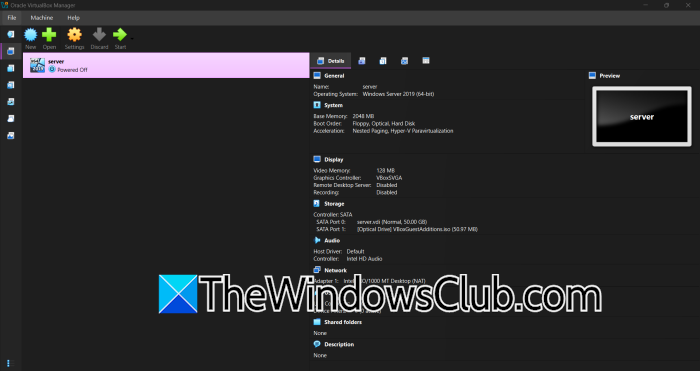
VirtualBox is an open-source, cross-platform powerhouse maintained by Oracle. Its greatest virtue is its accessibility: it runs on Windows, macOS, Linux, and Solaris hosts, and can be used freely for almost any purpose, including commercial evaluation, thanks to its base package being under the GPLv2 license. (A separate Extension Pack with proprietary features like USB 2.0/3.0, disk encryption, and PXE boot is free for personal and evaluation use but requires a license for commercial deployment.)
You need to examine VirtualBox’s key strengths to compare it with the other two hypervisors.
- True Cross-Platform and Free: This is VirtualBox’s killer feature. If you work in a mixed-OS environment or simply want a zero-cost hypervisor with no commercial restrictions for basic professional use, VirtualBox is the only game in town.
- Excellent Snapshot and Clone Capabilities: VirtualBox has a very intuitive, visually clear snapshot tree. You can branch off from any snapshot to create a new VM state, which is invaluable for testing software installations and updates.
- Seamless Mode: Similar to VMware’s Unity, this feature integrates guest application windows onto the host desktop.
- Software-Based KVM Paravirtualization: For Linux guests, VirtualBox can present a paravirtualized interface that improves I/O performance, bridging the gap with Type 1 hypervisors in certain scenarios.
- Command-Line Power: VBoxManage is a comprehensive command-line tool that allows complete scripting and automation of VM operations, a feature loved by DevOps engineers.
The following are a few weaknesses of VirtualBox.
- Performance Overhead: As a Type 2 hypervisor, VirtualBox often shows greater CPU and I/O overhead than VMware Workstation, especially under heavy, sustained loads.
- Limited 3D Graphics: 3D acceleration support is experimental and capped at older standards (DirectX 11/OpenGL 3.3). It is unreliable for anything beyond the most basic graphical tasks.
- Inconsistent Stability: While generally stable, VirtualBox can occasionally suffer from quirky bugs, especially after major host OS updates or when running very old or obscure guest systems. The USB subsystem has been a historically known pain point.
- Oracle Extension Pack Licensing: The extension pack needed for USB 3.0 and disk encryption is not open source and has an ambiguous commercial license that can be a legal headache for businesses.
Students, hobbyists, and open-source developers can use this to quickly create a lightweight Linux virtual machine (VM). It’s helpful for testing live ISO files or learning about operating systems without spending money. It’s also great for continuous integration and delivery (CI/CD) pipelines that need to control VMs without a graphical interface using VBoxManage.
Microsoft Hyper‑V (Type 1)
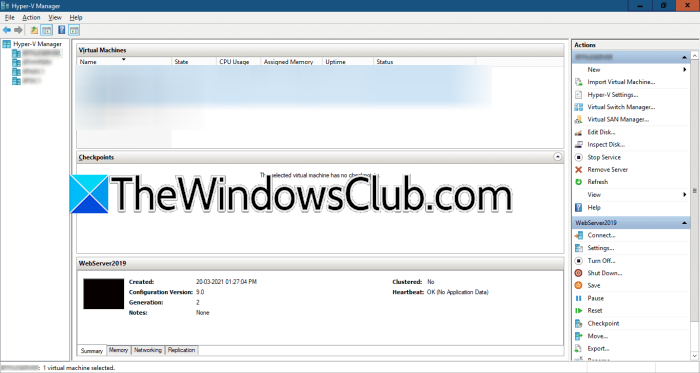
Hyper‑V is Microsoft’s enterprise-grade, native hypervisor. It is built into Windows Server and all 64-bit editions of Windows 10/11 Pro, Enterprise, and Education. Unlike VirtualBox and VMware Workstation, Hyper‑V is not an application you install; it is a Windows feature that converts the host OS into a privileged management partition, effectively running the hypervisor directly on the hardware. This Type 1 architecture is its defining advantage.
Here are some of its featres:
- Type 1 Performance: This is the single most important differentiator. Because the hypervisor sits under the Windows OS, VMs can achieve near-native CPU and memory performance. I/O is significantly faster thanks to VMBus, a high-speed virtualized bus. For compute-heavy Linux and Windows workloads, Hyper‑V will consistently outperform both VirtualBox and VMware Workstation.
- Tight Windows Integration: Hyper‑V is deeply woven into the Windows ecosystem. You can manage it through a dedicated GUI, PowerShell, Windows Admin Center, or System Center Virtual Machine Manager. Features like Dynamic Memory, shielded VMs for security, and seamless clustering make it an enterprise powerhouse.
- GPU Paravirtualization (GPU‑P): A groundbreaking feature that allows you to partition a physical GPU among multiple VMs, giving each a near-native DirectX 12 and OpenGL stack. This makes Hyper‑V the only option for running modern, graphics-accelerated Windows workloads in a VM.
- Modern Linux Support: Microsoft now provides a full suite of Linux Integration Services (LIS) directly in the upstream Linux kernel, resulting in excellent Linux guest performance and seamless features like live backup.
- Enhanced Session Mode: This allows for a rich RDP-based connection to a VM, providing clipboard sharing, drive redirection, and USB device passthrough without needing network connectivity inside the guest.
Some of the demerits of Hyper-V are.
- Host OS Restriction: You can only run the Hyper‑V role on Windows Server or a Pro/Enterprise edition of Windows 10/11. There is no official support for Linux or macOS hosts.
- Steep Learning Curve: While the basic GUI is simple, advanced networking involves understanding virtual switches, and many management tasks require PowerShell, which can be daunting for beginners.
- No Audio Without a Headache: A common complaint is the lack of straightforward, out-of-the-box audio passthrough from a VM to the host speakers. Enhanced Session Mode provides audio redirection, but it’s not a direct virtual sound card in the traditional sense.
- USB Passthrough Constraints: Unlike VMware and VirtualBox, Hyper‑V does not allow you to simply click a menu and connect an arbitrary host USB device to a VM. USB passthrough is only supported over the network via Enhanced Session Mode or through discrete device assignment (DDA), which requires compatible server hardware.
Windows-centric developers and IT professionals. If you are building, testing, and deploying server applications on Windows or high-performance Linux servers, Hyper‑V is the obvious choice. It is the foundation for Windows Sandbox, WSL 2, and Azure Stack HCI, making it indispensable for anyone in the Microsoft ecosystem.
You cannot run Hyper‑V alongside another Type 2 hypervisor on the same machine. When you enable the Hyper‑V role on Windows, the entire OS runs on top of the hypervisor. VirtualBox and VMware can now coexist by using the Windows Hypervisor Platform API, but performance is often degraded. In practice, you pick one ecosystem and commit to it.
Read: Install VMWare ESXi Hypervisor in Hyper-V Virtual Machine.
What is QEMU used for?
QEMU (Quick Emulator) is an open-source tool that lets you emulate and virtualize different hardware systems. In simple terms, it allows you to run operating systems and applications designed for one type of computer on a completely different machine. It is used for software testing, cross-platform development, running legacy applications, and server virtualization.
What is Proxmox?
Proxmox Virtual Environment is a robust, open-source platform designed for enterprise virtualization. It integrates Kernel-based Virtual Machine for running full virtual machines and Linux Containers for lightweight containerization.
