
PowerShell Direct lets you run PowerShell commands inside a Windows virtual machine directly from the Hyper-V host. However, sometimes the Enter-PSSession or Invoke-Command command fails to connect to the VM. In this post, we will see what you can do if PowerShell Direct is not working in Hyper-V.
What is Hyper-V PowerShell Direct Service?
The Hyper-V PowerShell Direct Service allows you to run PowerShell commands inside a supported Windows virtual machine directly from the Hyper-V host. It does not require a network connection, IP address, or WinRM configuration between the host and guest. PowerShell Direct uses the Hyper-V infrastructure to communicate with the VM. You can use commands such as Enter-PSSession -VMName or Invoke-Command -VMName to manage the guest operating system.
PowerShell Direct not working in Hyper-V
If PowerShell Direct is not working in Hyper-V, follow the solutions mentioned below.
- Make sure the host and VM support PowerShell Direct
- Run PowerShell as an administrator
- Make sure the virtual machine is running
- Check the VM name and try the VM ID
- Restart the PowerShell Direct service inside the VM
- Try Invoke-Command instead of Enter-PSSession
Let us talk about them in detail.
1] Make sure the host and VM support PowerShell Direct
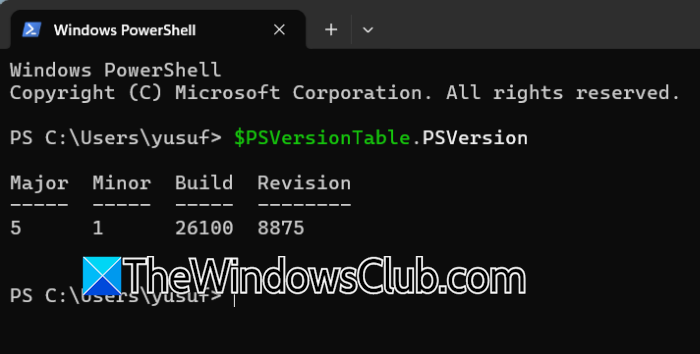
First, check whether both the Hyper-V host and the virtual machine meet the basic requirements. PowerShell Direct works with Windows 11/10 or later and Windows Server 2016 or later. The VM must also be running locally on the Hyper-V host. If you are trying to connect to an older Windows VM, PowerShell Direct may not work. In that case, you can use VMConnect or a normal network connection instead.
Additionally, PowerShell Direct requires PowerShell 5.0 or later. Run this command on the Hyper-V host to check your PowerShell version.
$PSVersionTable.PSVersion
If the host or guest does not meet the requirements, update the operating system or use another method to connect to the VM.
2] Run PowerShell as an administrator
If the PowerShell window is not running with administrator privileges, PowerShell Direct may fail to find or connect to the virtual machine.
Then, open Start and search for PowerShell. Right-click it and select Run as administrator.
After that, check whether Hyper-V can see your virtual machine:
Get-VM
If the VM appears in the list, try connecting again.
Enter-PSSession -VMName "VMName"
You can also provide the credentials explicitly.
Enter-PSSession -VMName "VMName" -Credential (Get-Credential)
Microsoft also requires the user running the command to be a Hyper-V administrator.
3] Make sure the virtual machine is running
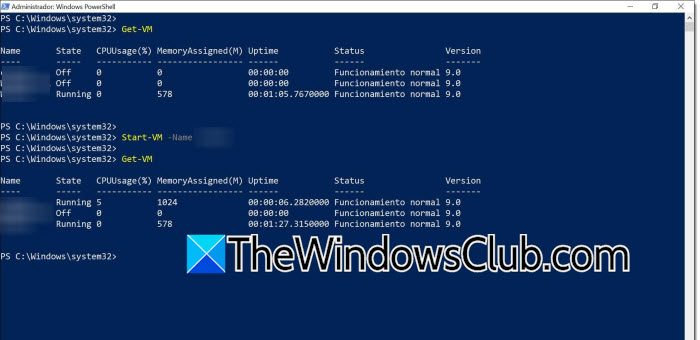
PowerShell Direct cannot connect to a VM that is turned off or has not finished booting.
Now run the following command on the Hyper-V host.
Get-VM
Look at the State column. It should show Running for the VM you want to access.
If it is off, start it with the following command.
Start-VM -Name "VMName"
Then wait for Windows to finish booting and try this command.
Enter-PSSession -VMName "VMName" -Credential (Get-Credential)
If Windows is still starting, PowerShell Direct can also fail because PowerShell is not available inside the guest yet.
4] Check the VM name and try the VM ID
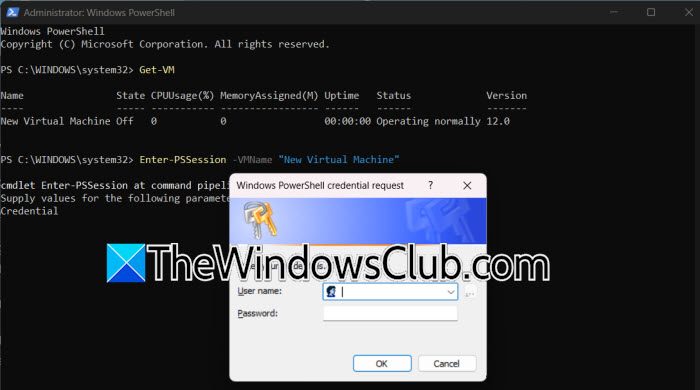
If you get an error saying the VMName parameter does not resolve to a virtual machine, first check the exact VM name using the command below.
Get-VM
Then use the name exactly as it appears.
Enter-PSSession -VMName "Virtual Machine Name"
If the name still does not work, you can use the VM’s GUID instead.
Run the command mentioned below.
Get-VM | Select-Object Name, VMId, State
Then use the ID shown for the VM Enter-PSSession -VMId “VM-GUID”
This can also help if the VM name contains spaces or if there is a problem resolving the VM name.
Read: Enable or Disable Nested Virtualization for VMs in Hyper-V
5] Restart the PowerShell Direct service inside the VM
If you receive an error such as A remote session might have ended, the problem can sometimes be related to the PowerShell Direct session service inside the guest.
First, open VMConnect and log in to the virtual machine. Then open PowerShell as administrator and run the following command.
Restart-Service -Name vmicvmsession
After restarting the service, return to the Hyper-V host and try the connection again: Enter-PSSession -VMName "VMName" -Credential (Get-Credential)
Microsoft documents this workaround for cases where the PowerShell Direct service becomes unresponsive, particularly with the persistent-session credential issue.
6] Try Invoke-Command instead of Enter-PSSession
If an interactive PowerShell Direct session is failing, you can also test the connection with Invoke-Command.
For example: Invoke-Command -VMName "VMName" -Credential (Get-Credential) -ScriptBlock { hostname }
If the command returns the name of the virtual machine, PowerShell Direct is working, and the problem may be limited to the interactive session.
You can also use Invoke-Command to run a specific command or script without opening an interactive session:
Invoke-Command -VMName "VMName" -Credential (Get-Credential) -ScriptBlock { Get-Process }
PowerShell Direct supports both Enter-PSSession for interactive sessions and Invoke-Command for running individual commands or scripts.
That’s it!
Read: How to install Hyper-V in Windows Server
How to enable Hyper-V with PowerShell?
You can enable Hyper-V using PowerShell by opening Windows PowerShell as an administrator and running the Enable-WindowsOptionalFeature command. Use Enable-WindowsOptionalFeature -Online -FeatureName Microsoft-Hyper-V -All and then restart your computer when prompted. After restarting, Hyper-V and its management tools should be available. Additionally, you can verify the installation by running Get-WindowsOptionalFeature -Online -FeatureName Microsoft-Hyper-V.
Also Read: Start & Stop Hyper-V VM using PowerShell.
