
Microsoft has officially announced that VBScript (Visual Basic Scripting) has been deprecated and will be removed completely from all future Windows versions. VBScript is a scripting language that has been used since 1996 for various Windows tasks. After this update, all the scripts and tools that depend on VBScript will stop functioning. slmgr.vbs, a popular Windows Activation Tool, also depends on VBScript and will become non-functional after 2027. That’s why Microsoft advises IT administrators and system managers to migrate automation that depends on slmgr.vbs to PowerShell before VBScript is completely removed from Windows. After the complete removal of VBScript, you will have to use the PowerShell OSLicense Module to manage Windows Activation in place of slmgr.vbs.
Use the PowerShell OSLicense Module to manage Windows Activation
Advances in technology have given us more powerful and versatile scripting languages, such as PowerShell and JavaScript. These languages offer broader capabilities and are better suited for modern web development and automation tasks. That’s why Microsoft has decided to replace VBScript with PowerShell. Since the slmgr.vbs command depends on VBScript, and Microsoft will completely remove VBScript from Windows 11 and Windows Server in 2027, you need to use the PowerShell OSLicense Module to manage Windows Activation. IT administrators are advised to start migrating automation from slmgr.vbs to PowerShell.
VBScript deprecation plan
In October 2023, Microsoft announced its commitment to providing the best and most efficient experiences by gradually deprecating VBScript. Now, Microsoft has announced the deprecation phases for VBScript. VBScript will be deprecated in the following three phases:
1] Deprecation phase 1
In the first phase, VBScript will be available as a FOD (Feature on Demand) and will be pre-installed in all Windows 11, version 24H2. It is enabled by default, so your experience will not be disrupted if you have a dependency on VBScript while you migrate your dependencies (applications, processes, etc.) from VBScript to PowerShell.
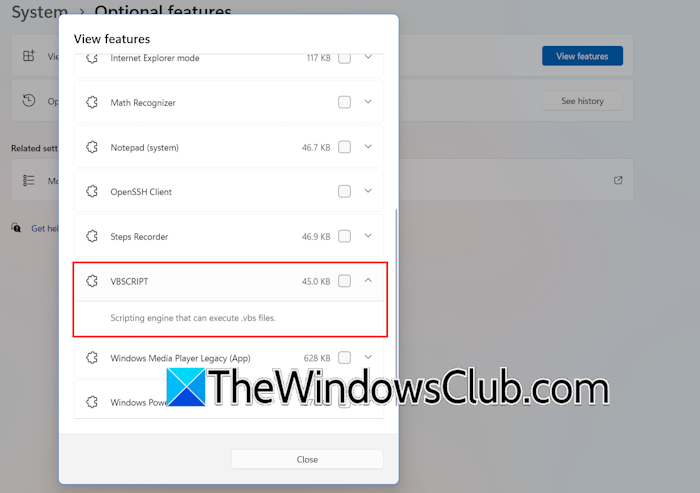
You can view VBScript enabled by default by following the steps below:
- Open Windows 11 Settings.
- Navigate to System > Optional Features.
- Click View Features. Click Yes in the UAC prompt.
You will see a list of installed features. Scroll down to view VBScript. Since VBScript is available as a feature on demand and is enabled by default in phase 1, slmgr.vbs will work normally during this phase.
2] Deprecation phase 2
Around 2027, the VBScript FODs will no longer be enabled by default. If any of your applications and processes rely on VBScript at that time, you need to enable the FODs to prevent them from breaking.
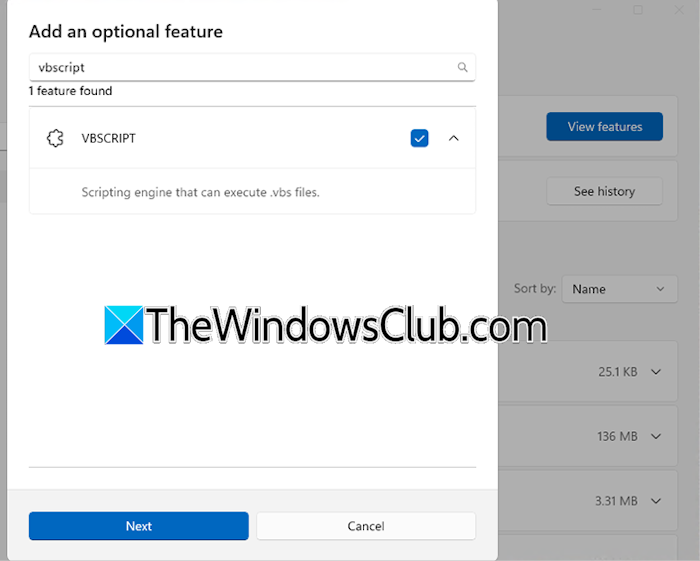
The following steps will guide you on how to enable VBScript FODs manually:
- Open Windows 11 Settings.
- Go to System > Optional Features.
- Click View Features. Click Yes in the UAC prompt.
- Click See available features or Add an optional feature, whichever option is available.
- Type VBScript in the search bar.
- Select VBScript from the search results and click Next. Follow the on-screen prompts to install the VBScript FODs.
3] Deprecation phase 3
This is the final elimination phase, where Microsoft will completely remove VBScript from Windows 11 and Windows Server. Microsoft will also remove all VBScript DLL files. As a result, all your projects that rely on VBScript will stop functioning. That’s why Microsoft recommends switching to the suggested alternatives before VBScript is completely eliminated.
Checking the availability of the PowerShell module before migration
Check the availability of the OSLicense PowerShell module before migrating. The OSLicense module provides commands to retrieve Windows licensing information, configure activation, and manage operating system, Active Directory-based, Key Management Service (KMS), and subscription licensing. Availability differs between Windows Client and Windows Server. Before migrating and updating your production scripts, check whether the target device is running a supported release.
The module requires Windows PowerShell 5.1, Windows 11 August 27, 2026 (KB5120998) update or later. If your system has a Windows 11 build earlier than KB5120998, update it to the latest version. The module is currently not available on Windows Server. Microsoft plans to make it available on Windows Server in the next major update.
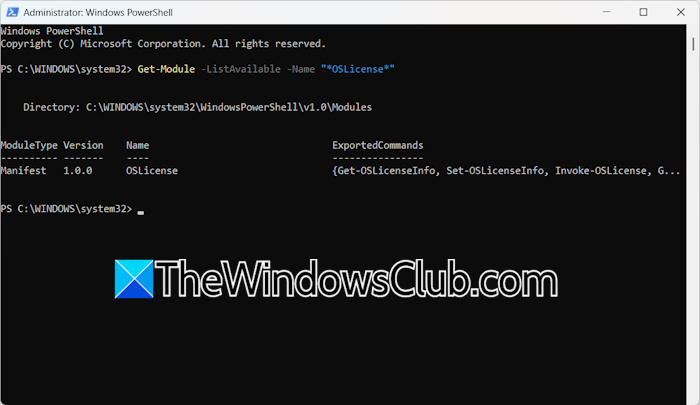
To check whether the module is available on your machine, open Windows PowerShell as an administrator and run the following command:
Get-Module -ListAvailable -Name "*OSLicense*"
If the command produces no output, your system does not have the required Windows build. Open Windows 11 Settings and install the latest update.
How to use the PowerShell OSLicense Module
The following are the OSLicense commands that you can execute in an administrator Windows PowerShell.
- Check activation status, expiry, or grace period –
Get-OSLicenseInfo - Check activation status of all products –
Get-OSLicenseInfo - Activate license online –
Invoke-OSLicense -ActivateOnline - Install a product key –
Invoke-OSLicense -InstallProductKey 'ABCDEF' - Uninstall a product key –
Invoke-OSLicense -UninstallProductKey - Remove the product key from the Windows Registry –
Invoke-OSLicense -ClearProductKeyFromRegistry - Reinstall system licenses –
Invoke-OSLicense -ReinstallSystemLicenses - Reset or extend the activation grace period –
Invoke-OSLicense -Rearm - Configure a specific KMS host –
Set-KmsLicenseInfo -ServerName 'kms01.example.com' -Port 1688 - Get KMS info –
Get-KmsLicenseInfo - Clear KMS server override –
Invoke-KmsLicense -ClearServer - Get offline installation ID –
(Get-OSLicenseInfo).OfflineInstallationId - Offline activation –
Invoke-OSLicense -ActivateOffline <ID> -ConfirmationID <CID>
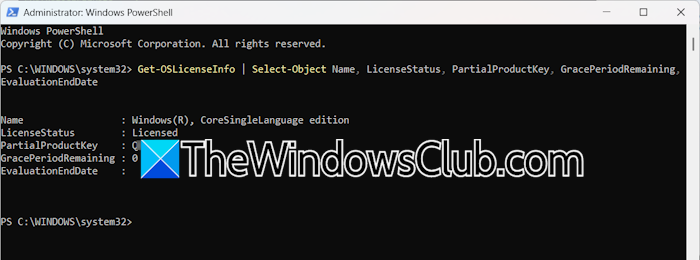
You can use the above commands with the required parameters. For example, to get the primary Windows license status, you can use the Get-OSLicenseInfo command as:
Get-OSLicenseInfo | Select-Object Name, LicenseStatus, PartialProductKey, GracePeriodRemaining, EvaluationEndDate
The above command will show you the license information of the Windows operating system installed on your system.
If you want to review token-based licenses, use the following command:
Get-OSLicenseInfo -TokenBasedLicenses | Sort-Object ExpirationDate | Select-Object ILID, ILvID, AuthorizationStatus, Description, ExpirationDate
The complete information about the OSLicense module is available on Microsoft’s official website.
Is VBScript going away?
Yes, VBScript is going away. Microsoft has officially announced that it will deprecate VBScript in 2027. After 2027, Microsoft will completely remove VBScript from Windows 11 and Windows Server. After its removal, all the applications and services that depend on VBScript will become non-functional. Therefore, users are advised to migrate their applications and services to Windows PowerShell before then.
What is Microsoft retiring in 2026?
In 2026, Microsoft will retire and end support for major products and services. These include Office LTSC 2021 for Mac, Windows Server 2022 Datacenter: Azure Edition, Windows Server 2022, Windows Server 2022 Standard (MSL), Windows Server IoT 2022, Windows 10 IoT Enterprise LTSB 2016, and more. For complete information, visit the official Microsoft website.
Read next: Generate list of Disabled Features in Windows using PowerShell.
